File and Archive Saving
Updated 09.11.2026 3 min read
Your client can save individual files, as well as separate archives with all the files in your gallery.
How to enable file downloads for the client
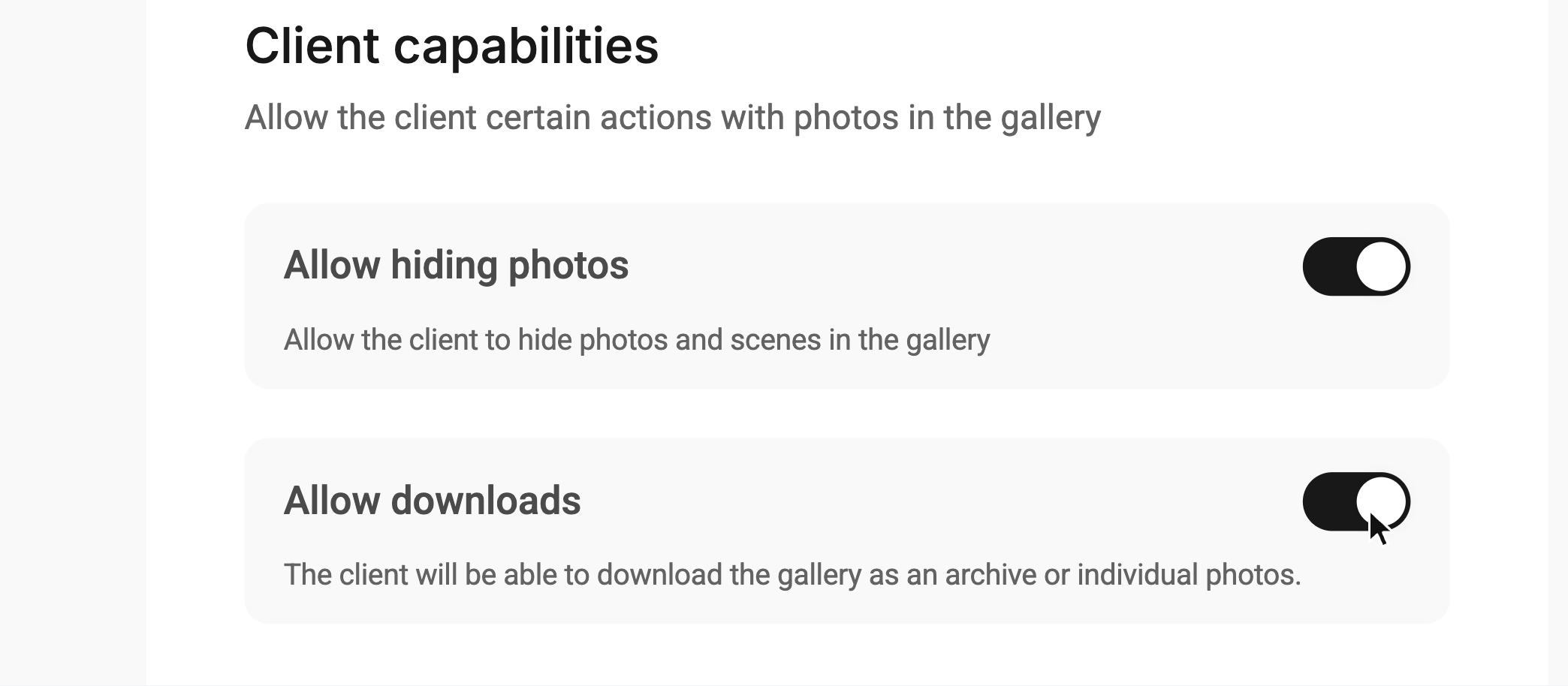
Open the gallery's “Settings” tab, go to the “Access” section, and in the “Client capabilities” block turn on the “Allow downloads” toggle. Changes are saved automatically.
In the same “Access” section, you can also set a date until which the gallery is available to the client — use the “Limit access by time” toggle.
How to save an archive
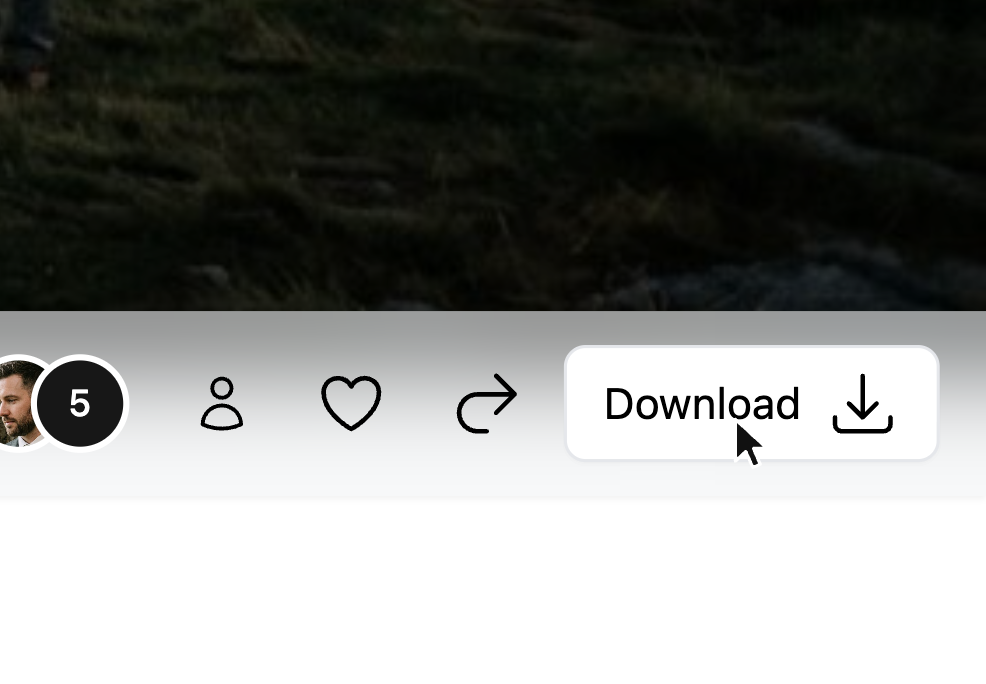
You can save an archive of the files using the “Download” button in the gallery toolbar. The archive download will then start.
The archive is generated “on the fly,” meaning files are added to it one by one. If the download is interrupted, some files may be missing from the archive. For the same reason, browsers sometimes can't show the download percentage or how much has been downloaded so far.
For large galleries, the archive is first prepared on the server. After you click “Download”, the “Downloads” window opens: click “Create new archive”, wait until the archive is ready (the window shows the estimated time), and then click “Download”. A ready archive is available for 24 hours after it is created; after that, it needs to be created again.
Saving on mobile devices
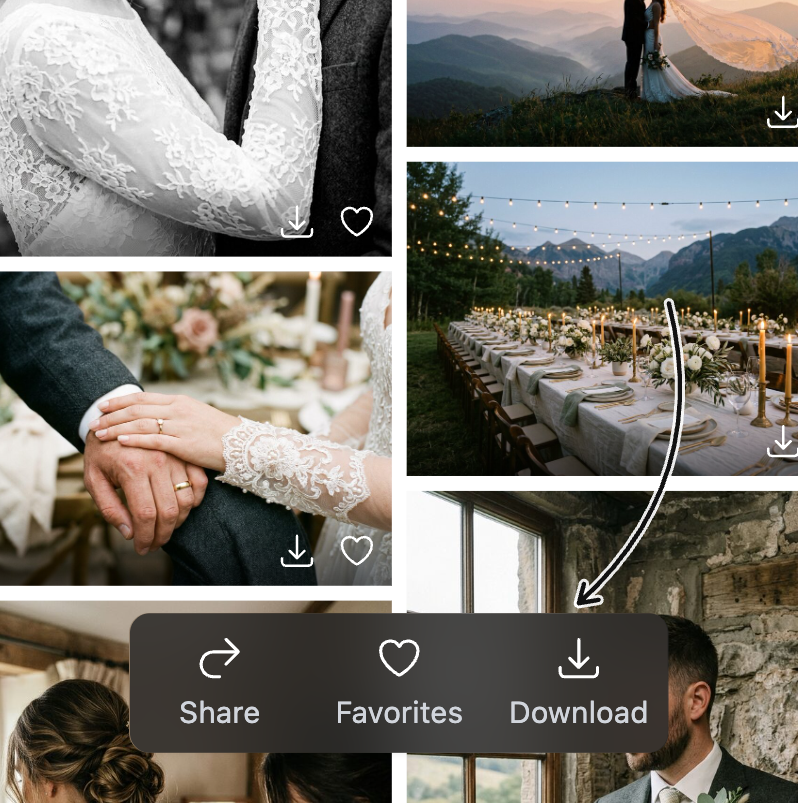
In the mobile version of the gallery, the download button is in the bottom menu, which appears once you scroll down the page a little.
- To unpack an archive on an iOS device, open the “Files” app → “On My iPhone” and tap the archive. It will be unpacked automatically into a new folder with the same name.
- To unpack an archive on Android, open your file manager, find the downloaded archive, and extract it to a folder of your choice.
How to save a file
You can download files one by one in the original quality in which they were uploaded. All images shown in the gallery are compressed to make the page load faster for viewers, so they can't be downloaded.
To download a file, click the download button on it in the file list (it appears when you hover over a photo) or while viewing that file. You can download both videos and photos.
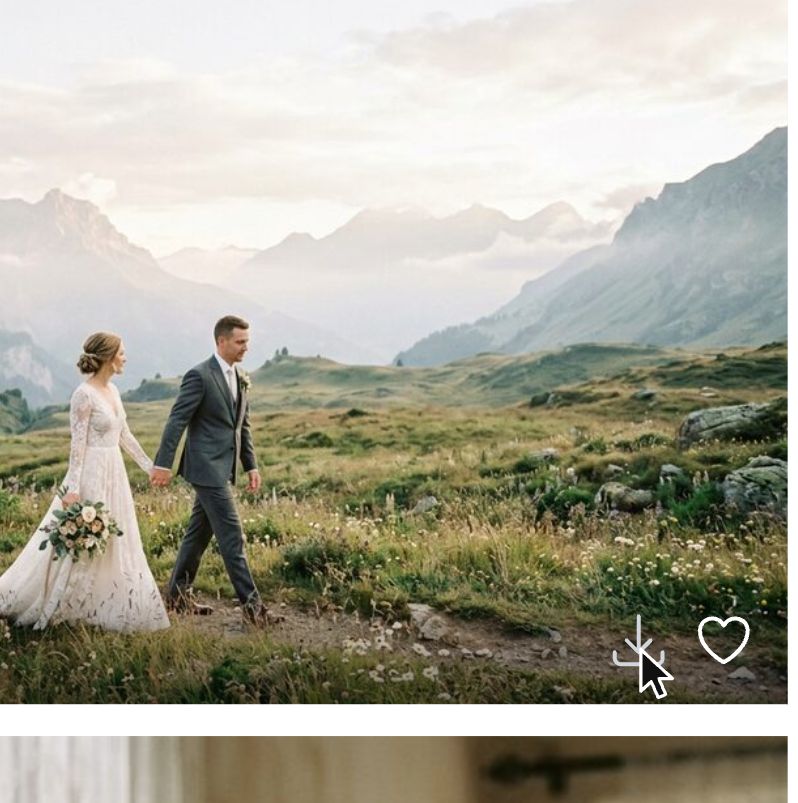
Once you click this button, the file download will start.
Saving on mobile devices
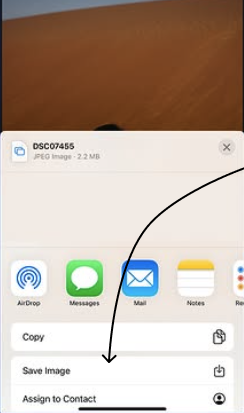
In the mobile version of the gallery, downloading works a little differently. When you tap the download button, the share menu for the file opens, where you can either send it straight to someone, for example via Telegram or other apps, or save it to your photo gallery or to “Files”.
iOS
On iOS devices, tapping the download button opens the share sheet. To save a photo to your photo gallery, tap “Save Image”, as shown in the screenshot below:
Android
Some Android devices save files through the share menu, similar to iOS, but on most devices the file is simply saved to your photos.
We recommend not using in-app browsers, such as the ones in Telegram or Instagram, to save files: they block some features or don't show download progress. It's better to always open the gallery in a separate browser — the gallery will show you a hint about this.