Saving, previewing and publishing
Updated 09.11.2026 5 min read
Every page of your site has two versions:
- the draft — what you see in the editor;
- the published version — what visitors to your site see.
Changes from the editor reach the site only after you publish them.

Save
“Save” saves the page draft. Nothing changes on the site — the editor tells you so: “Draft saved — the live site hasn’t changed yet”.
When there are no unsaved changes, the “Save” button is inactive.
Page content isn't saved automatically. Click “Save” or press ⌘S / Ctrl+S — especially before you close the tab.
The editor also saves the draft on its own when you:
- open another page of the site from the list of pages;
- create a page with “New page”;
- click “Preview” or “Publish”.
If you close the tab with unsaved changes, the browser warns you.
Preview
“Preview” is the button with an eye. It saves the draft and opens the page in a new tab the way visitors will see it after publishing.
- The preview link works for 30 minutes, and search engines don't index it.
- From the preview you can go to other pages of the site — they open as drafts too.
- An auto-playing slider and opening gallery photos full screen work only in the preview and on the site; they're turned off in the editor.
The inquiry form works for real in the preview: a message sent from it appears in “Messages” and reaches you in Telegram.
Publish
“Publish” shows visitors the open page exactly as it looks in the editor — including changes you haven't saved yet. The menu and the footer are published along with the page: they're shared by all pages.
Before publishing, the “Publish to the live site” window opens. It shows what visitors will see:
- the page — including whether the header and footer are shown on it;
- header and footer changes, if there are any: they're shared, so every page gets them;
- a warning if the menu links to pages that aren't published yet. Visitors can't open them, so such menu items are hidden on the site until you publish those pages.
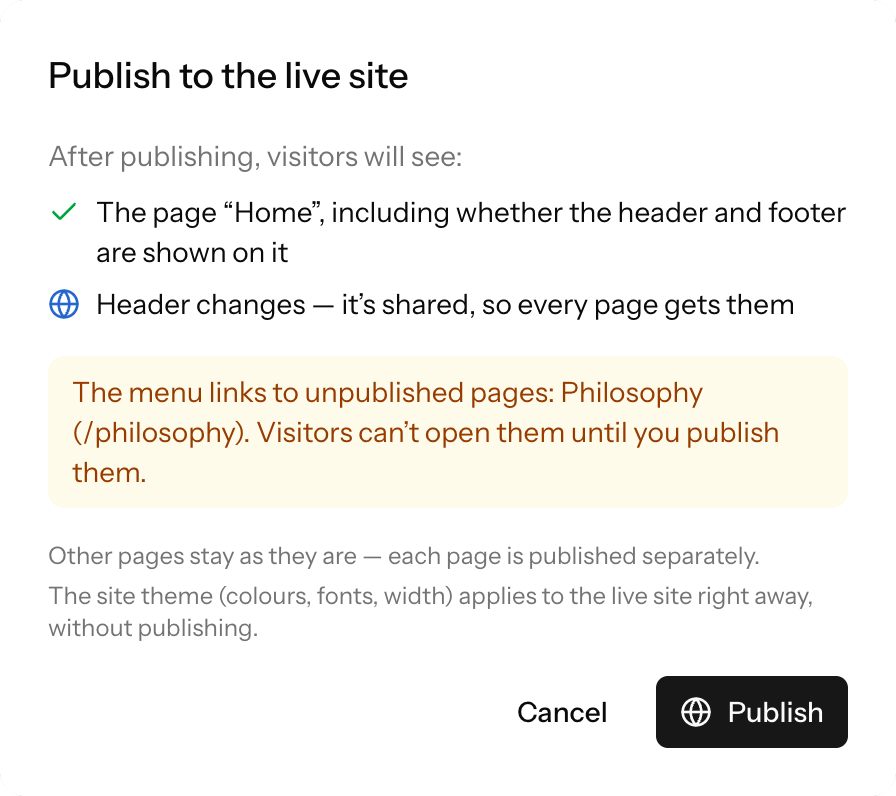
Click “Publish” in the window — the editor confirms: “Published — the changes are live”.
Only the open page is published. If you changed several pages, publish each one.
When the site already matches the editor, the “Publish” button is inactive. A new page that has never been published can always be published.
Page status
The status is shown in the top bar next to the page name:
- “Draft” — the page has never been published, visitors don't see it;
- “Unpublished changes” — the page is published, but the editor has changes the site doesn't have yet: in the page itself, the header or the footer. Click “Publish” so visitors see them;
- “Published” — the site matches the editor.
In your account, pages that have never been published are marked “Draft” in the “Pages” section of the site settings.
If saving or publishing fails
If the internet drops or the server doesn't respond, the editor shows “Couldn’t save — the changes are only in the editor for now” or “Couldn’t publish — the site still shows the previous version” with the reason. Don't close the tab: check your internet and click “Try again”.
The “Changed in another tab” window
If this page, the header or the footer was saved in another tab or window in the meantime, the “Changed in another tab” window appears. Your latest changes weren't saved in that case. Choose:
- “Reload” — open the newer version; changes from this tab are lost;
- “Overwrite” — save your changes over the newer version.
Edit the site in one tab — then changes won't overwrite each other.
The site theme applies right away
Changes in the “Site theme” — colors, fonts, page width — are saved automatically and appear on the site right away. You don't need to publish them. You can't undo them with “Undo” or ⌘Z — to go back, change the value back.
The exception is the “Reset block colors to theme” button in the theme panel. It changes the blocks of the open page, so it goes into the draft like any edit: you can undo it, and it reaches the site after “Publish”. See Site theme.
If changes don't show on the site
Check in turn:
- Look at the page status in the editor. “Unpublished changes” means the site still shows the previous version: click “Publish”. “Save” doesn't publish.
- If you changed several pages — did you publish each one?
- Reload the site page in your browser. If that doesn't help, open it in a private window.
How to take a page off the site
There's no “Unpublish” button yet. If a page shouldn't be available to visitors:
- delete it in your account: site settings → “Pages”. Menu items that lead to it and were picked from the list of pages are hidden on the site automatically;
- or remove it from the menu and turn on “Hide from search engines” in the page settings — then only people with the link can open it.
There's no page version history yet: you can't roll a page back to, say, how it looked yesterday. You can undo recent changes while the editor is open — ⌘Z (Ctrl+Z).