Favorites
Updated 09.11.2026 3 min read
Clients can mark the photos they like in the gallery — this creates a favorites list that is available to them in the gallery and to you on the gallery's “Favorites” tab. You can copy the names of the favorite files to import them into Lightroom Classic or Capture One. Learn more: Import Favorites Photos. In Lightroom Classic, the Gallera plugin can do it for you — no copying names.
Selection settings
Open the gallery, go to the “Settings” tab, and in the “Favorites” section turn on the “Photo selection” toggle — this makes the feature available to your clients. Changes are saved automatically.
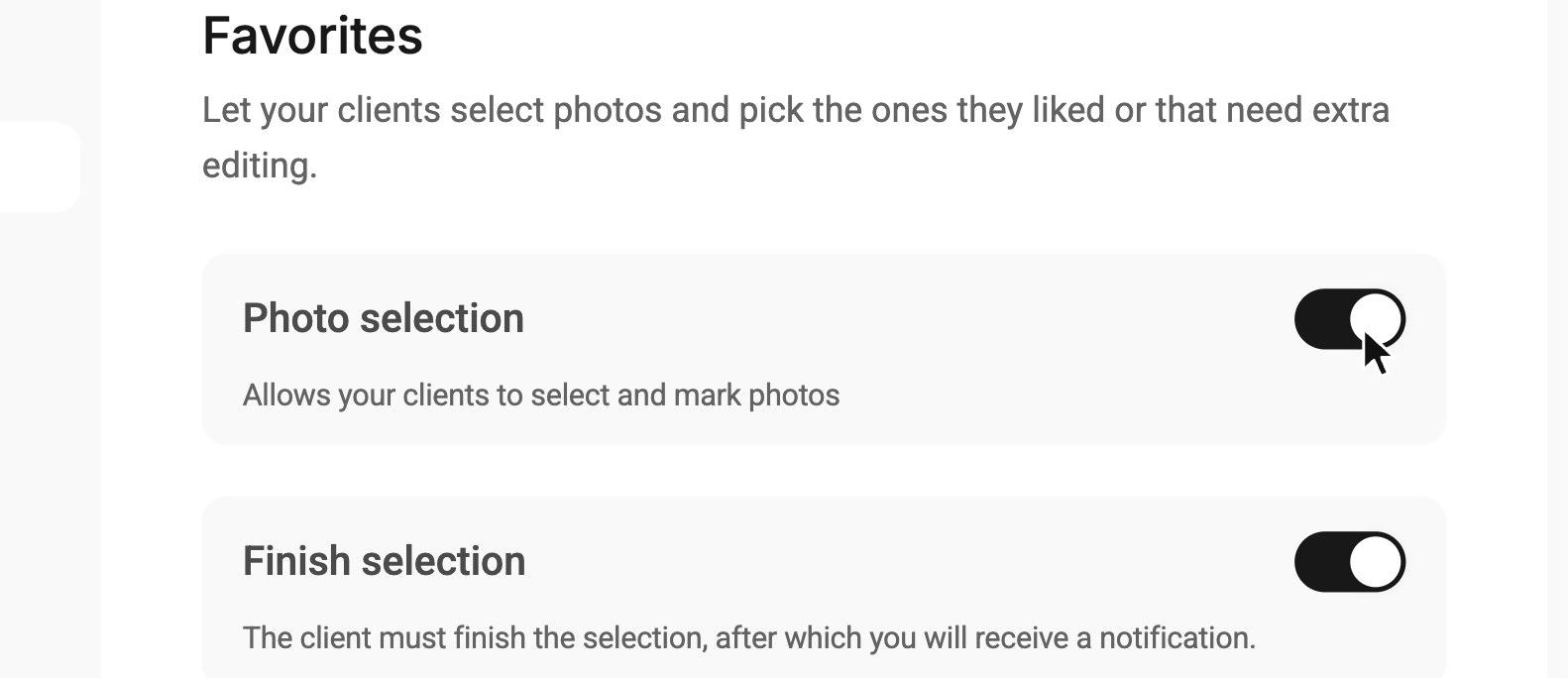
You'll find the favorites lists your clients create on the “Favorites” tab in the gallery header — the number of lists is shown next to the tab name. This tab appears only when “Photo selection” is turned on.
Limiting the number of favorite files
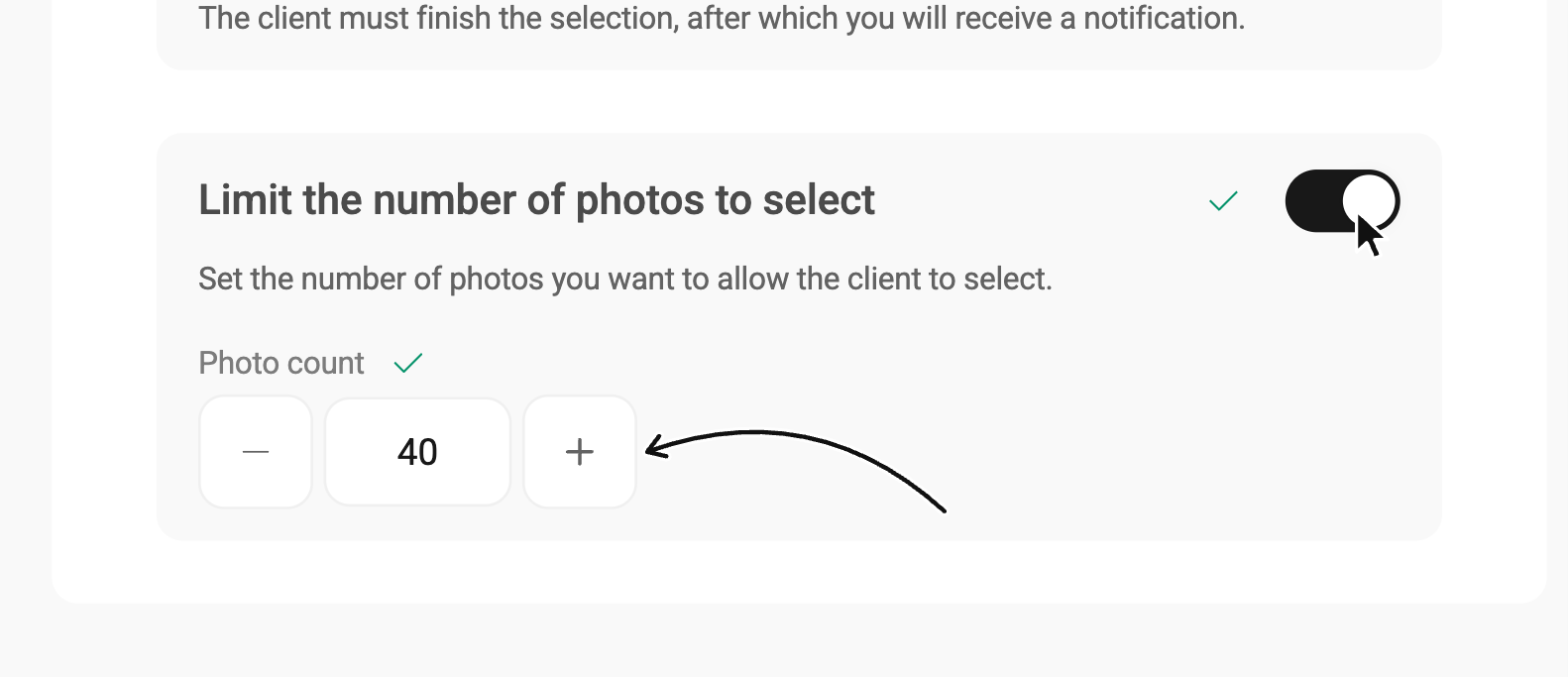
Turn on the “Limit the number of photos to select” toggle — a “Photo count” field appears where you can set how many photos the client can choose: type a number or change it with the − and + buttons. This number can't be greater than the total number of files in the gallery.
Finishing the selection
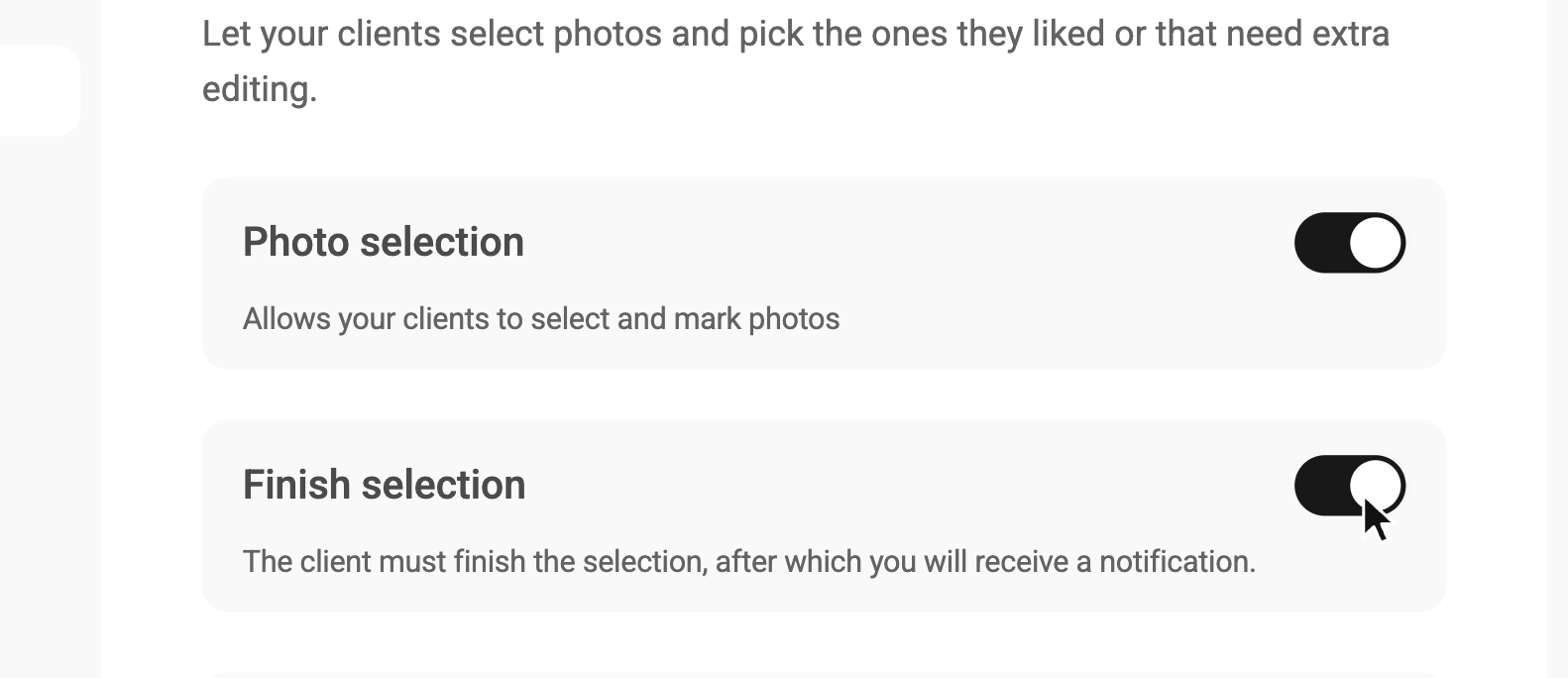
You can let your clients finish their selection with the “Finish selection” toggle. Clients selecting photos will then need to finish their selection; after that, you'll receive an email notification with a link to the finished selection.
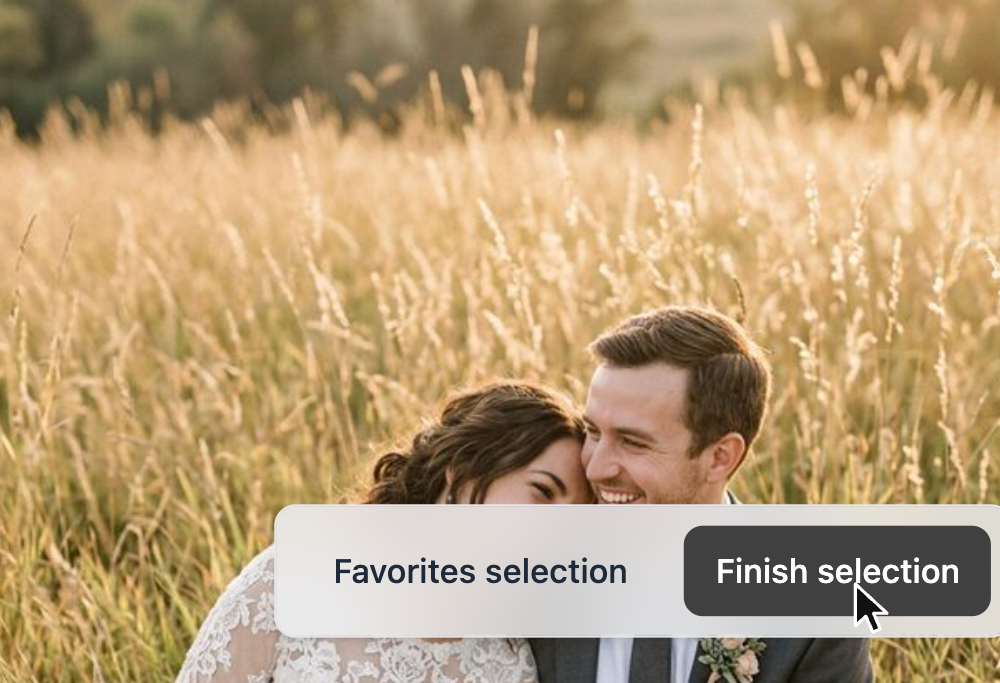
In the gallery, the client will see a “Favorites selection” panel with a “Finish selection” button. After finishing, they can still pick more photos or remove ones they've already chosen, but they'll be prompted to finish the selection again, and you'll get another notification.
On the “Favorites” tab, lists with a finished selection are marked with a “Finished” label.
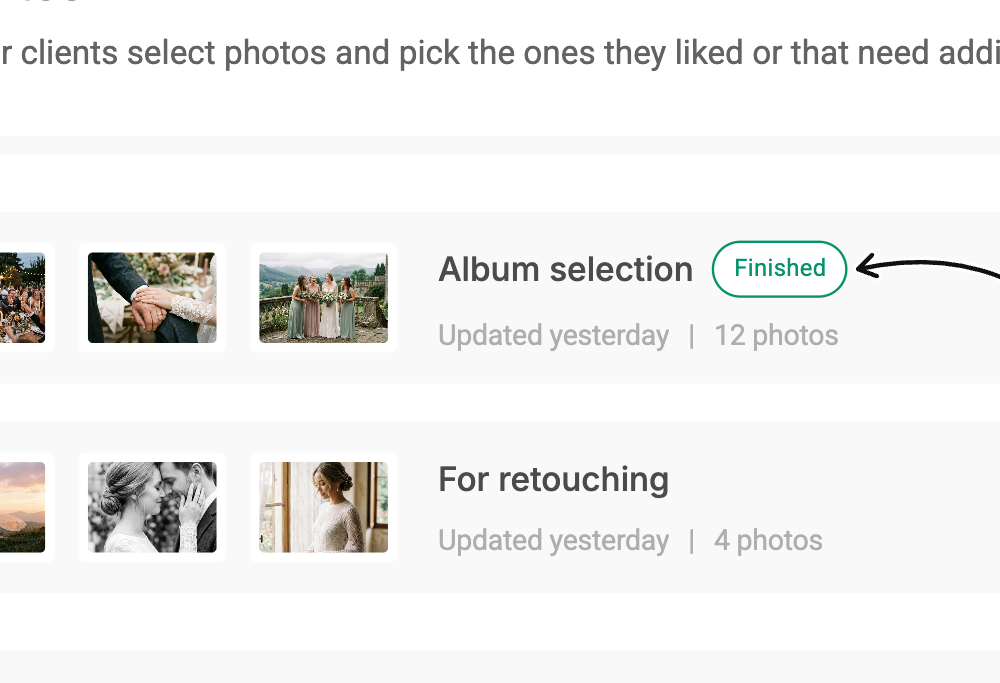
You can delete a list you no longer need with the trash can button in its row.
What it looks like for the client
When a user opens your gallery and clicks 🤍, they're asked to enter a name for their favorites list — or they can keep the default "Favorites" — and click “Start selecting”. After that, every photo they mark is added to this list.
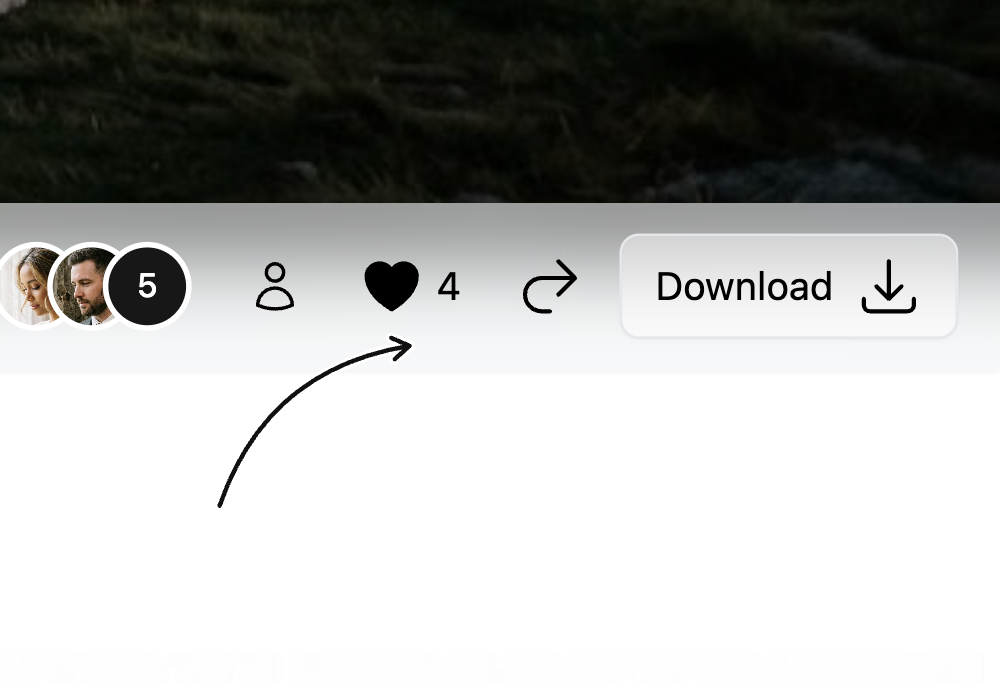
Once the favorites list is created, the user sees a filled heart icon in the gallery toolbar with the number of photos in the list next to it. Clicking this button opens the list of favorite files in the current gallery.
The client can save this link or send it to anyone to share this particular favorites list.
If you've enabled finishing the selection for the client, you'll receive a notification when they finish their selection with the corresponding button.
Once a client has created a favorites list, the list is "saved" in their browser. If they open the gallery on another device or in another browser, the corresponding button won't be shown. That's why the list can only be edited in the browser where it was created.
Downloading favorites as an archive
You or your client can download the favorites list separately as a single archive: open the list via its link and click the “Download” button — an archive containing only the files from the list will start downloading.