Import Favorites Photos
Updated 20.10.2026 3 min read
Our service lets your clients pick their favorite photos using likes. This makes the selection process much easier: you get a list of selected images that is easy to import into Lightroom Classic and Capture One.
Learn more about favorites here: Favorites
For Lightroom Classic there's an easier way: the Gallera plugin finds the favorite photos in your catalog and puts them into a collection — no copying names.
Make sure there are no spaces in file names. This is important for the lists to work correctly. If a file is named "PHOTO_00 1", the app's search will select all files with "1" in the file name
Lightroom Classic
Open the gallery and go to the “Favorites” tab. In the row of the list you need, click the Lr button (“Copy file names for Lightroom”) — the file names are copied, and a window with a hint appears.
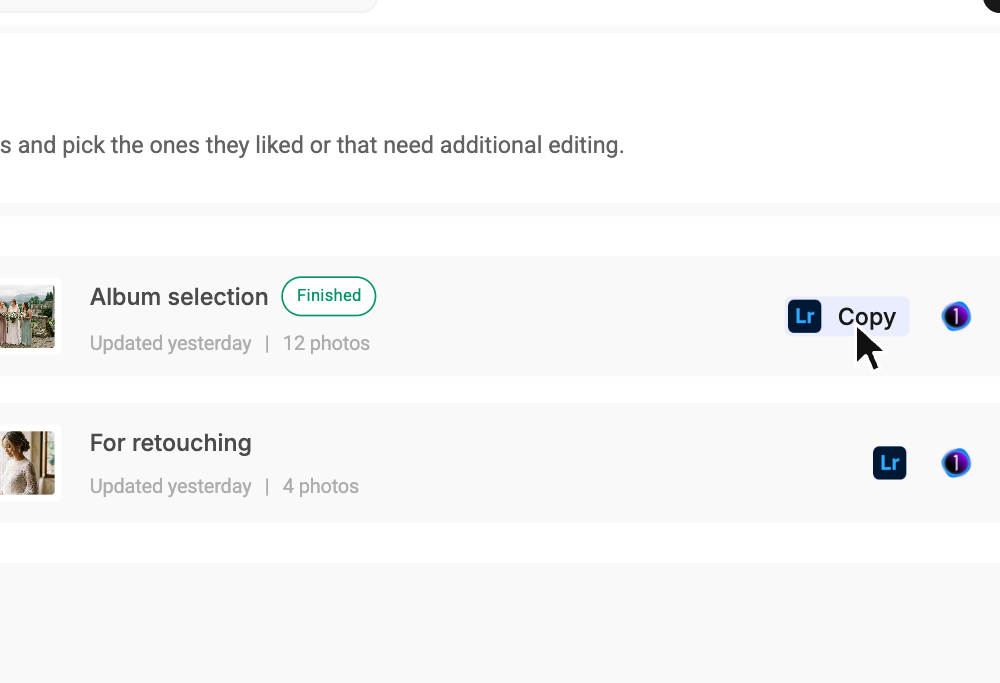
Finding the photos in Lightroom Classic:
- Open Lightroom Classic and go to the Library tab
- In the Library Filter bar, choose Text
- In the first drop-down menu, choose Filename
- In the second one, choose Contains
- Paste the list of photo numbers copied from Gallera into the search field.
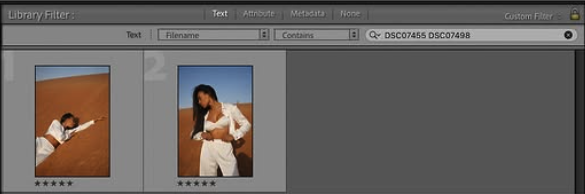
Lightroom will find and display all the files from the list.
To make further work easier, you can create a collection:
- Select all the photos found —
Ctrl + A(Windows) orCMD + A(Mac) - Right-click and choose Add to Quick Collection
Now all the files you need are in one place — you can start editing.
To avoid search problems, make sure all files imported into your Lightroom catalog have the same names as the original files in the gallery.
Capture One
Open the gallery and go to the “Favorites” tab. In the row of the list you need, click the Capture One button (“Copy file names for Capture One”) — the file names are copied.
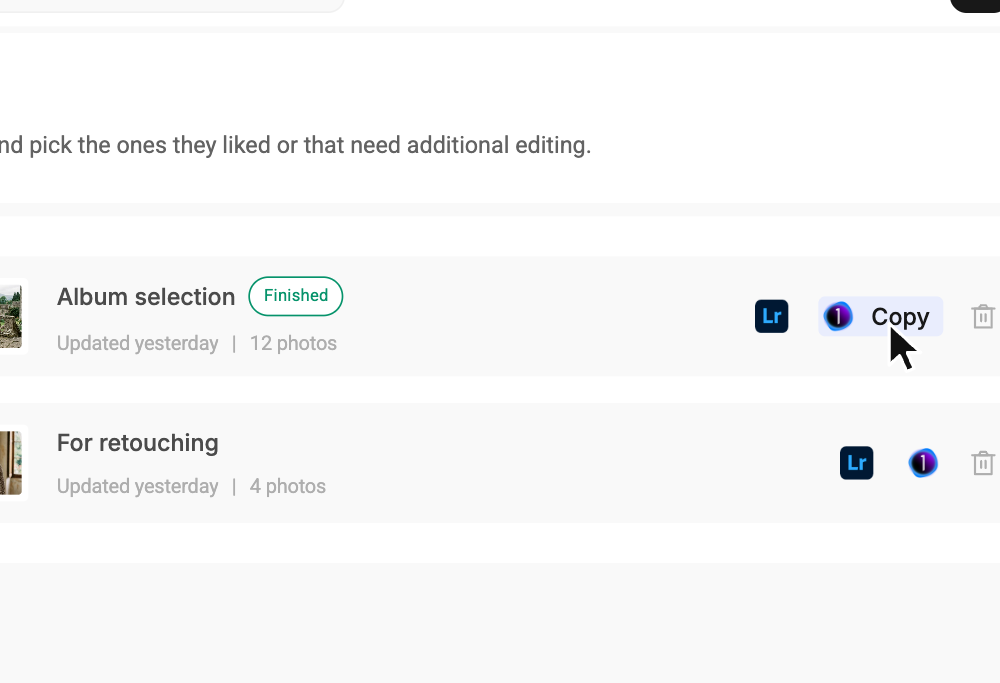
Finding the photos in Capture One:
- Open Capture One and go to the Filters section
- Select the Search field
- Paste the list of photo numbers copied from Gallera into this field
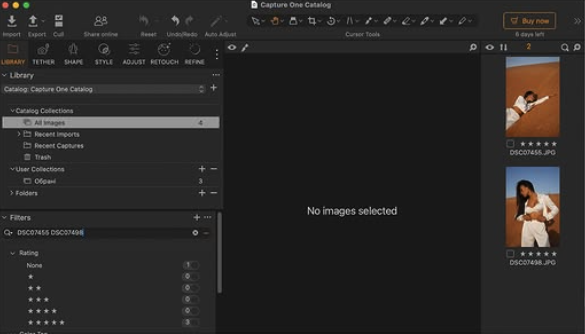
Capture One will find and display all the files from the list.
To make further work easier, you can create an album:
- Go to the Library tab
- Right-click User Collections > New Album
- Name the album, for example, "Favorites for retouching"
- Select the photos found —
Ctrl + A(Windows) orCMD + A(Mac) - Drag them into the album you just created.
To avoid search problems, make sure all files imported into your Capture One catalog have the same names as the original files in the gallery.