How to Add Prices
Updated 20.10.2026 3 min read
The Prices section of your profile lets you present your service packages to clients (for example, “Basic”, “Standard”, “Premium”). A clear, easy-to-understand price list helps clients decide to book faster.
Important: Prices appear on your public profile page only after you add at least one service. If the list is empty, the prices block simply isn’t shown.
If you like, you can rename the “Prices” block to anything else: use the “Prices block title” field on the “General” tab of your profile.
1. Creating a new service
To add a new service to your price list:
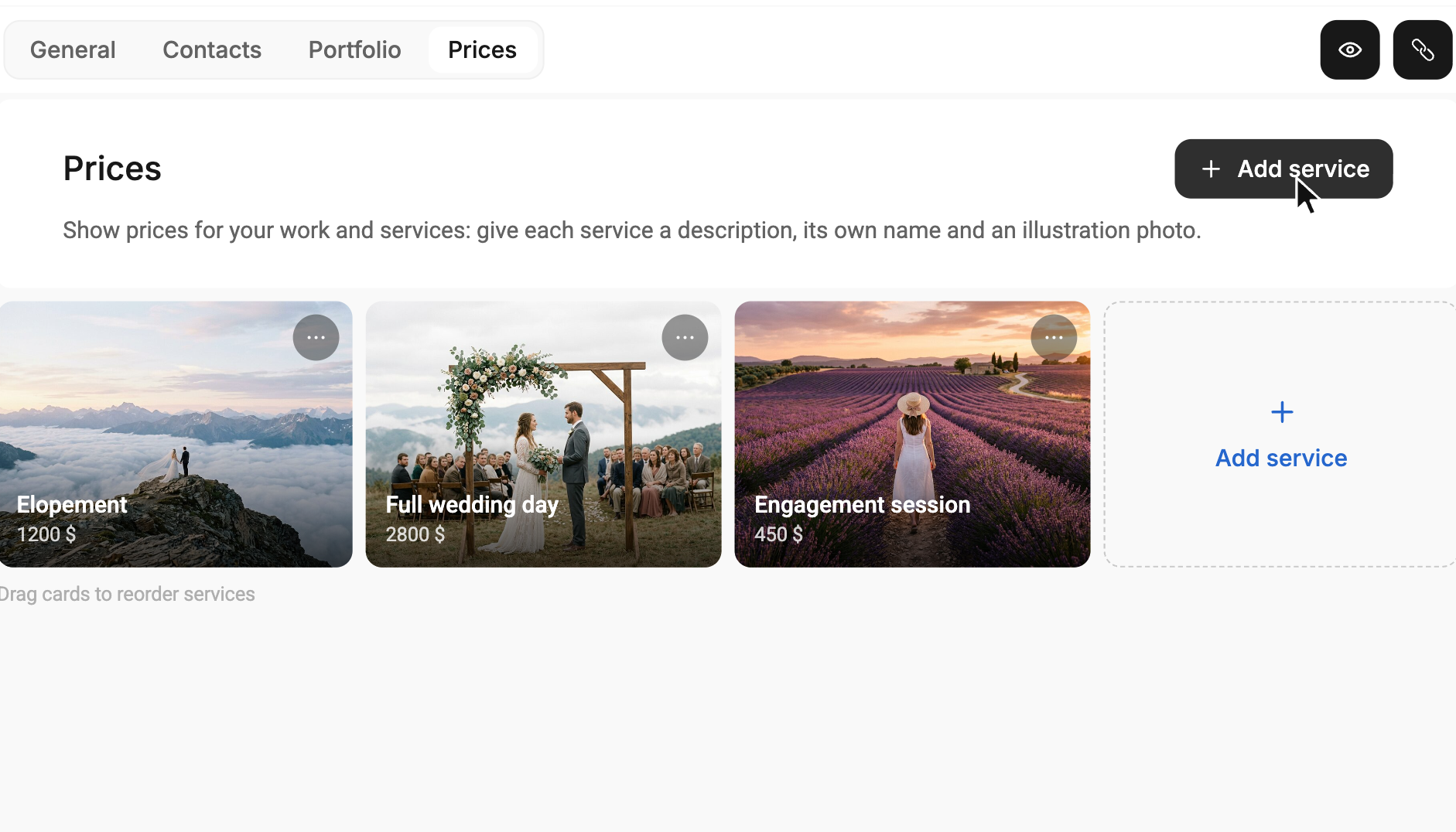
- Open My profile in the left menu and go to the Prices tab.
- Click + Add service — in the top-right corner or on the last card with the “+” sign.
- A window opens where you fill in the service details.
2. Filling in the service details
Each service has a few key settings:
- Service name: for example, “Standard Package” or “Individual Shoot”.
- Price and currency: Enter the price as a number and choose the currency from the dropdown list (₴, $, €, and zł are available).
- Cover: An image that represents this service. Click the upload area to choose a file, or drag a photo onto it. A good cover draws more attention!
- Description: Use the handy text editor to list exactly what’s included in this service (for example, shoot length, number of edited photos, delivery time, and so on). Use bulleted lists to make it easier to read.
Once you’ve filled in all the details, click the blue Save button at the bottom of the window.
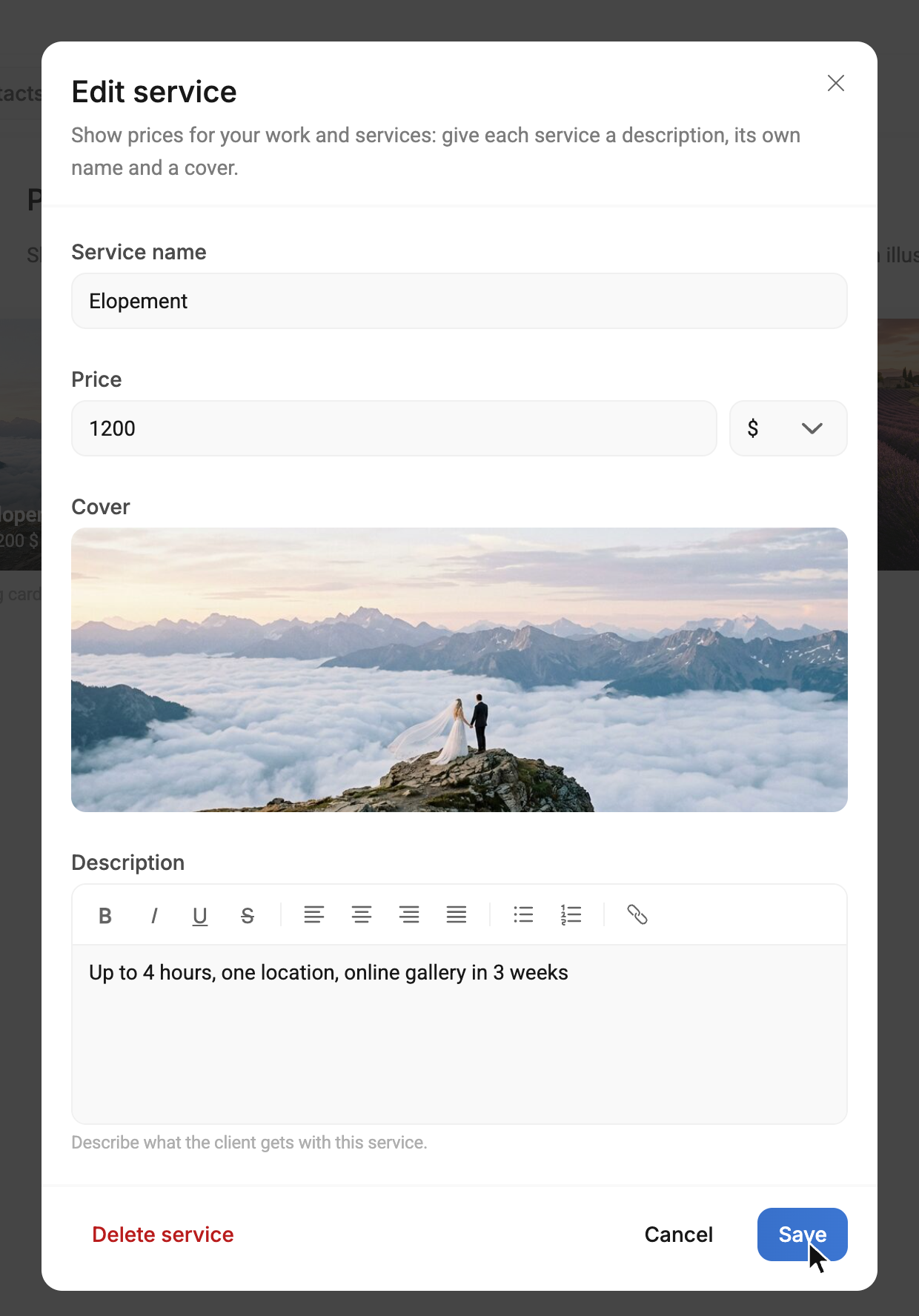
To edit a service later, click its card — the same window opens.
3. Managing your price list
If you have several services (say, 3 or 4), you can choose how they appear on your public page.
- Sorting: Drag a service card to the spot you want. This way, you can arrange prices from lowest to highest or the other way around. Order changes are saved automatically.
- Deleting: To delete a service, open it and click “Delete service” (or choose “Delete” in the “⋯” menu on the card). Once you confirm, the service is removed from your profile and its cover is deleted.
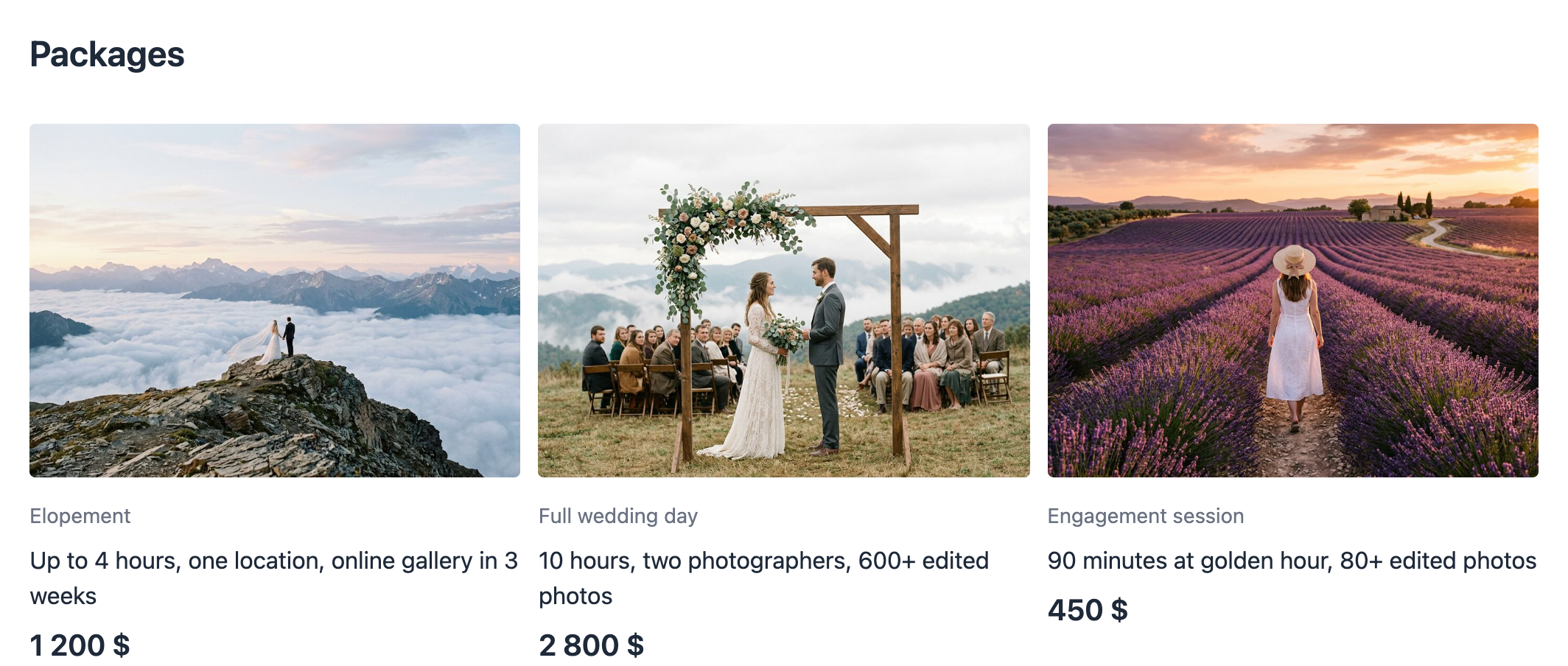
How does it look to clients?
Go to your public page (the eye button, “Preview profile”, in the top-right corner). Your services line up in stylish blocks where clients can compare them and make a choice.