Menu and footer
Updated 09.11.2026 4 min read
The menu (the “Navigation menu” block) and the footer are shared by all pages of the site: change them on one page and they change on every page. In the editor these blocks are marked “On all pages”.
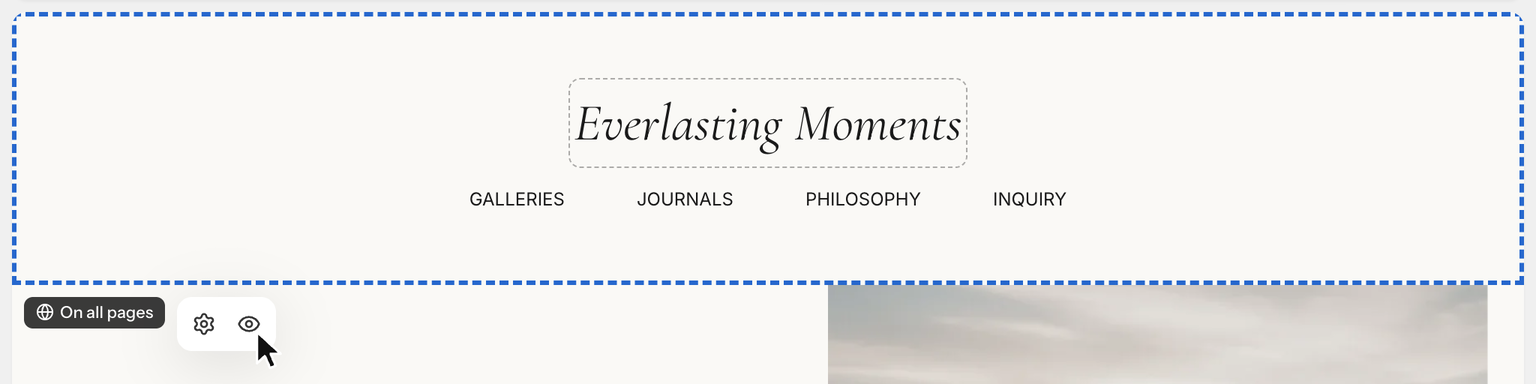
Changes to the menu and the footer reach the site along with any page: click “Publish” on the page you're working on.
Menu items
- Hover over the menu and click the gear — a panel opens on the right.
- Go to the “Content” tab.
- Edit the “Menu items” list:
- “Add item” — a new item;
- name and link — click an item to expand it. For the link, click the chain icon to choose a page of your site or a section on it, or type an address:
/aboutor a link to another site. If you type an address withouthttps://, such asexample.com, the editor adds it for you; - order — drag an item by its ⋮⋮ handle up or down;
- “Add sub-item” in an expanded item — the item becomes a dropdown menu.
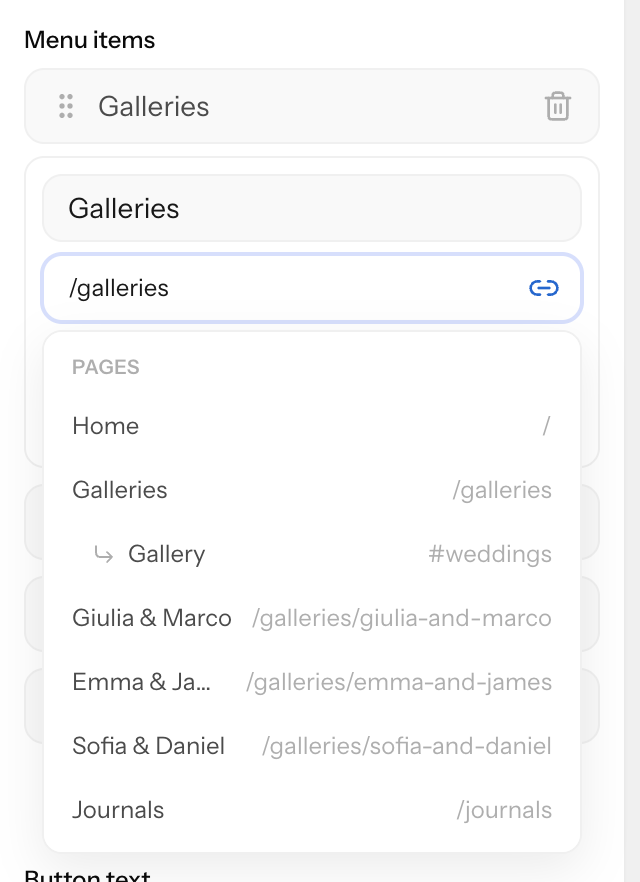
A new page doesn't appear in the menu by itself, and an item's name doesn't change when you rename the page. Add items and change their names by hand.
Links picked from the list of pages are tied to the page itself:
- if you change the page's address, the menu item leads to the new address;
- items that lead to a deleted or not yet published page are hidden on the site. In the editor, a link to a deleted page shows “Page deleted” — choose another page or remove the item.
Links typed by hand don't update like this — fix them yourself after you change a page's address.
Links to a section of a page
A menu item or a button can lead not just to a page, but straight to a specific block, such as your prices. To do this, give the block an anchor. In the list under the chain icon, sections with anchors are shown under their page — pick the one you need. You can also type the address by hand: #pricing for a section on the same page, /prices#pricing for one on another page.
Logo and button in the menu
On the same “Content” tab:
- “Logo (image)” — shown instead of the site name in text. A PNG with a transparent background works best; SVG isn't supported yet.
- “Button text” and “Button link” — a button on the right side of the menu, such as “Check availability” linking to your contact page. If the button text is empty, there's no button.
How the menu looks is set on the “Settings” tab:
- the layout of the logo and items;
- “Stick to top on scroll”;
- “Transparent navigation” — the menu over the photo of the first block. It works when the first block of the page has a photo: a banner, slider, image or gallery. On pages where the first block has no photo, the menu is regular — with the colors from “Color when not transparent” and “Background when not transparent”;
- how the menu button looks on phones.
How to hide the menu or footer on a single page
Hover over the menu or footer and click the eye — “Hide on this page”. This is handy for a separate landing page, for example. To bring it back, click the eye again — “Show on this page”.
This is a regular page edit: “Save” saves it, ⌘Z (Ctrl+Z) undoes it, and it reaches the site after “Publish”. See Saving, previewing and publishing.
Footer
The footer works the same way: hover over it, click the gear and open the “Content” tab. It has links and social networks. Click a social network to choose the platform and enter the address, or click “Add social network”. Edit the footer texts — name, short description and copyright — right on the page.
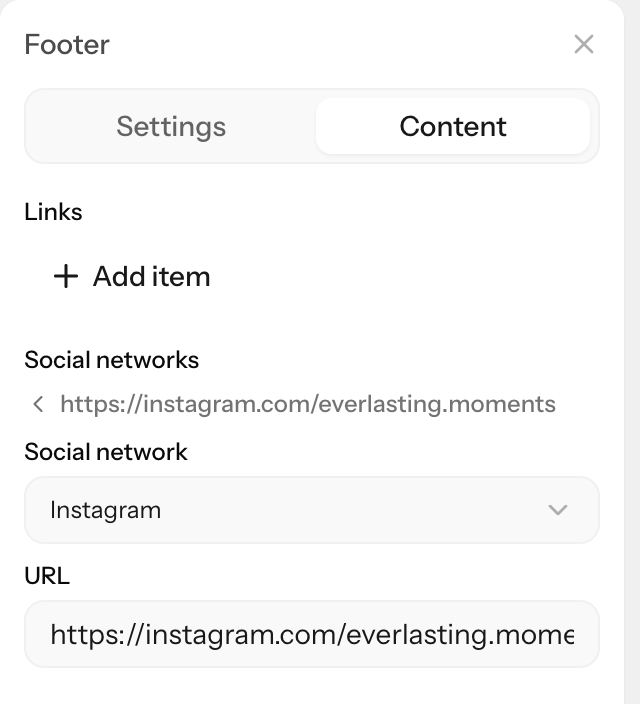
In a social network field you can enter a nickname — @olenaphoto or olenaphoto — or a profile link: https://instagram.com/olenaphoto or just instagram.com/olenaphoto. A nickname leads to the profile on the chosen network. If the value isn't recognised, a hint appears under the field, and the icon won't link anywhere.
If there's no menu or footer
If your site has no menu or footer, the editor shows the “Add navigation” and “Add footer” buttons in their place.