Frequently Asked Questions
Updated 09.11.2026 6 min read
Is it possible to recover files?
If you followed a link to a gallery but saw a message that the gallery doesn't exist or its access period has ended, the gallery author may have limited access to the gallery without deleting it. In this case, contact the gallery author (or whoever sent it to you) directly and ask them to extend access.
If the gallery was deleted, its author can restore it within 7 days from the “Deleted” list in the “Galleries” section. If the gallery was deleted from there (or 7 days have passed), or the files in it were deleted from the “Deleted” section, such a gallery and its files can't be recovered, because they are physically deleted. Before permanent deletion, the dashboard warns that the action is irreversible and the files can't be recovered.
Unfortunately, once files are deleted from our service, we physically can't recover them. The only option is to contact the gallery author.
Are other languages supported?
Yes, you can choose the gallery language on the “Settings” tab → “General”, in the “View language” field:
- 🇬🇧 English
- 🇩🇪 German
- 🇫🇷 French
- 🇪🇸 Spanish
- 🇮🇹 Italian
- 🇵🇱 Polish
- 🇨🇿 Czech
- 🇺🇦 Ukrainian
All system labels and hints will then be shown in the language you choose. We plan to add more languages in the future, based on our clients' requests.
Can I upload photos in RAW format?
Yes, our service supports uploading photos in RAW format, but they will be displayed at a reduced size, since they are hard to display on web pages. You can upload the original RAW photos, and your client will be able to download them in full size.
Keep in mind that we convert such files to JPEG so clients can preview them in the browser. The brightness of the converted file may differ from the original.
A file has been “Processing” for a long time. What should I do?
If a file stays in the “Processing file” status for a long time, it may be because the file is large or our servers are under heavy load. If you haven't received any error message, just wait a little. If you did get an error message, or the file hasn't appeared in the gallery within 10 minutes, write to our support team and we'll look into the cause.
If files stay in this status even longer, don't delete and re-upload them: if the service is simply under heavy load, your photos will go to the end of the queue and you'll only have to wait longer.
How to find deleted files?
If you accidentally deleted a file from the gallery, you can restore it within 7 days of deletion. To do this, on the gallery's “Files” tab, click “Deleted” next to “All files” (the button appears when the gallery has deleted files). Select the files you need and click “Restore selected”, or choose “Restore” in the file's menu.
After 7 days, deleted files are permanently and physically deleted, and they can't be restored.
When are files deleted, and can they be restored
Files are deleted from the gallery if you deleted them manually, or if your subscription wasn't renewed on time. If the subscription isn't renewed, you move to the free 3 GB, and the files that don't fit into it will be deleted 10 days after the subscription ends, starting with the oldest galleries. On days 3, 6 and 9 we'll remind you by email and give you the exact deletion date. Learn more in the Subscription article.
Files you deleted manually can be restored within 7 days of deletion in the “Deleted” section on the gallery's “Files” tab. Files deleted because of an unpaid subscription don't go to “Deleted”.
After 7 days, deleted files are permanently and physically deleted, and they can't be restored.
How to select multiple files?
On the “Files” tab, just click files — each click adds a file to the selection (clicking again removes it). To select several files in a row, click the first one, hold the Shift key, and click the last one — all files between them will be selected.
You can also select files with a selection box: hold Ctrl (Cmd on Mac) and drag the mouse across the file list.
To select all files, press Ctrl (Cmd on Mac) + A.
To quickly clear the selection, press the ESC key or click the cross on the “Selected” panel.
How long are photos stored?
Photos are stored for as long as you pay for your subscription on time, or as long as it renews without errors. Otherwise, the photos that don't fit into the free 3 GB will be deleted 10 days after the subscription ends. You'll receive email notifications about subscription renewal, a failed renewal, or the deletion of photos from storage.
You can also hide a gallery from the client by setting an availability date: “Settings” tab → “Access” → “Limit access by time”. In this case, the gallery won't be deleted, but while viewing it the client will see that it is only available until a certain date. After that date, the gallery will no longer be available to the client, but the author can still restore access.
Photos are saved in poor quality. What should I do?
When saved correctly, you get the original photos in their true quality. If the quality is different, you saved a preview photo — all previews are compressed to make your gallery load faster.
To save photos correctly, follow the instructions in this section.
Photos in the gallery look different in color from the originals. How can I fix this?
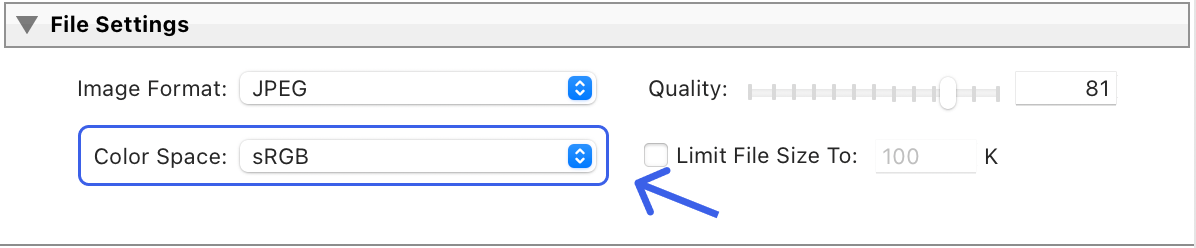
When saving the photos in your editing app, you chose an image profile that isn't suitable for correct display on web pages. When editing and saving photos, we recommend choosing the sRGB profile.
What photo formats are supported?
Our service supports uploading and displaying photos in most common formats, such as:
- JPEG
- PNG
- GIF
- BMP
- WEBP
- HEIC / HEIF
as well as RAW formats:
- CR2
- CR3
- ARW
- NEF
- RAF
- NRW
- DNG
The maximum size of a single photo is 100 MB.
Some RAW files have specific settings or parameters that make them harder to process, and an error may occur. If such files stay in the “Processing” status for a long time (about an hour), write to us so we can take these parameters into account and help you.
How to make galleries public to everyone?
Anyone who has the link to a gallery can view it. To restrict access, turn on “Password access” on the “Settings” tab → “Access” — viewers will then need to enter a password. To show your work to new clients, add galleries to your profile portfolio: How to Add a Portfolio.
Galleries that you add, for example, to your profile become accessible via a link from the profile, even if they have access restrictions.
How to pin a gallery in the list?
In the gallery list, hover over a gallery card — a “Pin” icon will appear. Pinned galleries are shown at the top of the list. To unpin a gallery, click the pin again.