Messages by email
Updated 22.10.2026 2 min read
For every new message from your site, Gallera sends an email to you. It's on by default — there's nothing to set up.
Where emails go
By default, to the email address of your Gallera account. If you change your account email, emails start going to the new address.
To set another address or turn emails off:
- In your account, open the site settings → “Messages”.
- Click the “Email” button in the top right corner.
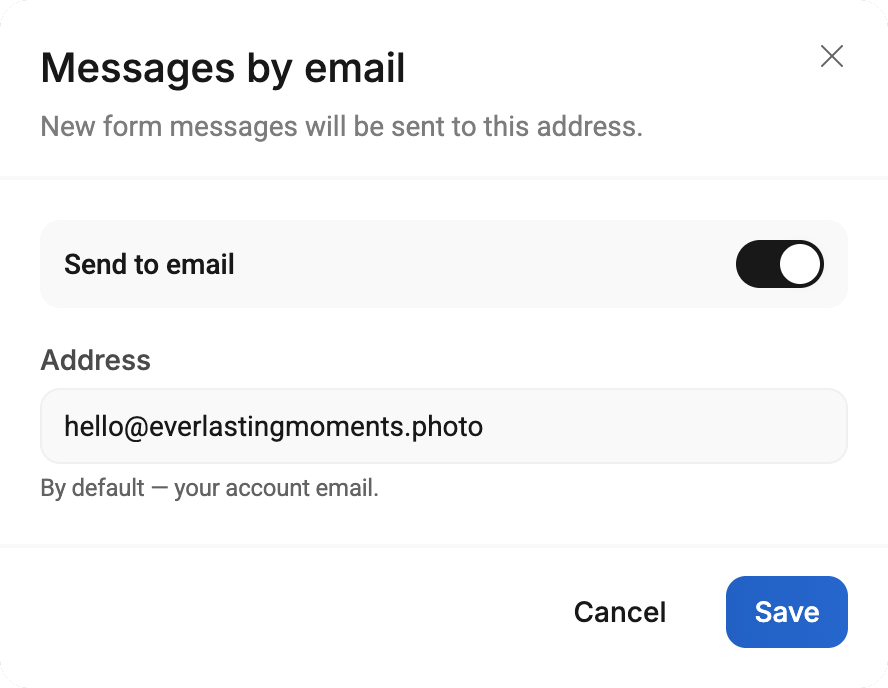
- In the “Messages by email” window:
- “Send to email” — turns emails on and off;
- “Address” — the email address that receives messages. To go back to your account email, clear the field.
- Click “Save”.
Emails go to one address. If several people should receive messages, connect Telegram: you can connect several chats there.
What's in the email
- the subject — “New request from “Site name””;
- all filled-in fields of the message;
- an “Open messages” button that leads to the “Messages” section in your account.
The email comes in the language of your Gallera account, usually within a few seconds after the form is sent.
If an email doesn't arrive
- Check the “Spam” and “Promotions” folders in your mailbox.
- Check in your account that “Send to email” is on and the address is correct.
- Look at the “Email” button in the “Messages” section: a red dot means the last email couldn't be delivered. The reason is shown in the “Messages by email” window and on the message itself.
The message is still saved in the “Messages” section, even if the email didn't arrive. Learn more in Messages don't arrive or you get spam.