Lightroom Classic plugin: installing and connecting
Updated 08.11.2026 4 min read
The Gallera plugin connects Lightroom Classic to your galleries. With it you can:
- upload photos from Lightroom straight to a gallery — an existing or a new one, to all photos or to a scene. Step by step: Uploading photos from Lightroom Classic to a gallery;
- turn a client's favorites into a Lightroom collection in one click, without copying file names. Step by step: Client favorites as a Lightroom Classic collection.
You'll need Lightroom Classic 10 or newer and a Gallera account.
1. Download the plugin
- Download the plugin archive from gallera.io/lightroom and unzip it.
- Move the
gallera.lrpluginfolder to a place where it will stay, for example your Documents folder.
Lightroom doesn't copy the plugin — it remembers where the folder is. If you later move or delete the folder (for example, when cleaning up Downloads), the plugin stops working.
2. Add the plugin to Lightroom
- In Lightroom Classic, open File › Plug-in Manager….
- Click Add in the bottom left and choose the
gallera.lrpluginfolder. - Gallera appears in the plug-in list with a green mark — the plugin is installed and enabled.
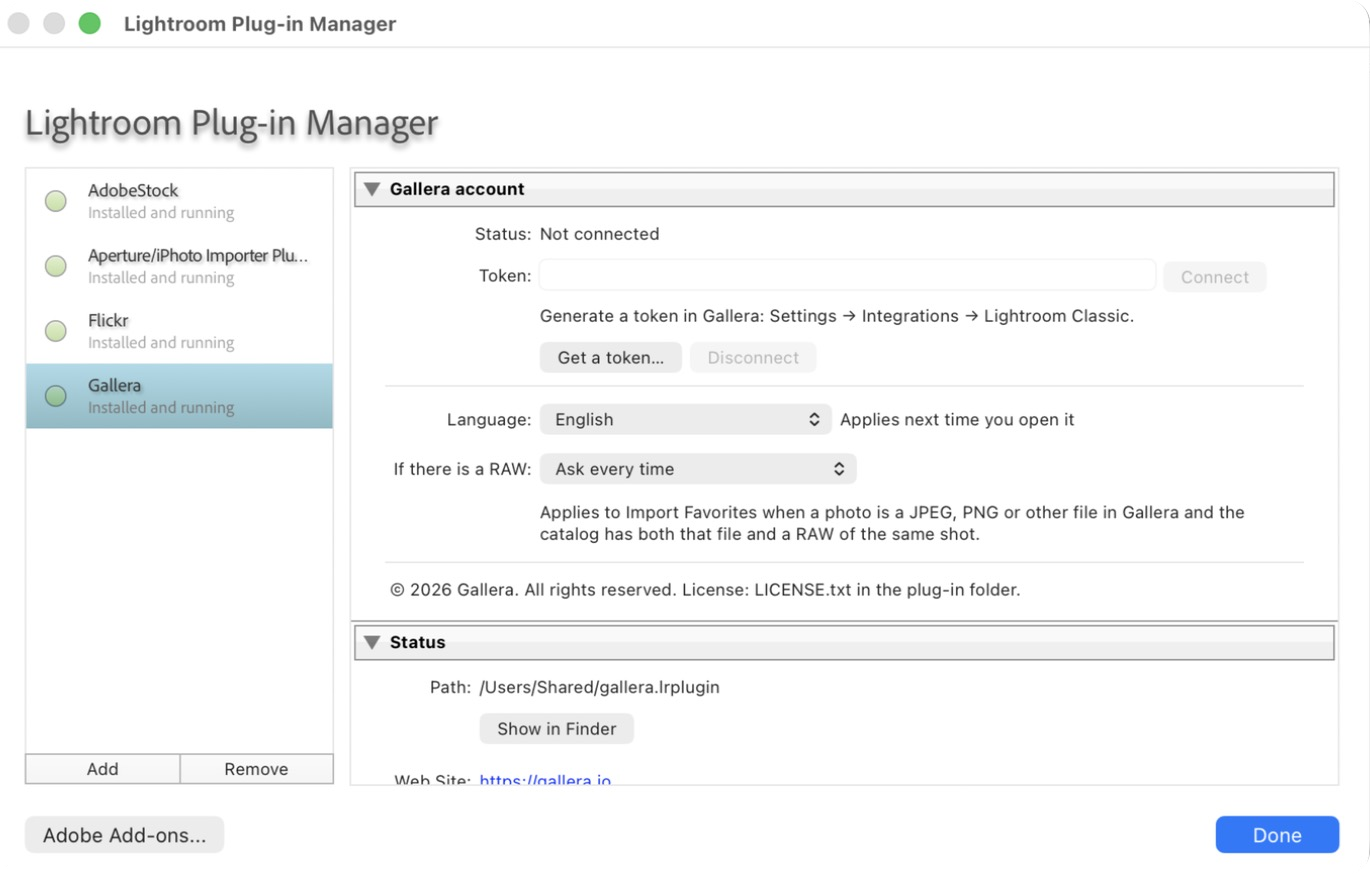
Keep the window open: this is also where you connect the plugin to your account.
3. Connect your Gallera account
The plugin signs in to your account with a token — a separate key just for Lightroom. The plugin never needs your Gallera password.
- In the Gallera account section, click Get a token… — your Gallera account opens. Or open Settings → General in your account yourself and find the Integrations block.
- In the Lightroom Classic row, click Connect.
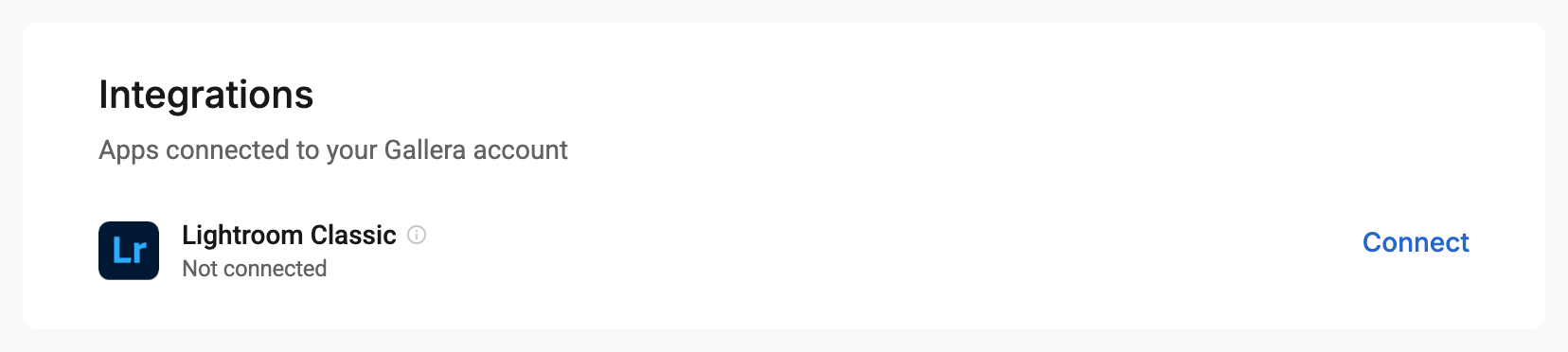
- In the Connect Lightroom Classic window, click Generate token, then Copy.
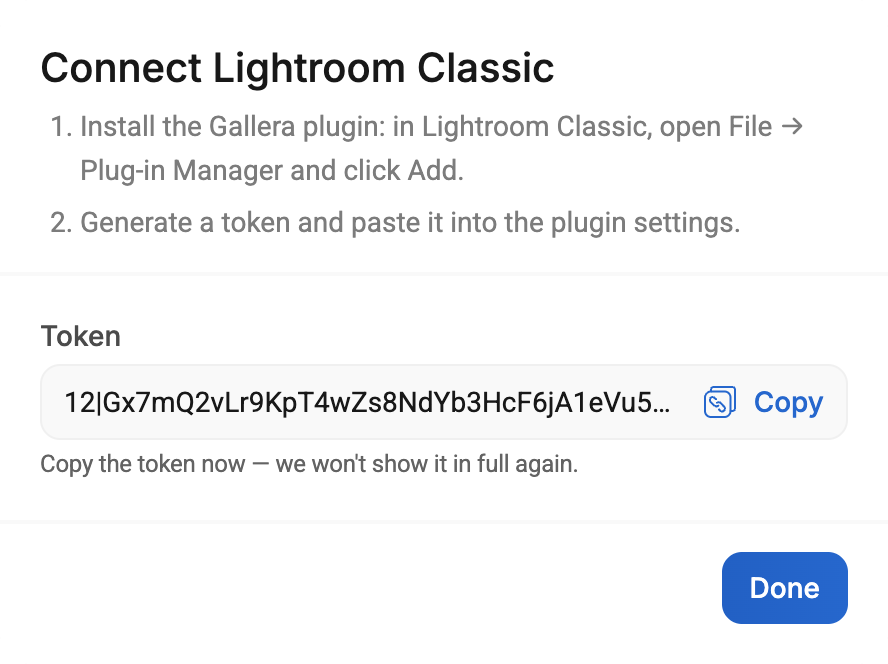
The full token is shown only once. If you closed the window without copying it, just generate a new one.
- Go back to Plug-in Manager, paste the token into the Token field and click Connect.
- The Status line shows “Connected as your name (email)”. Click Done.
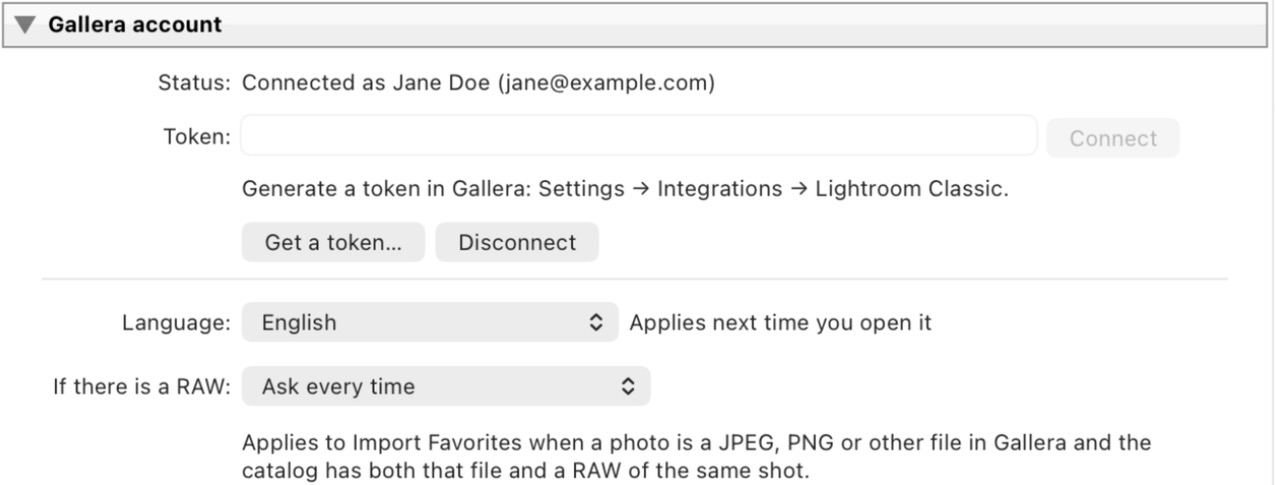
The plugin's windows open in the language of your Gallera account; you can change it in the same section, in the Language field.
Using the plugin
Upload photos to a gallery. Select the photos → File › Export… → at the top, choose Gallera in the Export To list → Export. The plugin asks which gallery and scene to upload to. Step by step: Uploading photos from Lightroom Classic to a gallery.
Turn favorites into a collection. Library › Plug-in Extras › Import Favorites from Gallera… (also in the File › Plug-in Extras menu) → choose the gallery and the favorites list → Create collection. Step by step: Client favorites as a Lightroom Classic collection.
Plugin settings
All settings are in File › Plug-in Manager… → Gallera:
| Field | What it does |
|---|---|
| Language | The language of the plugin's windows. By default, the same as your Gallera account |
| If there is a RAW | What to use when importing favorites if the gallery has a JPEG and the catalog also has a RAW of the same shot. More in the favorites article |
Disconnecting
- On this computer — Plug-in Manager → Gallera → Disconnect. The plugin forgets the token.
- Everywhere — in your account, go to Settings → General → Integrations and click the trash icon next to the token in the Lightroom Classic row. Lightroom with this token loses access to your account right away — handy if the computer is no longer yours.
Updating
When a new version comes out, the plugin tells you at the start of a favorites import or a photo upload (no more than once a day). Download new version downloads the archive, How to update opens these instructions.
To update, quit Lightroom and replace the contents of the gallera.lrplugin folder with the new one, in the same place. Lightroom picks up the new version on the next start; your connection and settings are kept.
If something doesn't work
- “Token not accepted” — the token was revoked or not copied in full. Generate a new one in your account and connect again.
- “No connection to Gallera” — check your internet connection and try again.
- The plugin isn't in the menu — in Plug-in Manager, check that Gallera is enabled (the Enable button) and that the folder is still where you added it from.
If the problem persists, contact us and attach the plugin log: on macOS it's ~/Library/Logs/Adobe/Lightroom/LrClassicLogs/Gallera.log, on Windows %LOCALAPPDATA%\Adobe\Lightroom\Logs\LrClassicLogs\Gallera.log.