Photos and search — alt text, file names, speed
Updated 09.11.2026 6 min read
Photos are the heart of a photographer's site, but Google doesn't see them the way people do. To understand what's in a photo and show your work in search and in Google Images, it needs descriptions. And for the site to open quickly on phones, photos have to be light — Gallera takes care of that on its own.
How to write a photo description (alt)
The photo description (alt) is a short text about what's in the picture. Visitors don't see it; it's read by:
- Google — to understand the photo and show it in Google Images;
- screen readers for people with visual impairments;
- the browser — if the photo fails to load, it shows the text instead.
How to write it:
- One short sentence about what's in the photo: who, doing what, where.
- Genre and place — if they're true. “Wedding couple in Market Square in Lviv” is more useful than just “couple”.
- A description of its own for every photo. Don't copy the same text to all the photos in a gallery.
- No lists of keywords, and no “photo of” or “image of” at the start — it's already clear it's a photo.
| Bad | Good |
|---|---|
| IMG_4821 | Bride adjusting her veil by the window before the ceremony |
| photo | Autumn family session in the park: parents holding their daughter |
| wedding photographer Kyiv best wedding photos | Bride and groom dancing their first dance under string lights |
For the Ukrainian version of your site, write the descriptions in Ukrainian the same way: “Весільна пара на Ринковій площі у Львові”.
You don't have to describe a decorative image, such as a texture or a background.
Where to fill in alt
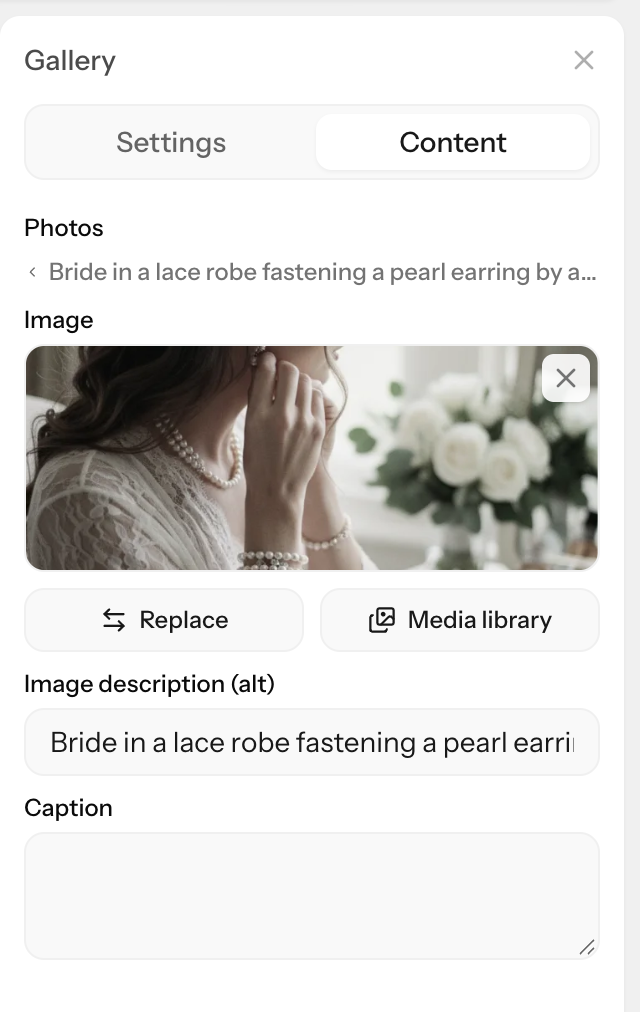
Click the block, open the “Content” tab in the panel on the right, and fill in the “Image description (alt)” field under the photo. In a gallery, every photo has this field: click a photo in the list to expand it.
| Block | What becomes the alt |
|---|---|
| “Banner” | The “Image description (alt)” field; a two-column banner also has “Background image description (alt)” |
| “Image” | The “Image description (alt)” field |
| “Gallery” | The “Image description (alt)” field of each photo |
| “Image + text” and “Overlapping card” | The “Image description (alt)” field |
| “Call to action” | The “Image description (alt)” field for the background photo |
| “Slider” | The slide heading |
| “Testimonials” | The name of the review's author |
| “Pricing” | The plan name |
| “Photo link cards” | The card name |
| “Gallery from Gallera” | The gallery name |
| The logo in the “Navigation menu” block | The “Name (text logo)” field, otherwise “Logo” |
Where the alt comes from text, there's no separate field: make sure the slide heading or the card name describes the photo. And for an image logo, still type your studio's name into “Name (text logo)”.
The “Image + text — two photos” and “Before / After” blocks don't have an alt field yet. If a photo matters for search, also show it in a “Gallery” or “Image” block.
On a site in several languages, the photo description is translated like any other text: choose the editing language and fill in the field in it. See Editing language.
File names
Gallera keeps the name of the file you uploaded: it becomes part of the photo's address on the site and helps you find the photo by searching the media library. For Google, the file name is one more small hint about what's in the photo.
- Name files before uploading:
wedding-lviv-anna-max.jpginstead ofIMG_4821.jpg. - Use Latin letters and separate words with hyphens. Ukrainian letters are kept too, but in the address they turn into a long string of characters.
- In Lightroom, it's easy to set names on export with a file naming template.
What Gallera does with photos on its own
- Converts them to WebP — a modern format that's lighter than JPG at the same quality.
- Reduces them to 2560 pixels on the longer side and makes smaller versions for phones: a phone loads the version that fits its screen, not the full-size photo.
- Loads photos as visitors scroll — photos below the first screen load when the visitor reaches them, so the page opens faster.
- Removes EXIF data — geotags, camera model and the rest. Your site doesn't need them, and they could reveal where you live or where you photographed clients.
How to prepare photos for upload — size, format, color profile — see How to prepare photos for your site.
How to check speed
- Open PageSpeed Insights and paste the page address.
- Look at the mobile result first: that's where most clients open your site.
Don't chase a score of 100 — for a site with large photos it's nearly impossible, and clients won't notice. If a page opens slowly:
- Too many photos in one block. Keep the 6–12 best shots in a gallery and show the rest on separate portfolio pages.
- Several heavy blocks on the first screen — a banner, a slider and an autoplay video one after another. Keep one.
- Third-party code — chats, pixels, widgets in the “HTML code” section of the site settings. Every script slows the site down: remove the ones you don't use.
- Too many fonts. Two fonts in the theme are enough. See Site theme.
Myths
- “Geotags in photos boost your site in local search.” Google doesn't use the coordinates from photos to rank sites, and Gallera removes them anyway. It's better to name the city in the title, the text and the alt.
- “The more photos on a page, the better for SEO.” Text and descriptions matter more to Google, and extra photos only slow the page down.
- “Photos must be uploaded in the highest quality, or the site will look blurry.” Gallera reduces photos to 2560 pixels anyway. It's more important to export them in sRGB and large enough.
If something doesn't work
I can't see the “Image description (alt)” field. Check that the “Content” tab is open, and in a gallery, that the photo itself is expanded. Some blocks don't have this field — see the table above.
The photo looks blurry on phones. The uploaded photo may be too small. See How to prepare photos for your site.
The photo doesn't upload. JPG, PNG, WebP and GIF files up to 15 MB work.