Hiding Photos
Updated 09.11.2026 3 min read
You can let your client hide photos or individual scenes from general access in the gallery. This way, the client can hide photos they don't want others to see when they share the link, while still being able to view them through separate access.
For example, a client wants to hide photos of some guests from their celebration gallery so that other guests don't see them. You can give them this feature and access to it, and they'll still be able to view these files themselves.
Access settings
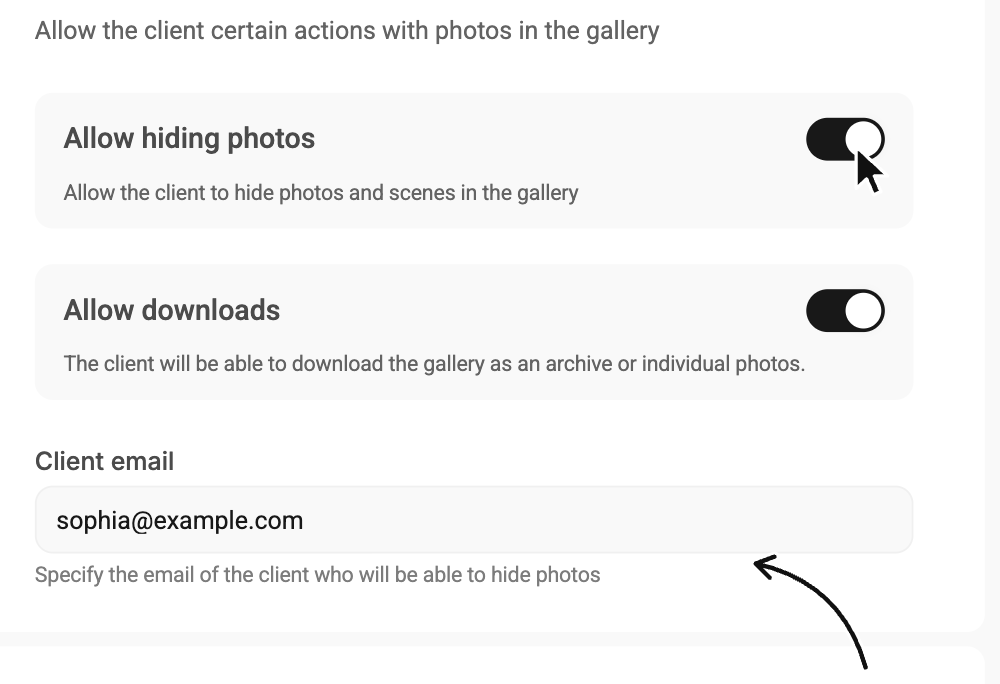
To set up access for the client, you'll need to enter their email, which they will use to hide files and scenes.
Open the gallery's “Settings” tab and go to the “Access” section. In the “Client capabilities” block, turn on “Allow hiding photos” — a “Client email” field appears below. Enter the email the client will use to get access to hiding. Changes are saved automatically.
How the client gets access
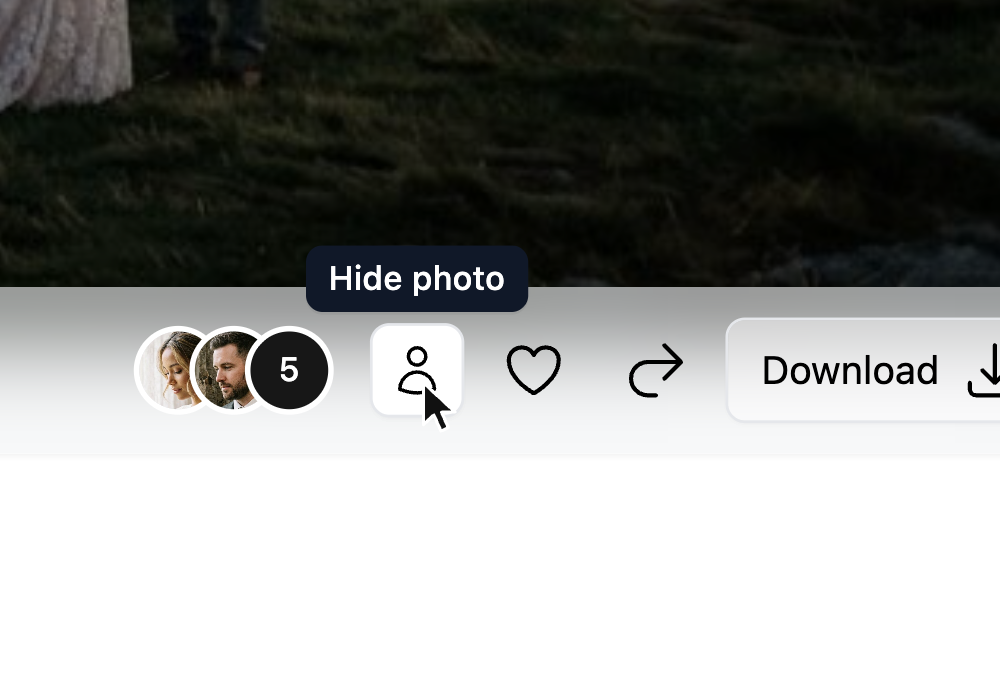
When hiding is enabled, the client will see a “Hide photo” icon in the gallery toolbar while viewing the gallery. Clicking it asks them to enter the email you specified.
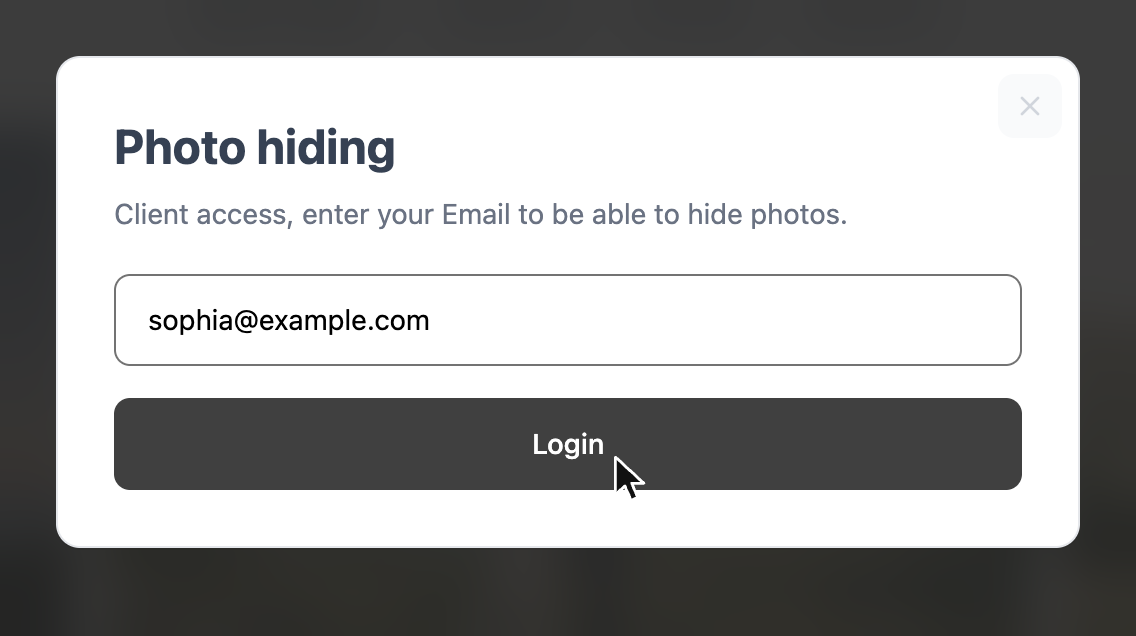
Once the client enters that email and clicks “Login”, they are "signed in": they get access to hiding photos and can see the photos and scenes that have been hidden.
Right after signing in, the client sees a short guide on how to use this feature and a brief description of it.
Hiding files and scenes
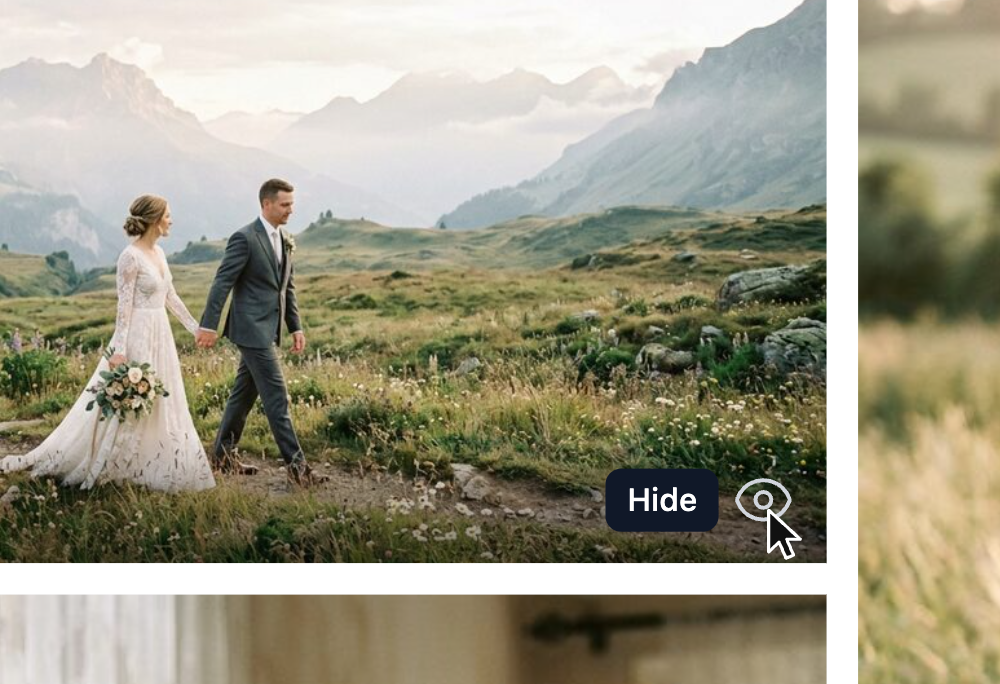
Once signed in, the client sees a new icon when hovering over a file in the list, and hovering over the icon shows a tooltip. Clicking this icon hides the file, and it won't be available when the gallery is viewed without signed-in access.
The same icon appears next to a scene when the client hovers over the scene name in the list. It likewise hides the entire scene with all its photos, and the scene won't appear in the list of scenes when the gallery is viewed without signed-in access.
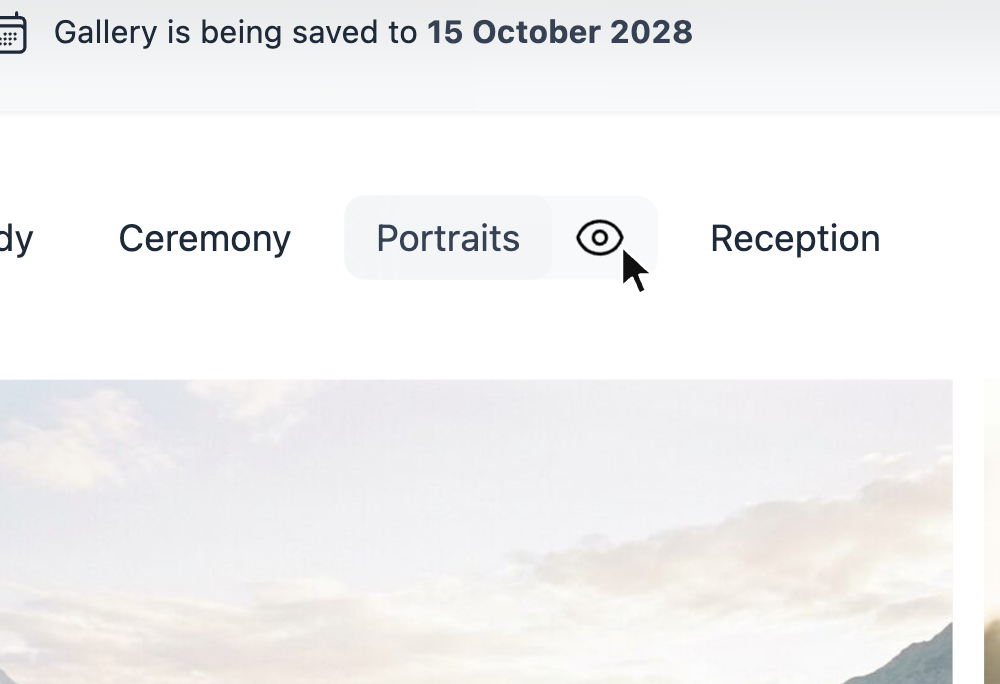
In signed-in hiding mode, the client sees only the hide icon in the file list and can't select or download files there. To get the select and download icons, simply open the file you need.
Once a file or scene is hidden, it shows an icon with a crossed-out eye, meaning that the file or scene isn't displayed. This icon is always visible in the list, even without hovering, so the client can always see the current state.
In your dashboard you see all files, including the ones hidden by the client: on the “Files” tab they are marked with an eye icon.