SEO settings for the site and its pages
Updated 09.11.2026 8 min read
SEO settings are the texts and the image that search engines and messengers see:
- the title — in the browser tab and as the blue link in Google results;
- the description — under the title in Google and in link previews;
- the preview image — the picture Telegram, Viber or Facebook show when someone shares a link to your site.
You can set them for the whole site and separately for each page.
SEO fields save on their own: as soon as a green check appears next to the field name, the change is on the site. You don't need to publish the page in the editor for this. Google sees the new texts the next time it crawls the page — usually within a few days.
Site SEO
- Open “Websites” and click the site card.
- In the menu on the left, choose “SEO”.
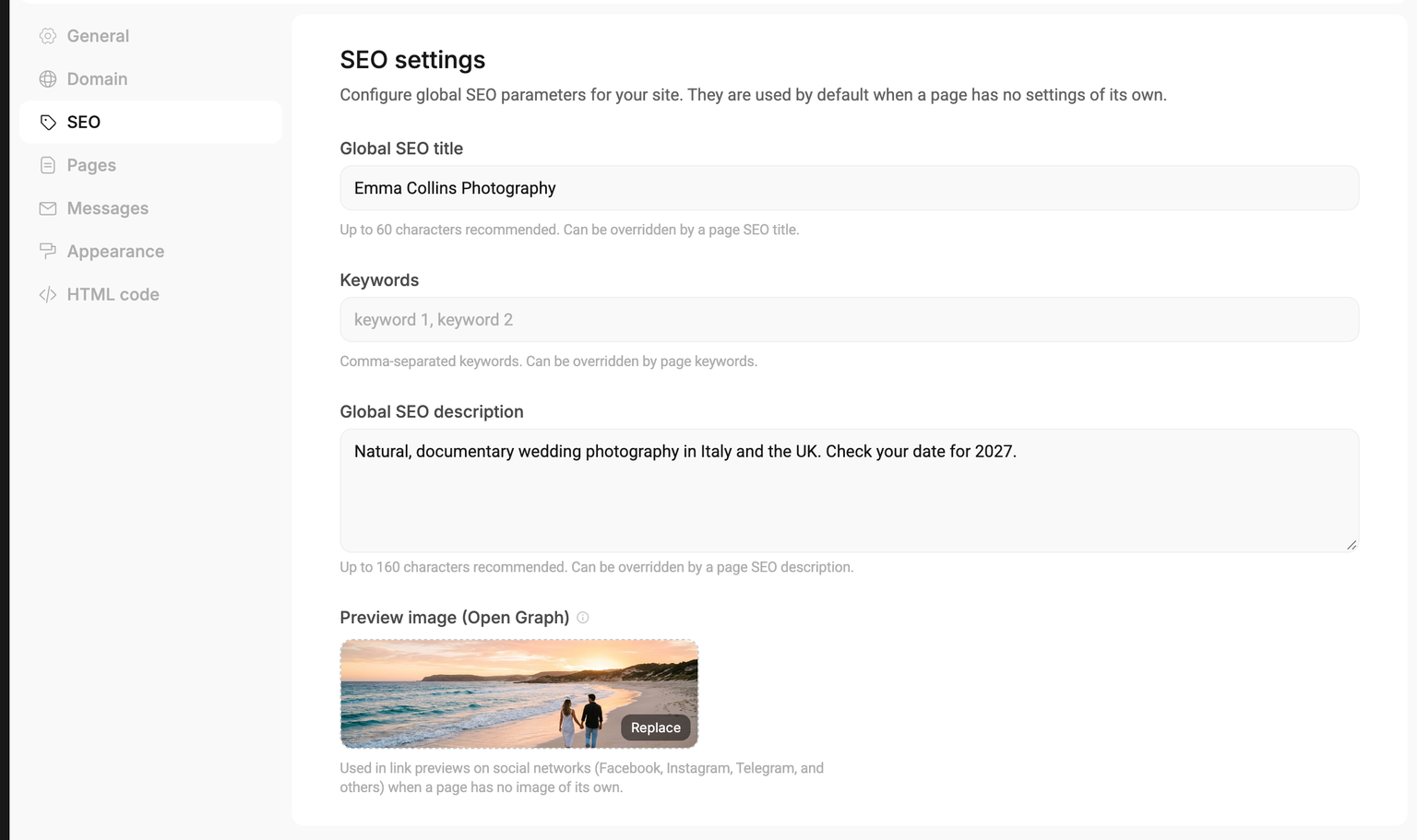
- “Global SEO title” — the site's name for search engines, such as your name or your studio's name. It's shown in the home page tab, and it's also added to the end of other pages' titles (see below).
- “Keywords” — you can leave it empty, see below.
- “Global SEO description” — the home page description, up to 160 characters.
- “Preview image (Open Graph)” — the link preview image for all pages that don't have their own.
How to write titles and descriptions that help people find you — see Titles and descriptions.
Page SEO
- In the site settings, open “Pages”.
- Click the wrench in the page's row — “Page settings”.
- In the menu on the left, choose “SEO”.
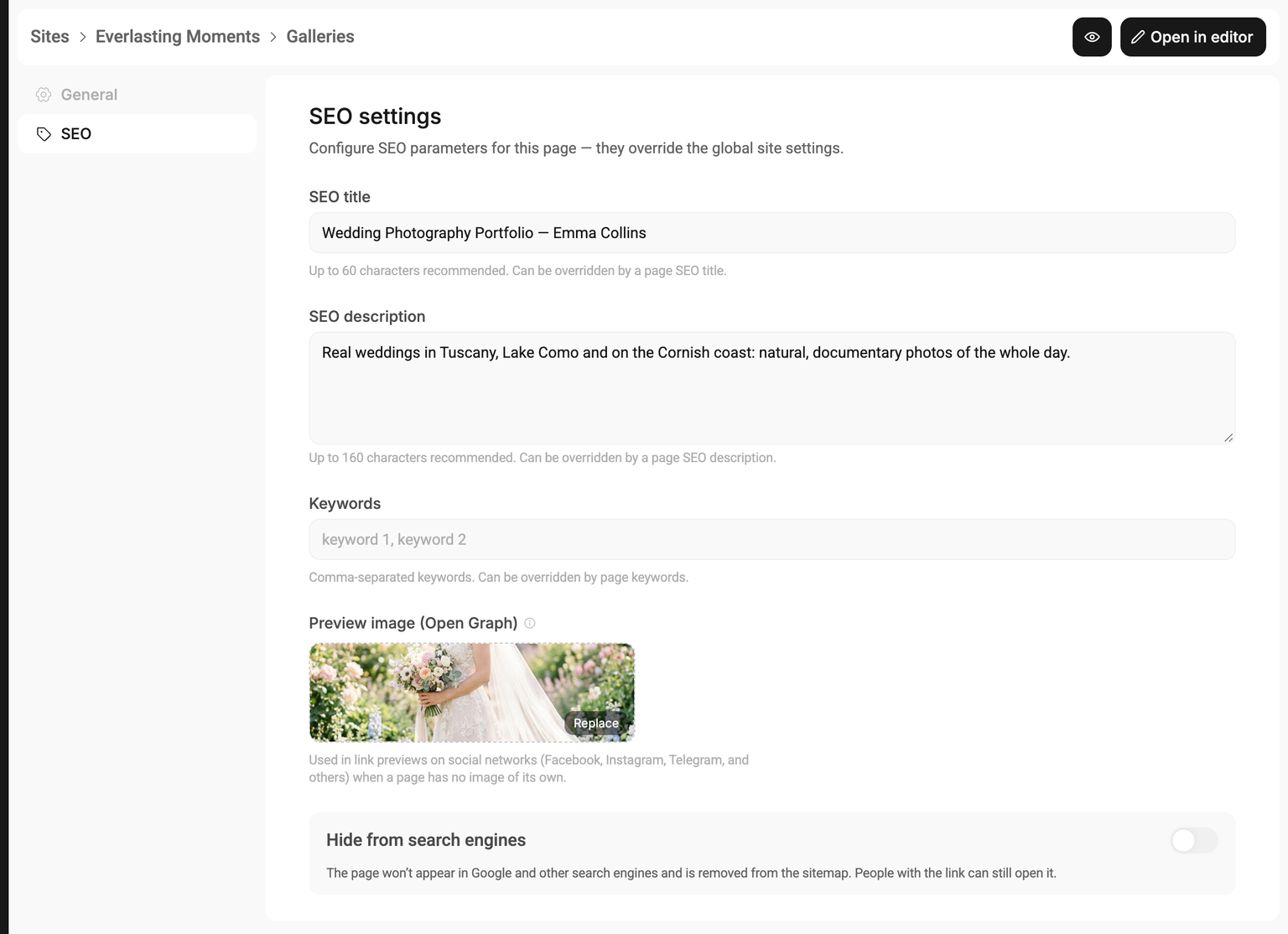
The fields are the same as for the site: “SEO title”, “SEO description”, “Keywords” and the preview image. A filled-in page field always takes priority over the site-wide one. Below them is the “Hide from search engines” switch.
What each page gets
| Home page | Other pages | |
|---|---|---|
| Title | The page's SEO title, otherwise the global SEO title, otherwise the site name | The page's SEO title, otherwise “Page name — global SEO title” (or “— site name”) |
| Description | The page's SEO description, otherwise the global SEO description | Only the page's SEO description. If it's empty, there's no description: Google writes one from the page text |
| Preview image | The page's image, otherwise the site-wide one | The page's image, otherwise the site-wide one |
| Keywords | The page's keywords, otherwise the site-wide ones | The page's keywords, otherwise the site-wide ones |
Example: the Everlasting Moments site has the global SEO title “Emma Collins Photography”. A “Pricing” page without its own SEO title gets the title “Pricing — Emma Collins Photography”.
The global SEO title is added to the end of every page's title, so keep it short — your name or your studio's name. Put a title with your genre and city, such as “Wedding Photographer in Lviv — Olena Petrenko”, in the SEO of the home page itself.
The global description is the home page description: it isn't repeated on other pages, so Google doesn't see a dozen pages with the same description. Write a description of their own for pages you share or want to see in search.
Preview image
Messengers and social networks show this image when someone sends a link to your site. In Ukraine, links are shared mostly in Telegram, so check the preview there first.
- Size — 1200×630 pixels, landscape. Keep the main subject near the center: some apps crop the image to a square.
- Format — JPG, PNG, WebP or GIF, up to 10 MB. SVG doesn't work. The safest choice is a JPG of a few hundred kilobytes.
- How to upload — click the field or drag a file onto it. The image is saved right away.
- How to change it — click the image (“Replace”) and choose another file. You can't remove the image entirely yet — only replace it.
The site-wide image is used on every page that doesn't have its own. It's good to give your main pages — portfolio, pricing, contacts — images of their own.
Send the link to yourself in Telegram, in “Saved Messages”, and see what the preview looks like. If Telegram shows an old one, send the link to @WebpageBot — it refreshes the preview.
Keywords
The “Keywords” field adds a keywords meta tag to the page. Google has ignored it for many years, so you can leave the field empty — it won't affect your rankings. It matters more that the right words are in the title, the description and the page text.
How to hide a page from search
Turn on “Hide from search engines” in the page's SEO. Then:
- Google and other search engines won't add the page to search results, and if it's already there, they remove it the next time they crawl it;
- the page is removed from the sitemap (
sitemap.xml); - the page still opens for anyone with the link. If it's in the menu, site visitors see it too.
This is handy for a “Thank you” page after the form, a special offer for clients, or a page for your Instagram link.
This isn't a password. If nobody should see the page, don't publish it, or delete it. Password-protected pages aren't available yet.
There's no switch that hides the whole site from search. Until you publish your first page, the site is closed to search engines on its own, and visitors can't see draft pages anyway. So a page you're still working on — just don't publish it.
A site in several languages
If your site has several languages, a “Language” switch appears above the SEO fields. Choose a language and fill in the title, description and keywords for it. An empty field takes the main language's value — it's shown in the field in grey.
- The preview image and the “Hide from search engines” switch are shared by all languages: the switch is only visible in the main language.
- Pages in other languages open with a prefix, such as
/en/pricing, and each one appears in search in its own language.
What Gallera does on its own
You don't need to set any of this up:
- Sitemap —
/sitemap.xmlat your site address. It lists all published pages except those hidden from search, and for a site in several languages — pages in every language shown on the site. The sitemap updates on its own as soon as you publish a page. - robots.txt — while your site has no published pages, it tells search engines not to crawl the site. After the first publication it allows crawling and points to the sitemap.
- The main page address (canonical) — if a custom domain is connected and “Active”, search engines see your pages on it, even though the gallera.me address keeps working. The sitemap points to the domain too.
- Language versions (hreflang) — on a site in several languages, Google knows which page is in which language and shows people the right one.
- HTTPS — a secure connection both on the gallera.me address and on your custom domain.
- One address —
/Aboutor/about/redirect to/about, so there are no duplicates in search. - Page text in the code — the site gives search engines a ready page with all its text.
- Link previews — the title, description and image for Telegram, Facebook and others.
- Draft previews aren't indexed — links from the “Preview” button in the editor don't get into search.
- Photos — are converted to WebP, phones get smaller versions, and photos below the first screen load as visitors scroll. More in Photos and search.
If the site is suspended because of the plan, visitors and search engines see the “This site is temporarily unavailable” page. After a short break the site returns to search on its own, but if it stays closed for weeks, its pages may drop out of Google.
If something doesn't work
The browser tab shows the old title. Reload the site page. Check that you're changing the SEO of the right page and in the right language: a page's SEO title takes priority over the global one.
Google shows the old title or description. Google updates them when it crawls the page again — from a few days to a few weeks. You can speed this up in Google Search Console. Sometimes Google shows a different title or description than the one you set — for example, if the title is too long or the description doesn't match the search query.
The image doesn't upload. Check the format (JPG, PNG, WebP or GIF) and the size — up to 10 MB.
There's a red sign next to the field. The change wasn't saved. Check your internet connection and change the field again.
A hidden page still shows up in search. Google removes the page when it crawls it again. Check that “Hide from search engines” is turned on for that exact page.