Uploading photos from Lightroom Classic to a gallery
Updated 08.11.2026 4 min read
The Gallera plugin adds a Gallera export service to Lightroom Classic. You select photos and click Export, and Lightroom renders JPEGs and uploads them to the gallery itself. No need to save files to disk and drag them into your account.
The plugin must be installed and connected: Lightroom Classic plugin: installing and connecting.
How to upload photos
- In Lightroom, select the photos you want to upload.
- Open File › Export….
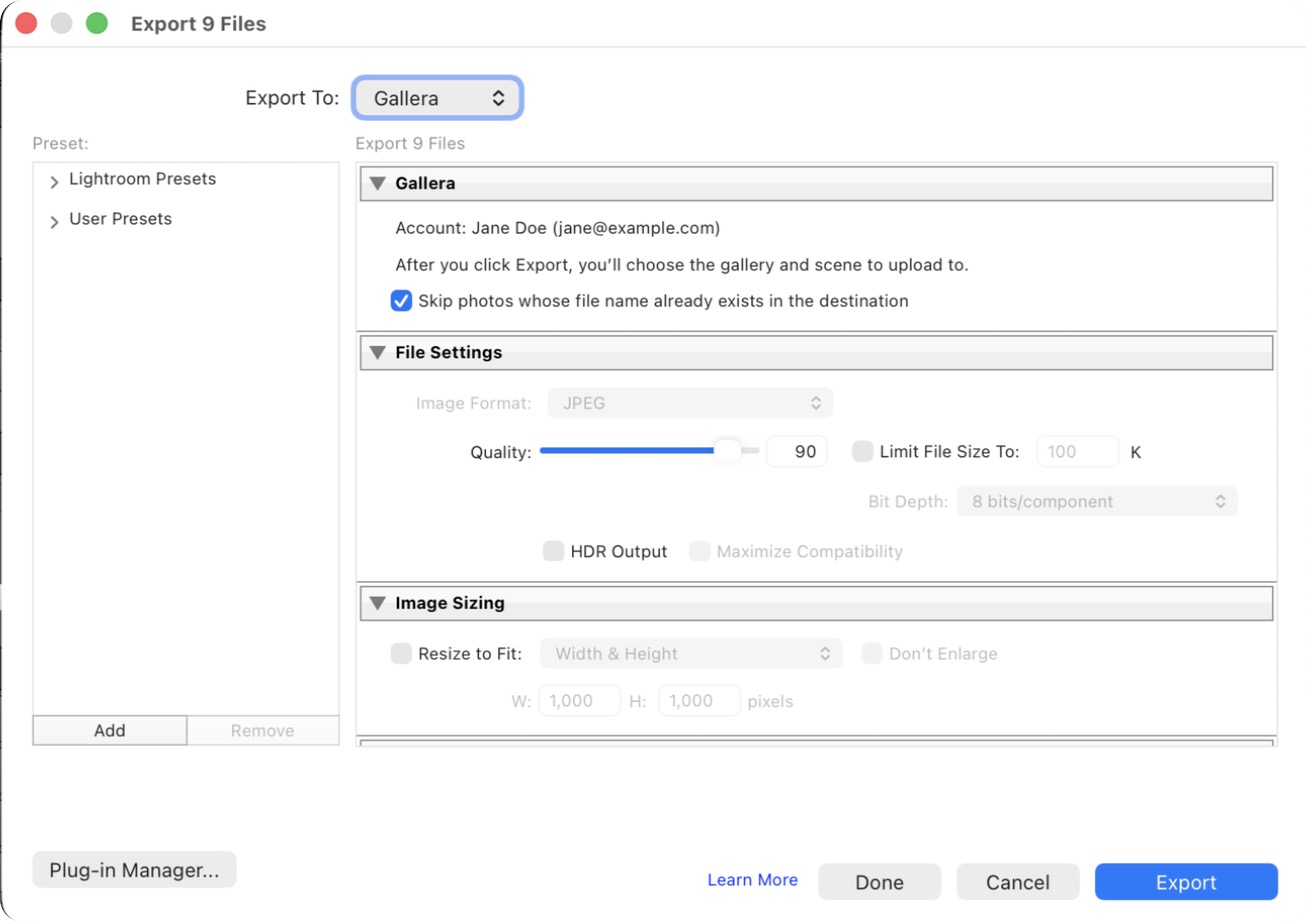
- At the top of the window, choose Gallera in the Export To list. The Gallera section shows which account you're connected as.
- Change the size, sharpening or watermark if you need to — as for any export. JPEG quality is 90 by default.
- Click Export.
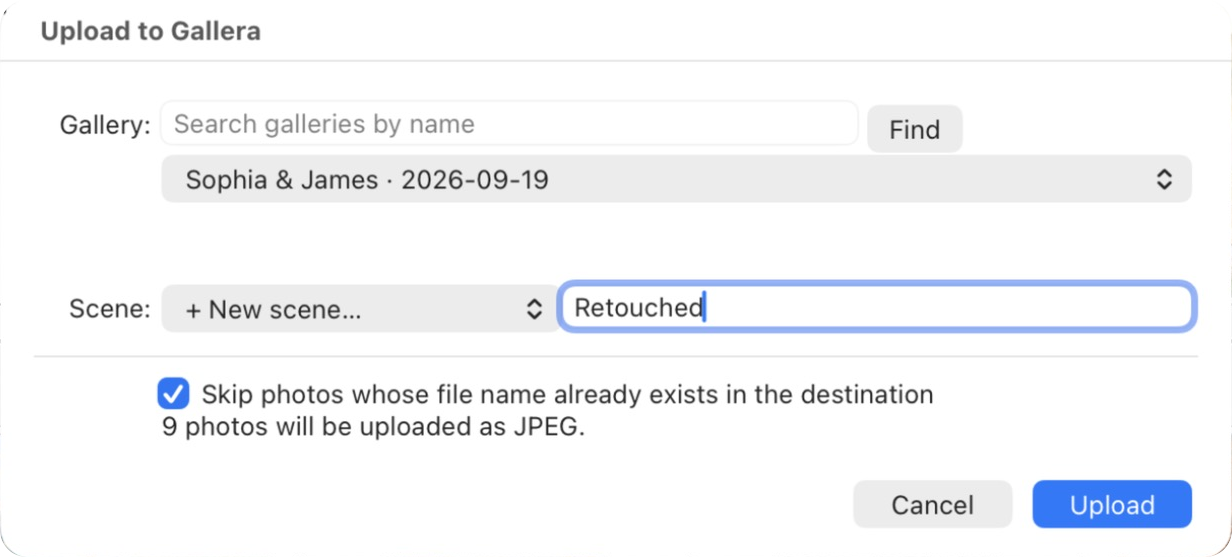
- The Upload to Gallera window opens. Choose the gallery and scene — all the options are described below.
- Click Upload.
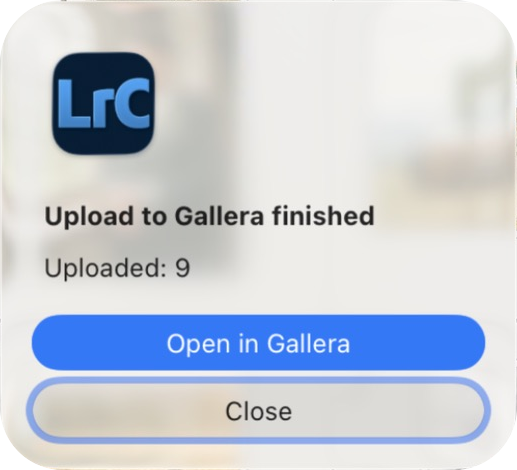
The progress bar in the top left of Lightroom shows how the upload is going. At the end you'll see a summary: how many photos were uploaded or skipped and whether there were errors. The Open in Gallera button opens the gallery in your account.
Photos from Lightroom go through the same processing as photos uploaded in your account: the same previews, limits and storage.
To avoid setting up the Export window every time, save a preset: in the Export window, click Add on the left and name it, for example, “Gallera”. Then use File › Export with Preset › Gallera. The plugin still asks for the gallery and scene, so photos never go to the previous client's gallery.
Where to upload
Gallery
- An existing gallery — choose it in the list. The list shows your 100 latest galleries; to find an older one, type part of its name and click Find.
- A new gallery — choose + New gallery… and type a name.
New gallery settings
When you create a new gallery, a Settings field appears under its name:
- Default — the gallery is created with the default settings, like a new gallery in your account;
- Copy from and the gallery name — the new gallery gets the design and settings of the selected one right away: the cover style and fonts, the photo grid, download permissions, favorites, the gallery language and more. Photos, scenes and the cover photo are not copied.
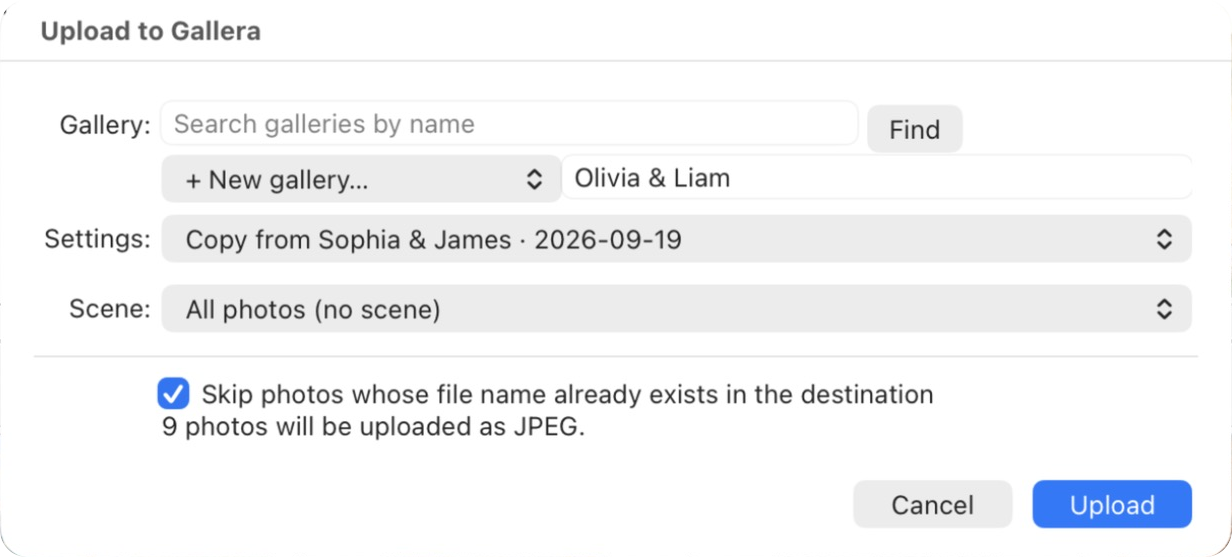
The list has the same galleries as the one above it: to copy the settings of an older gallery, first find it with search, then choose + New gallery….
Set up one template gallery with your favorite design and copy the settings from it. The plugin remembers your choice and suggests the same gallery next time.
This is the same as the Copy field when you create a gallery in your account.
Scene
- All photos (no scene) — the photos go to the gallery without a scene;
- an existing scene — choose it in the list;
- + New scene… — type a name, for example “Retouched”. The scene is created before the upload.
More about scenes: Scenes.
Skipping photos that are already uploaded
The Skip photos whose file name already exists in the destination checkbox: photos that are already in the selected scene (or in the gallery, if no scene is selected) are not rendered or uploaded again. Keep it on to:
- upload the missing photos without duplicating the ones already there;
- repeat an upload that was interrupted.
How photos are named in the gallery
A photo in the gallery gets its file name from the Lightroom catalog with the .jpg extension: IMG_0012.CR3 → IMG_0012.jpg. That's why the client's favorites are easy to find in the catalog later: Client favorites as a Lightroom Classic collection.
- A virtual copy gets a suffix with the copy name:
IMG_0012-Copy-1.jpg. - RAW and JPEG of the same shot selected together are uploaded once — the RAW goes to the gallery.
- Two different photos with the same name (for example, from two cameras) are both uploaded, the second one with a number:
IMG_0001-2.jpg. The plugin remembers which photo is stored under which name in the gallery, so a repeated upload or a favorites import doesn't mix them up.
If something goes wrong
- Storage is full — the upload stops, and the summary shows how many photos made it. Free up space or change your plan, then run the export again with skipping turned on — only the missing photos are uploaded.
- “Token not accepted” — connect again: Lightroom Classic plugin: installing and connecting.
- An error with one photo — the other photos keep uploading, and at the end Lightroom lists the photos that failed. Run the export for them again.
- The gallery was deleted during the upload — the upload stops.