How the editor works
Updated 09.11.2026 5 min read
In the editor you change the content of your site's pages: texts, photos, blocks and design.
How to open the editor
In your account, open “Websites”, hover over a site card, click “⋮” and choose “Open in editor”. To open a specific page, go to the site settings: “Pages” → the pencil in the page row.
The editor works on computers only, with a screen at least 1024 pixels wide. On a phone or tablet you can only preview the site.
You don't need to sign in to the editor separately — it opens from your account. If the editor stays open for a long time (about two hours), you'll see “Your editor session has expired”. Open the editor from your account again. Unsaved changes are lost in that case, so save your work often.
The top bar

From left to right:
- “Settings” — go back to the site settings in your account.
- The page name with an arrow — the list of the site's pages. It also has “New page” and “Save site as template”.
- The page status — “Published”, “Unpublished changes” or “Draft”. What they mean is covered in Saving, previewing and publishing.
- Desktop / phone — how the page looks on different screens. See The mobile version of your site.
- Editing language — shown if the site has several languages: the code of the language you're editing, such as
EN. See below. - The palette — “Site theme”: colors, fonts, page width. See Site theme.
- The arrow with a clock — undo the last change.
- “Save”, the eye (“Preview”) and “Publish” — “Save” and “Publish” are inactive when there are no changes. See Saving, previewing and publishing.
Blocks
A page is made of blocks stacked one under another: a banner, a gallery, text, testimonials, a form and so on. Hover over a block — its name appears in the top left corner, and action buttons appear on the right:
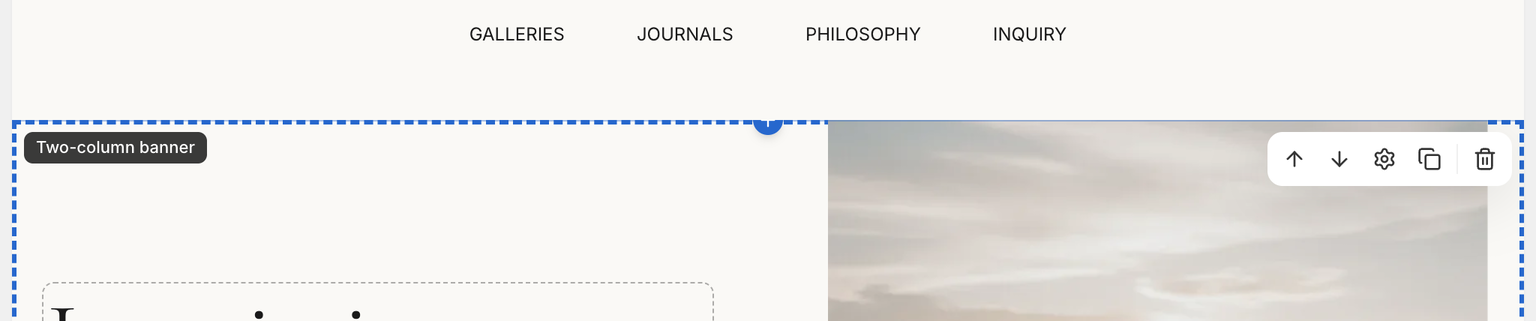
- arrows — move the block up or down;
- gear — block settings;
- two sheets — duplicate the block;
- trash can — delete the block.
A block is deleted without confirmation. If you deleted the wrong one, press ⌘Z (Ctrl+Z).
How to add a block
Hover over the block next to which you want the new one, and click the blue “+” button on its top or bottom edge. The “Add block” window opens: blocks are grouped by kind, and there's a search by name at the top.
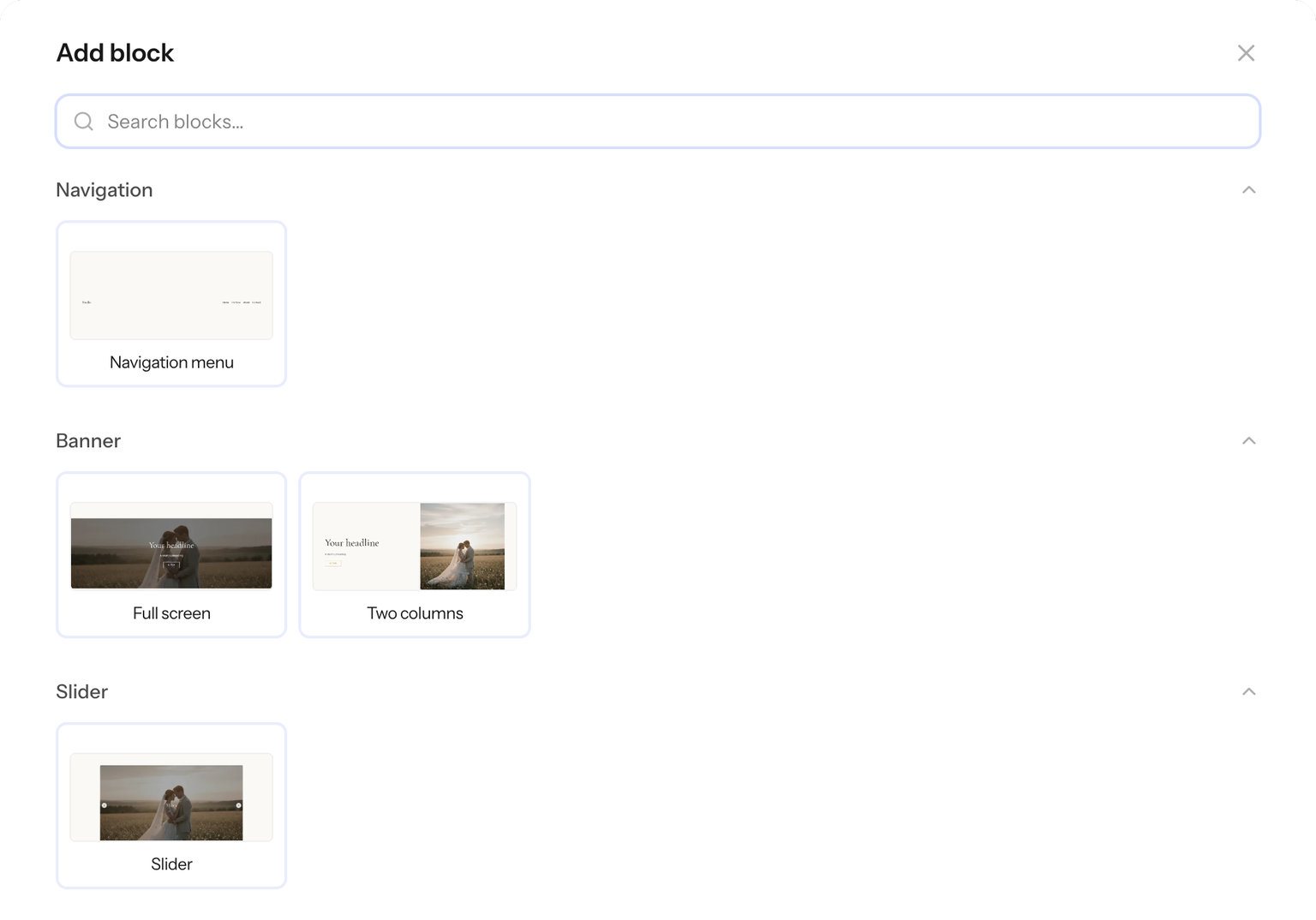
Click the variant you need — the block appears in that spot on the page, filled with an example.
The settings panel
Click a block — a panel with two tabs opens on the right:
- “Settings” — how the block looks: layout variant, spacing, background, width, and the size, color and font of each of its parts (heading, text, button, photo).
- “Content” — photos, button links and lists: gallery photos, testimonials, pricing plans, menu items and so on.
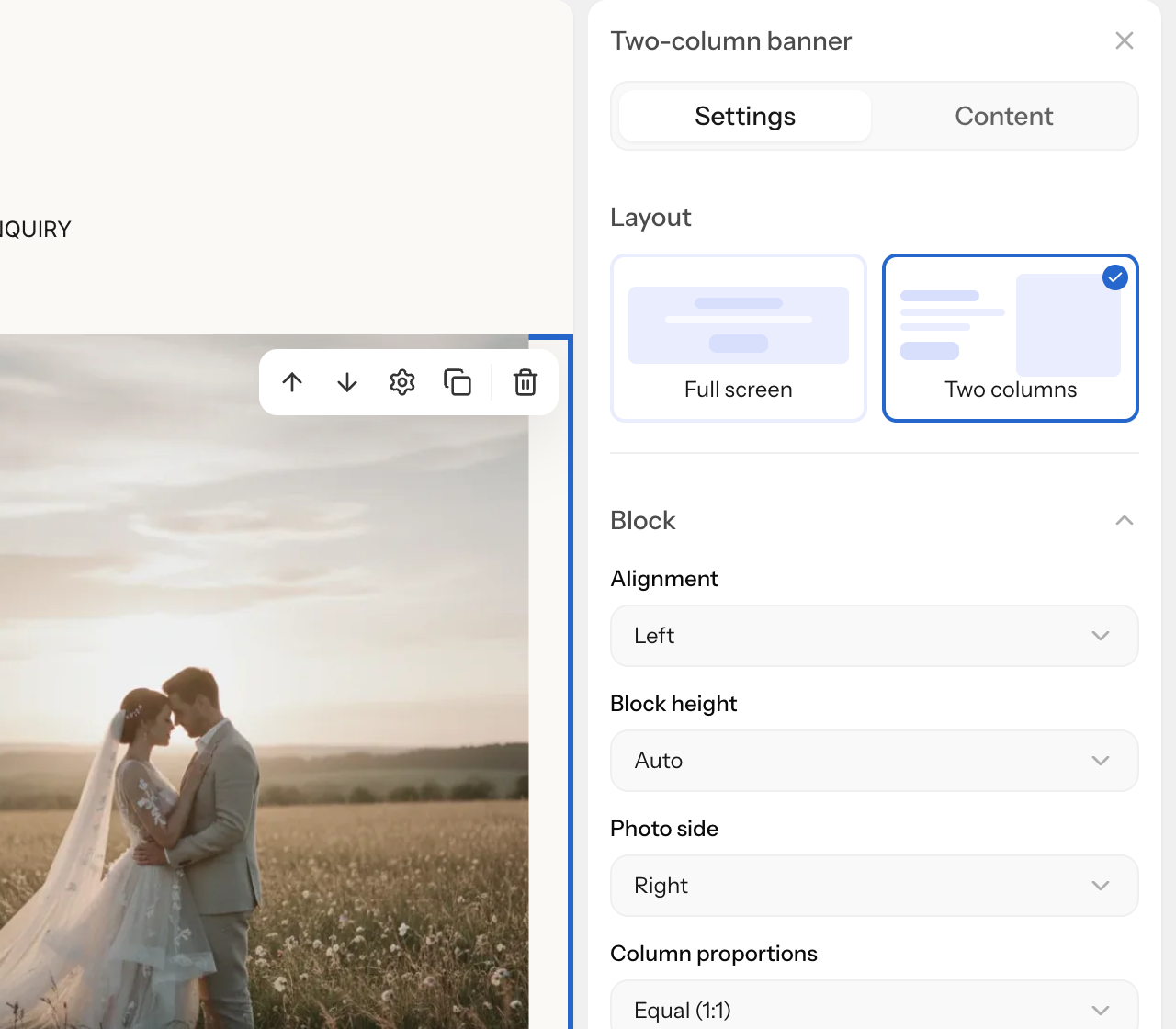
If you click a specific part of the block, such as the heading, the panel opens that part's settings right away.
You can return any changed field to its value from the template with the “Reset to template value” button next to the field.
Block anchor
At the bottom of the “Settings” tab there's the “Anchor” field — a section name for links, such as pricing. A button or menu item with the address #pricing leads straight to this block. Use Latin letters, digits and hyphens; the full section address is shown under the field.
- Each block on a page needs its own anchor: if the anchor is already taken, the editor warns you, and links lead to the first block with it.
- A copy of a block doesn't get the original's anchor.
How to pick a section in a link field is covered in Menu and footer.
Text is edited right on the page
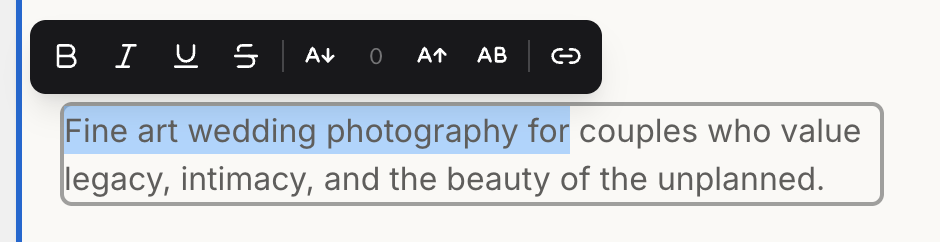
Click text on the page and type. Select part of the text — a formatting bar appears: bold, italic, underline, strikethrough, font size, capital letters, link. Large text blocks also have bulleted and numbered lists.
- Enter starts a new line.
- Text copied from elsewhere is pasted without formatting — format it in the editor.
How to undo changes
The “Undo” button in the top bar or ⌘Z / Ctrl+Z returns the page to its previous state — up to 50 steps back. ⌘⇧Z / Ctrl+Shift+Z redoes what you undid. The editor selects the block where the change was undone or redone and scrolls to it.
- The change history lasts while this page is open: after you reload or go to another page, it's gone.
- When the cursor is in a text field, ⌘Z undoes only what you typed in that field.
Editing language
If the site has several languages, a switch for the editing language appears in the top bar. In the default language you can change everything. In other languages you edit only texts:
- images, links, block settings and styles are shared by all languages;
- blocks and list items can be added, moved or deleted only in the default language — the page structure is shared by all languages;
- an empty translation field shows the default language text.
Languages are added in your account: site settings → “General” → “Site languages”.