Client favorites as a Lightroom Classic collection
Updated 08.11.2026 4 min read
Your client has picked photos in the gallery — the Gallera plugin finds these photos in your Lightroom catalog and puts them into a collection. No need to copy file names and search with a filter, as in the manual method.
The plugin must be installed and connected: Lightroom Classic plugin: installing and connecting. How clients add photos to favorites: Favorites.
How to import favorites
- In Lightroom Classic, open Library › Plug-in Extras › Import Favorites from Gallera…. The same item is in the File › Plug-in Extras menu, where it's available from any module.
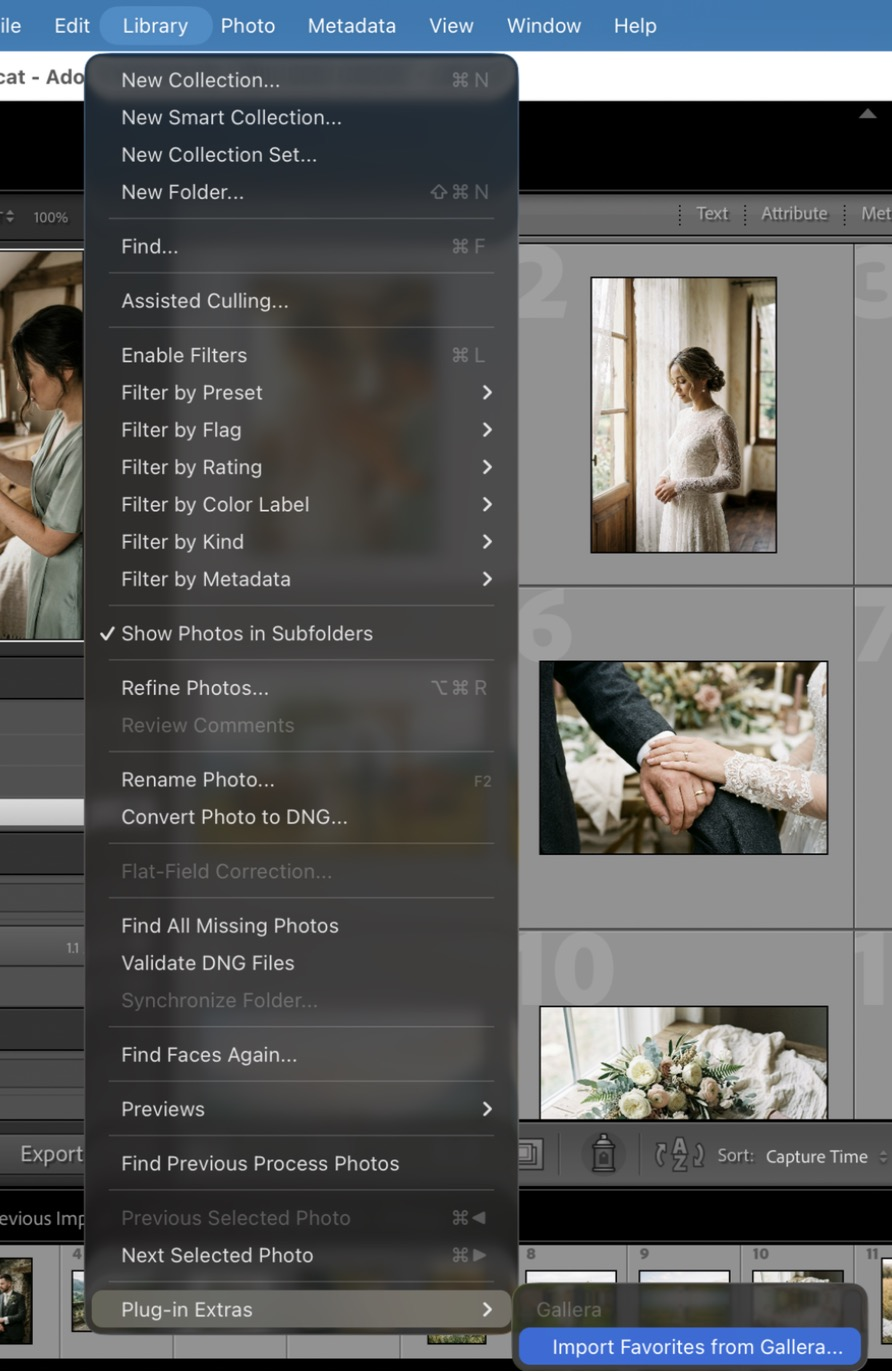
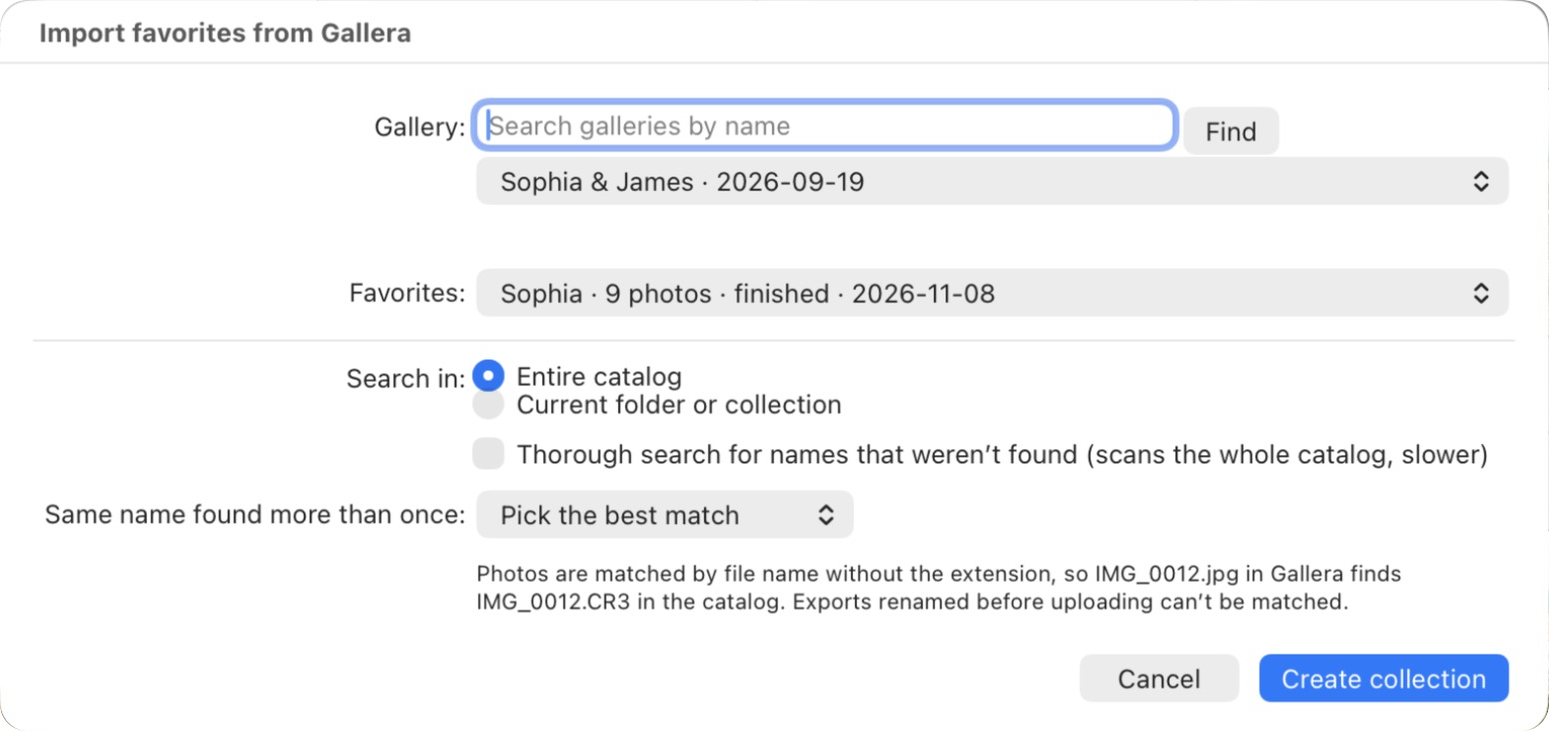
- In the Import favorites from Gallera window, choose the gallery. The list shows your 100 latest galleries; to find an older one, type part of its name and click Find.
- In the Favorites field, choose the client's list. Next to its name you'll see the number of photos, the date and the “finished” mark if the client has finished the selection.
- In the Search in field, choose Entire catalog or Current folder or collection.
- Click Create collection.
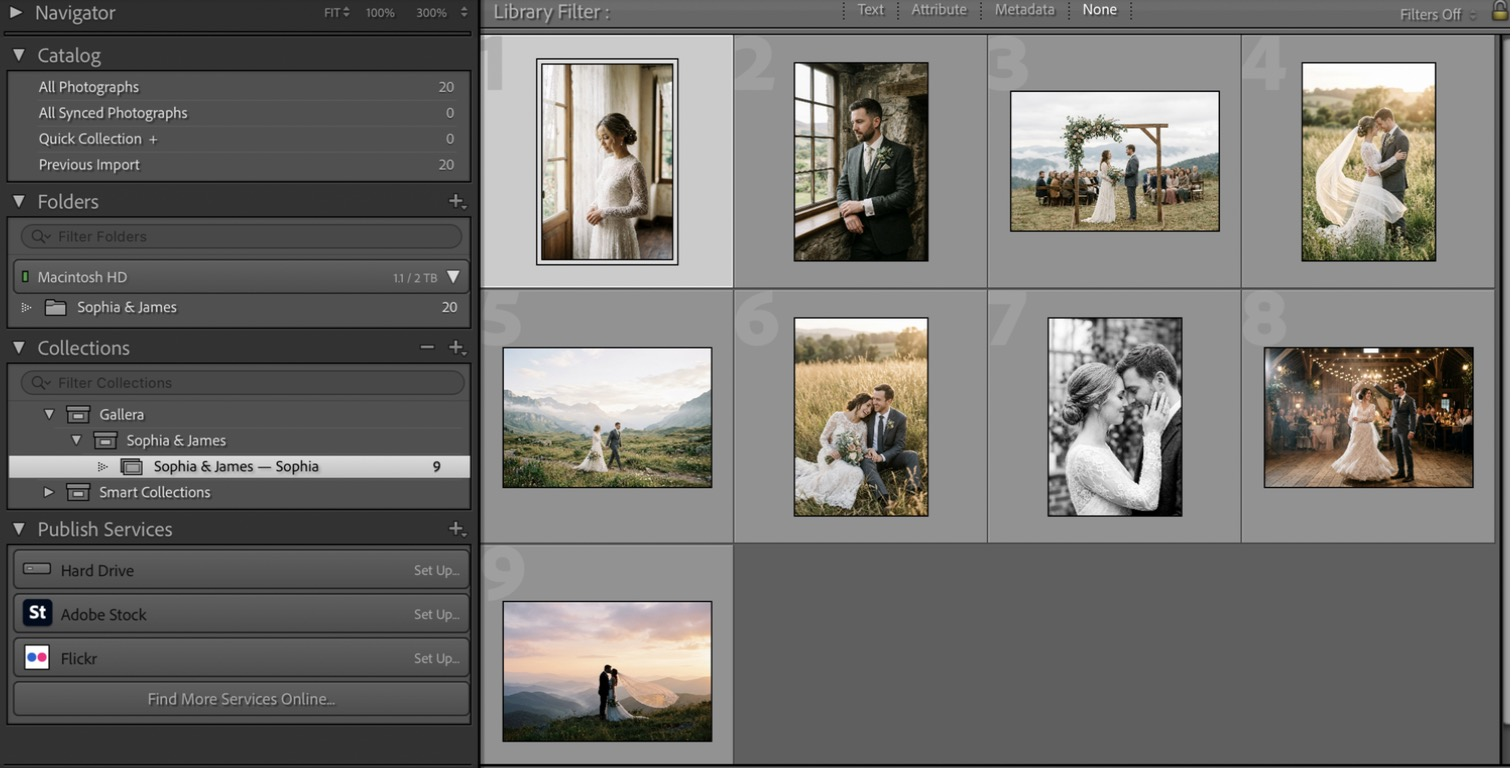
The collection opens right away. You'll find it in the Collections panel, in the Gallera set → the gallery name → “Gallery — list”, for example Gallera › Sophia & James › Sophia & James — Sophia.
Next time the window opens on the list you imported last.
Did the client add more photos? Import the same list again — the plugin updates the same collection, even if you've renamed it.
How the plugin finds photos
Photos are matched by file name without the extension: IMG_0012.jpg in the gallery finds IMG_0012.CR3 in the catalog. Letter case and spaces in names don't get in the way.
The plugin also finds photos renamed when they were imported into Lightroom (by their original file name) and photos that got a number in their name when uploaded through the plugin (IMG_0001-2.jpg).
What the plugin can't find: previews renamed on export (for example, Smith-001.jpg instead of IMG_0012.jpg). To make sure favorites are always found, upload photos to the gallery with their original file names — the easiest way is through the plugin.
If something wasn't found
After the import you'll see a report: how many photos were added and which names weren't found. You can select and copy the names in the report.
- Turn on Thorough search for names that weren't found and run the import again. The plugin scans the whole catalog: this finds virtual copies and files renamed after they were uploaded to the gallery. It's slower.
- If you searched in Current folder or collection, check that the right folder is open, or choose Entire catalog.
The same name in different shoots
Sometimes the catalog has several photos with the same name: two cameras, or the IMG_xxxx counter has started over. The Same name found more than once field decides what to do with them:
- Pick the best match — the plugin takes the photo from the shoot where most of the favorites were found (by capture time and folder). Names it can't decide on are listed in the report and not added to the collection.
- Add all matching photos — all photos with that name go into the collection.
If there is both a RAW and a JPEG
Photographers often upload JPEGs to the gallery but edit the RAWs. If the catalog has both a RAW and a file in the gallery's format for a shot, the plugin asks what to add to the collection:
- RAW (for editing);
- JPEG, as in the gallery;
- Both.
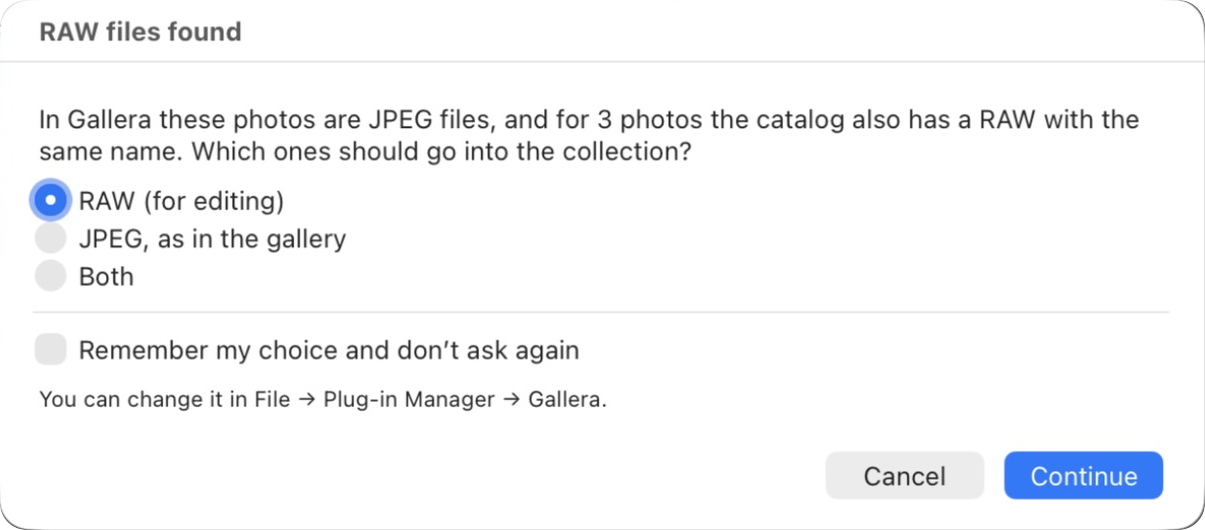
Check Remember my choice and don't ask again, and the plugin won't ask again. You can change the choice in File › Plug-in Manager… → Gallera, in the If there is a RAW field.