Gallery
Updated 09.11.2026 8 min read
The gallery is the main portfolio block: your photos as a grid, masonry, slider or collage. Visitors can open any photo full screen and browse on.
There are two gallery blocks:
- “Gallery” — photos you pick, arrange and caption yourself. For your portfolio.
- “Gallery from Gallera” — photos from your Gallera gallery, without uploading them again. New shots in the gallery appear on the site by themselves. See Gallery from Gallera.
How to add a gallery
- Open the page in the editor.
- Hover over the block after which the gallery should go, and click “+” on its bottom edge.
- In the “Add block” window, in the “Gallery” group, choose “Gallery”.
A new gallery has three empty photo slots. Empty slots aren't shown on the site — only the ones with photos.
A gallery has no heading of its own. To title it, add a “Heading” block above it.
How to add photos
Click the gallery and open the “Content” tab in the panel on the right. It has the “Photos” list.
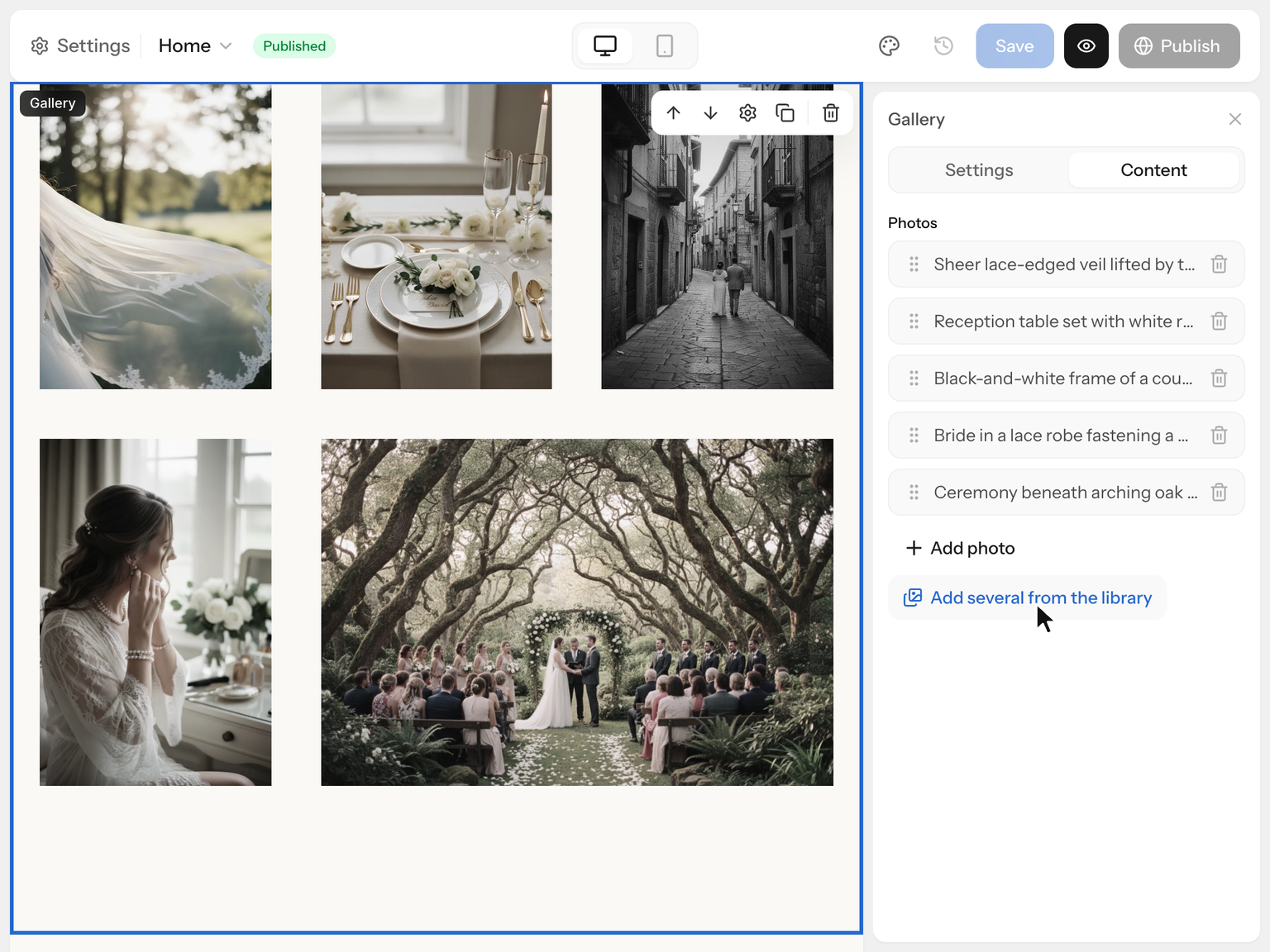
Several photos at once
- Click “Add several from the library”.
- In the media library, click the photos one by one. Each gets a number — that's the order in which they'll appear in the gallery.
- Click “Add (N)”.
The photos fill the empty slots first, and the rest are added to the end of the gallery.
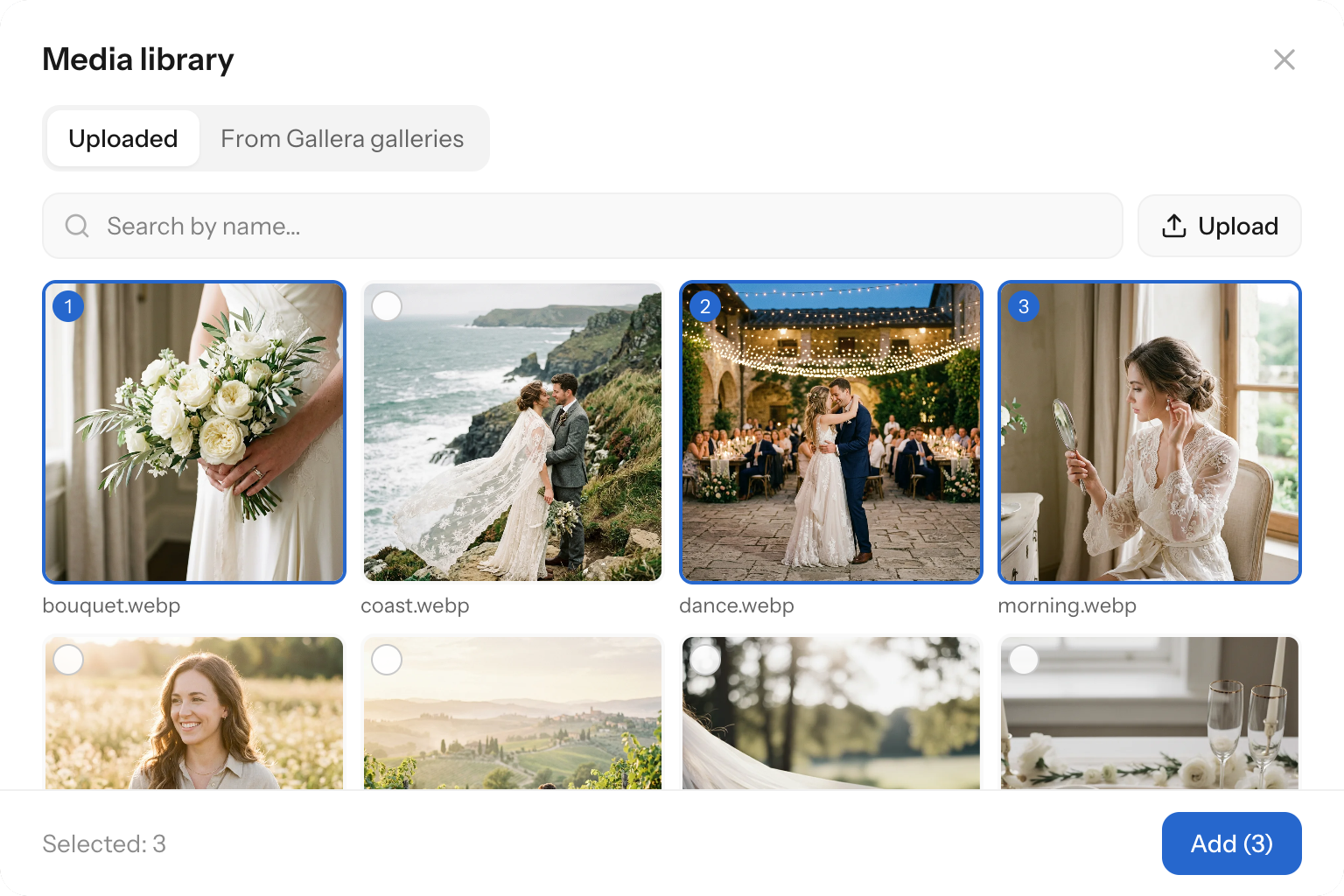
New photos aren't in the media library yet? Click “Upload” there and select several files at once, or drag them into the window. Freshly uploaded photos are selected automatically — just click “Add (N)”.
Photos from a client gallery. In the “From Gallera galleries” tab, open a gallery, select the shots you need and click “Add (N)”. “Show more” loads the next photos. Password-protected galleries can't be opened, while galleries whose client access has ended can still be used — their photos stay in Gallera.
Photos from Gallera galleries aren't copied to the site — the site shows them from the gallery. Don't delete a gallery or shots in Gallera that are used on your site.
A single photo
Click “Add photo” — a new photo opens. Click “Upload photo” or drag a file into the field, and “Media library” opens the photos you've already uploaded.
Photo description and caption
Click a photo in the list to open its fields:
- “Image” — the photo itself: “Replace” or “Media library”.
- “Image description (alt)” — what's in the photo, in one sentence. Visitors don't see it, but Google and screen readers do. See Photos and search.
- “Caption” — text visitors see under the photo. Optional.
To get back to the list, click the arrow with the photo name at the top.
In the list, photos are named after their description — a filled-in alt helps you find the right photo quickly.
Order and removal
To change the order, drag a photo in the list by the ⋮⋮ handle on the left. The trash can on the right removes the photo from the gallery — it stays in the media library.
Display options
In the “Settings” tab, in the “Block” section:
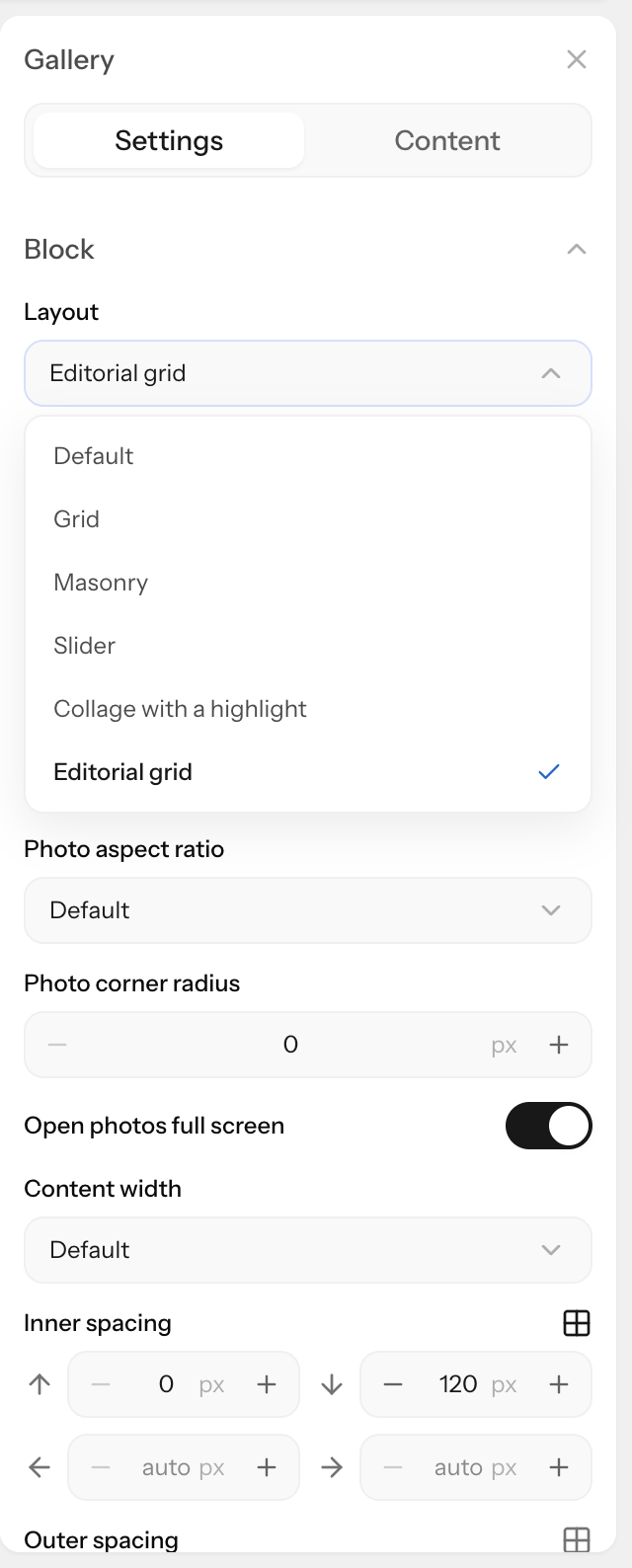
- “Layout”:
- “Grid” — equal cells in rows, square to start with;
- “Masonry” — columns where each photo keeps its own proportions, without cropping;
- “Slider” — photos in a single row that visitors scroll sideways;
- “Collage with a highlight” — each row has a large photo in the middle and smaller ones on both sides;
- “Editorial grid” — rows of narrow and wide frames of the same height, like in a magazine. The “Row pattern” sets how the rows alternate.
- “Columns” — 2, 3 or 4 photos per row. In a slider — how many photos are visible at once.
- “Space between photos” — in pixels, 12 to start with.
- “Photo aspect ratio” — “Square (1:1)”, “Portrait (3:4)”, 4:3, 3:2 or 16:9. Photos are cropped to the ratio from the center; the ratio doesn't affect “Masonry”. See Cropping, aspect ratio and focus point.
- “Photo corner radius” — in pixels, 6 to start with.
- “Open photos full screen” — clicking a photo opens it large on a dark background. Browse with the on-screen arrows or the keyboard arrows; close with the cross, the Esc key or a click outside the photo.
- Then come “Content width”, spacing and background color, as in other blocks.
The “Photo captions” section sets the font, size, color, italics, line height, alignment and spacing of captions.
In the editor, photos don't open full screen — clicking the gallery opens its settings. Check it in “Preview”.
On phones
- “Grid” and “Masonry” show 2 photos per row, however many columns you've set.
- In “Collage with a highlight” and “Editorial grid”, photos stack one under another.
- “Slider” shows about two photos per screen, and visitors swipe through the rest.
- “Space between photos” can be set separately for phones — see The mobile version of your site.
- In full screen on a phone, photos are switched with the arrows on the sides.
Phones load smaller copies of the photos, and photos below the screen load only when the visitor scrolls to them. So even a large gallery opens quickly.
Gallery from Gallera
The “Gallery from Gallera” block shows photos from your Gallera gallery on your site — a fresh shoot or a dedicated portfolio gallery. You don't need to upload the photos again, and new shots in the gallery appear on the site by themselves.
- In the “Add block” window, in the “Gallery” group, choose “Gallery from Gallera”.
- In the “Content” tab, in the “Gallery” field, click “Browse” and choose a gallery.
- In “Photos to show”, choose 6, 9, 12, 18, 24 or “All (up to 60)”. It's 12 to start with.
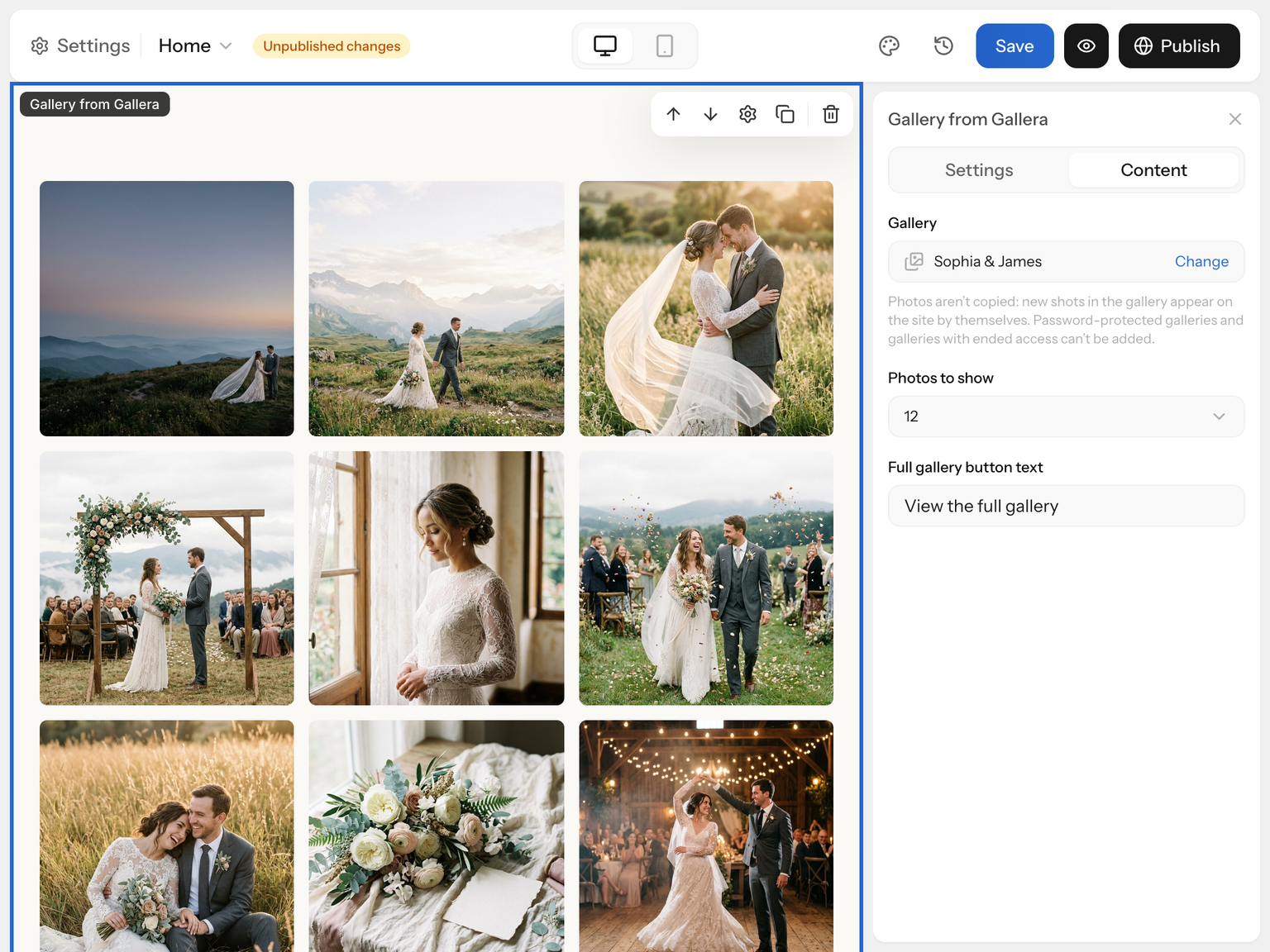
Photos appear in the same order as in the gallery. Only what the gallery's clients see makes it to the site: no hidden photos, hidden scenes or videos. Layout, columns, aspect ratio and full-screen viewing are set the same way as in “Gallery”.
You can't show a password-protected gallery or a gallery whose client access has ended. If the gallery is later deleted, gets a password or its access ends, the block disappears from the site, and the editor shows “The gallery is unavailable…”.
A button to the full gallery. In the “Settings” tab, in the “Button” section, you can turn on “Show the gallery button”, and set its label in the “Content” tab, in the “Full gallery button text” field. The button is off to start with: with it, any site visitor can open the whole client gallery on gallera.io.
All site visitors see the photos on your site. Show a client gallery — let alone a button to it — only with your client's consent.
The description (alt) of every photo in this block is the gallery name, and there are no captions. For key portfolio shots with their own descriptions, use a regular “Gallery”.
Limitations
- Photos open full screen only in “Preview” and on the live site.
- There's no focus point in a gallery: photos are cropped to the ratio from the center. To show a different part, crop the photo before uploading or choose “Masonry”.
- “Gallery from Gallera” shows up to 60 photos, without individual descriptions or captions.
Tips for photographers
- 6–12 photos per block, up to 20 on a single category page. If you have more, split them across several portfolio pages.
- Your strongest shot first. In a general portfolio, no more than three shots from one session.
- Match the ratio to the shoot. Weddings and documentary work with portrait and landscape frames mixed — “Masonry”; portraits — “Portrait (3:4)”. See Cropping, aspect ratio and focus point.
- A description for every photo — who, doing what, where:
- good: “Bride and groom under an old oak in Shevchenko Park, Lviv”;
- bad: “IMG_4821”, “wedding photo photographer”.
- Keep captions short: the couple's names, the location, the year.
- Client photos only with your client's consent, especially photos of children.
If something's wrong
A photo doesn't open full screen. It doesn't work in the editor — open “Preview”. Check that “Open photos full screen” is on.
The editor shows empty frames with the word “photo”. These are slots without photos — fill them or delete them with the trash can in the list. They aren't visible on the site anyway.
Heads are cut off in photos. Choose “Masonry” or “Portrait (3:4)”, or crop the photo before uploading.
“Gallery from Gallera” shows “The gallery is unavailable…”. The gallery was deleted, got a password, has no photos, or its client access has ended. Check the gallery in Gallera or choose another one.