How to add your site to Google Search Console
Updated 09.11.2026 7 min read
Google Search Console is a free Google service for site owners. It shows which pages of your site are in search, which queries people find you by, and what stops Google from adding a page. You can also submit your sitemap there and ask Google to crawl a new page sooner.
Google will find your site without Search Console too, but with it — faster, and you'll see what's going on.
Before you start
- Publish the home page and any other finished pages. Google can't see drafts. See Saving, previewing and publishing.
- Decide which address to add. If a custom domain is connected and “Active”, add the domain: that's what Gallera tells search engines is your site's main address. If you don't have a domain — the gallera.me address, such as
olenaphoto.gallera.me. - You need a Google account — the same one you use for Gmail.
Step 1. Add your site
- Open search.google.com/search-console and sign in to your Google account.
- Add a property. Google offers two types:
- Domain — the whole domain with every address on it. It only works for a custom domain, because it's verified with a DNS record.
- URL prefix — one site address. It works both for the gallera.me address and for a custom domain.
| Your address | Property type | How to verify |
|---|---|---|
olenaphoto.gallera.me |
URL prefix: https://olenaphoto.gallera.me |
Meta tag |
A custom domain, such as olenaphoto.com |
Domain: olenaphoto.com |
TXT record in DNS |
| A custom domain, but no access to DNS | URL prefix: https://olenaphoto.com |
Meta tag |
For the URL prefix type, enter the address exactly as it opens in the browser: with https://, and with www if your domain is connected with www.
Step 2. Verify that the site is yours
With a meta tag
- In Search Console, among the verification methods, expand HTML tag and copy the line that looks like
<meta name="google-site-verification" content="…" />. - In your Gallera account, open the site settings → “HTML code”.
- Paste the line into the “Code in <head>” field. If there's other code there already, add the line on a new line without deleting anything.
- Click “Save” under the fields.
- Go back to Search Console and click Verify.
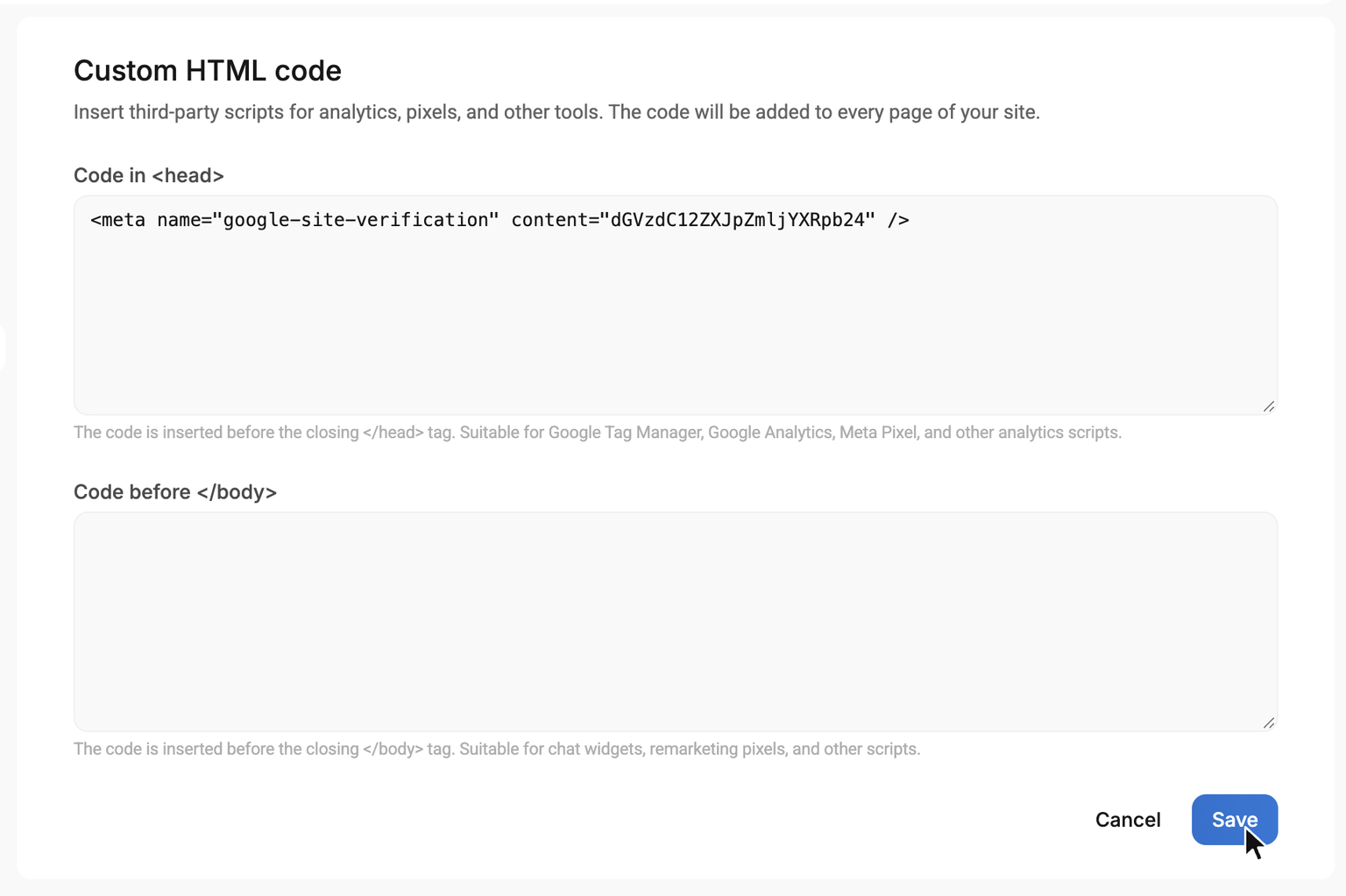
The code appears on the site as soon as you save it — you don't need to publish any pages.
Don't delete the meta tag after verification: Google checks it from time to time, and without it you lose access to Search Console.
With a TXT record in DNS
- In Search Console, copy the TXT record that looks like
google-site-verification=…. - Open your domain's DNS settings where you added the record to connect the domain to Gallera: at your registrar or, for example, in Cloudflare.
- Add a new record: type TXT, Name
@, Value — the copied line. Don't touch the records for Gallera: a TXT record doesn't affect how the site works. - Go back to Search Console and click Verify. If Google doesn't see the record yet, wait a few hours and try again: DNS changes take time to spread.
Don't delete this record after verification either.
Step 3. Submit the sitemap
The sitemap is a list of all published pages. Gallera creates and updates it on its own: it's always at /sitemap.xml, such as https://olenaphoto.com/sitemap.xml.
- In the Search Console menu, open Sitemaps.
- In the Add a new sitemap field, enter
sitemap.xmland click Submit. - Within a few minutes or hours the status changes to Success.
You don't need to submit the sitemap again after every change: as soon as you publish a page, it appears in the sitemap, and Google rereads the sitemap on its own.
The sitemap doesn't include drafts or pages with “Hide from search engines” turned on.
Step 4. Ask Google to index a page
When you've published a new page or changed an old one significantly, you can ask Google to crawl it sooner.
- Paste the page address into the search bar at the top of Search Console (URL inspection).
- Google shows whether the page is in search: URL is on Google or URL is not on Google.
- Click Request indexing.
The number of such requests per day is limited, so ask only for important pages. Google will find the rest on its own through the sitemap.
How long it takes
A new site appears in Google within a few days to a few weeks. Rankings for queries like “wedding photographer Lviv” grow gradually — over months.
You can check which pages are already in search right in Google: type site:olenaphoto.com — with your site's address.
The Pages report
In Search Console, open Pages (in the Indexing section). It shows how many pages are in search (Indexed) and why the others aren't (Not indexed). The most common reasons:
| Reason in the report | What it means | What to do |
|---|---|---|
| Excluded by ‘noindex’ tag | The page is hidden from search | If it should be in search, turn off “Hide from search engines” in its SEO |
| Not found (404) | The page was deleted, its address changed, or it's still a draft | Publish the page. If it was deleted or moved, there's nothing to do — Google removes the old address on its own |
| Alternate page with proper canonical tag | This address is a copy of the page's main address | Normal for gallera.me addresses when a custom domain is connected |
| Crawled - currently not indexed, Discovered - currently not indexed | Google knows about the page but hasn't added it yet | Wait. Text on the page and a link to it from the menu help |
After connecting a custom domain
If you added the gallera.me address to Search Console and then connected a custom domain:
- Wait until the domain is “Active”.
- Add the domain to Search Console as a new property and verify it (steps 1–2).
- Submit the sitemap for the domain (step 3).
The gallera.me address keeps working, and on every page Gallera points to the domain as the main address. Google gradually moves your pages in search over to the domain — you don't need to tell it about the move separately. You can keep the old property in Search Console.
Bing and DuckDuckGo bring visitors too, though far fewer than Google. The easiest way to add your site to Bing Webmaster Tools is to import it from Google Search Console.
If something doesn't work
Search Console says it couldn't find the meta tag. Check that you clicked “Save” in the “HTML code” section, the home page is published, and the site isn't suspended because of the plan. The property address must match the site address exactly — with https://, and with or without www.
Verification with the TXT record fails. Wait a few hours after adding the record. Check that the record is added for the root domain (Name @) and that the value is copied in full.
The sitemap has an error. If the property is the gallera.me address but an active custom domain is connected, the sitemap lists the domain's addresses, and Search Console doesn't accept them. Add a property for the domain and submit the sitemap there.
A page has been missing from Google for a long time. Check that it's published and not hidden from search, then ask Google to index it (step 4). A new page may take a few weeks to appear.