How to change the gallery address?
Updated 20.10.2026 1 min read
You can change the address (link) of your gallery in its settings.
🔧 How to do it
- Open the gallery you need
- Go to the “Settings” tab → “General”
- Find the “Gallery link” field
- Enter the new gallery address — the part after your profile address
- Press Enter or simply move to another field — changes are saved automatically
The “Copy” button next to the field copies the new link.
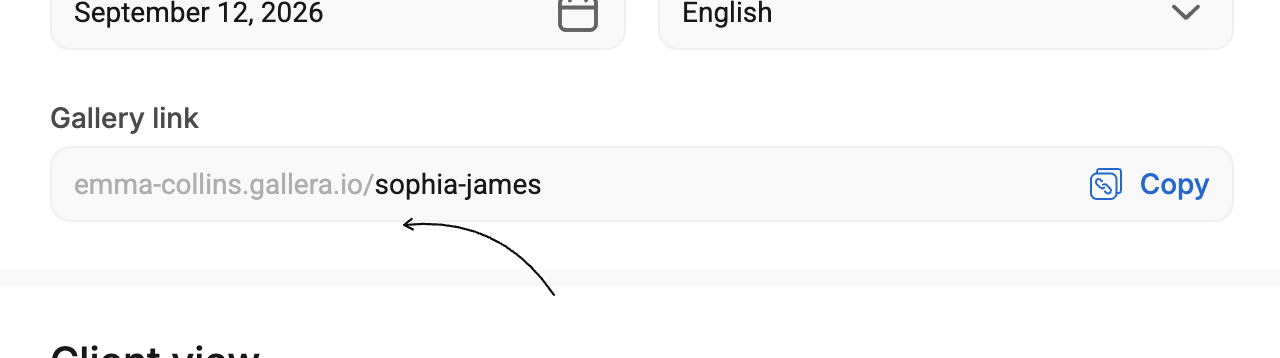
After you change the address, the old link will no longer work, so you'll need to send the new link to your client
🔗 The address depends on the profile
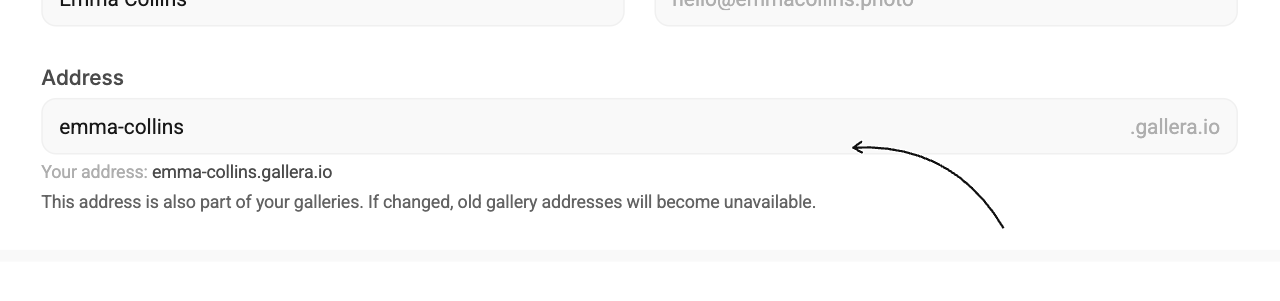
The full gallery address is partly made up of your profile address.
For example: https://username.gallera.io/my-gallery
If you change your profile address, all previous gallery links will also stop working.
⚙️ How to change the profile address
To change your profile address:
- Open your account Settings — the menu under your name in the bottom left corner
- On the “General” tab, find the “Address” field
- Enter the new address
- Click “Save”