Gallery Cover
Updated 09.11.2026 3 min read
By default, the gallery cover is the first photo or video in the gallery.
How to change the gallery cover
There are several ways to change the cover of a gallery:
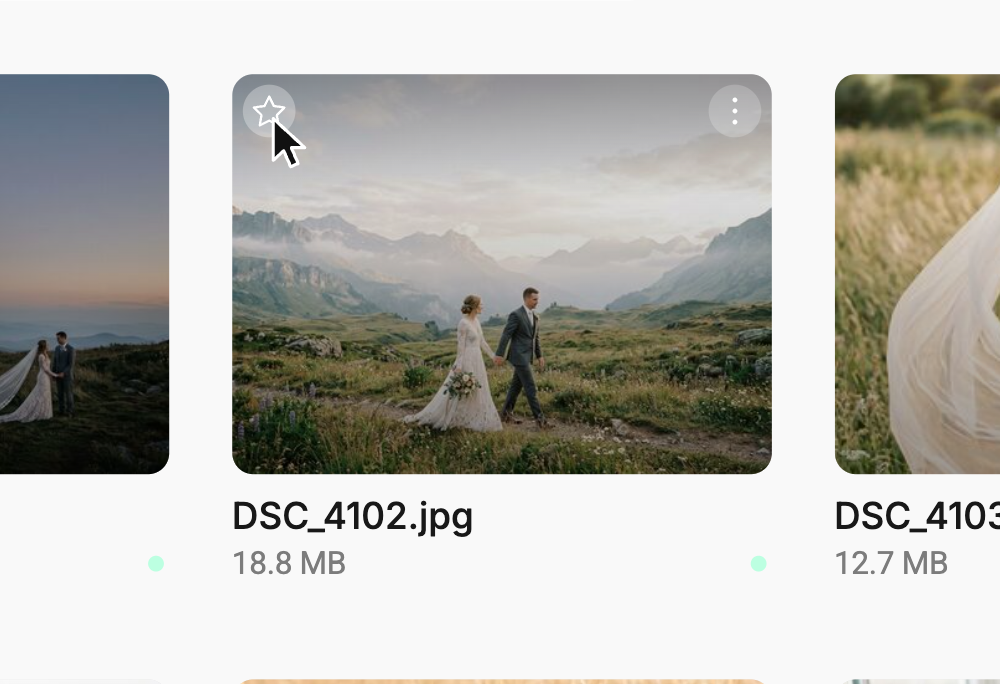
- Choose a cover from the file list. On the “Files” tab, hover over a file — a “Set as cover” star will appear in the top left corner of its card. Click it, and that file will become the cover. The same option is available in the file's menu (“⋯” or right-click). The current cover is marked with a star on a white background.
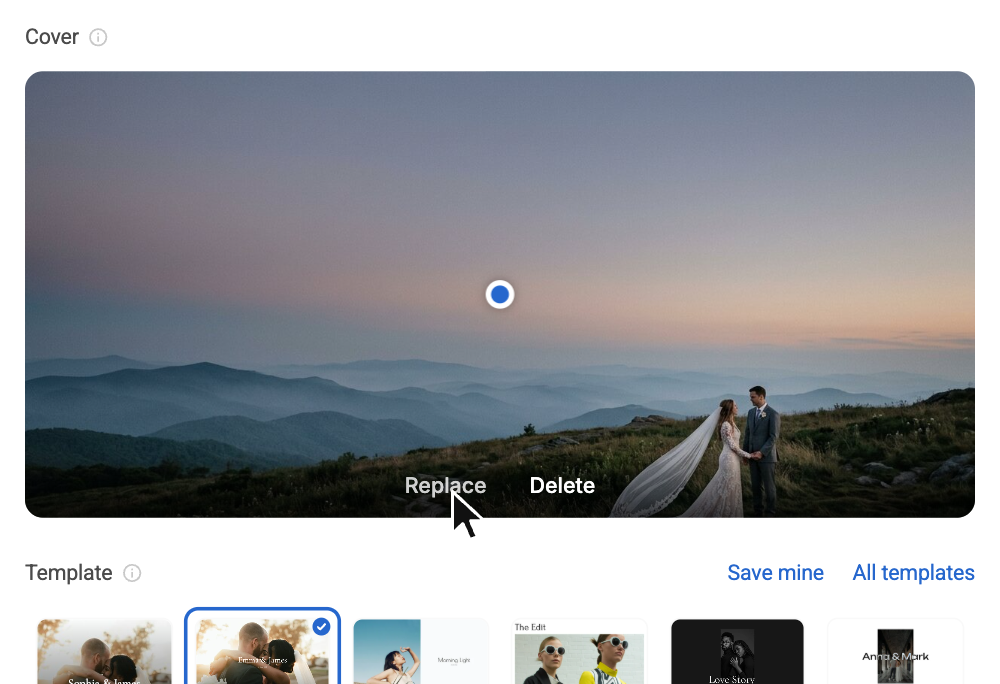
- Upload a separate file on the “Design” tab, in the “Cover” block. If there's no cover yet, click the field or drag a file into it. If there's already a cover, hover over it and click “Replace”; there's also a “Delete” button next to it. The file can be an image (
JPEG,PNG,WEBP, etc.) or a video (MP4,MOV) up to100 MB.
How to change the cover position
Open the gallery's “Design” tab. The cover in the “Cover” block has a blue dot — drag it onto the part of the frame that should stay visible. You'll see the changes right away in the preview on the right: how the gallery will look on a computer and on a phone.
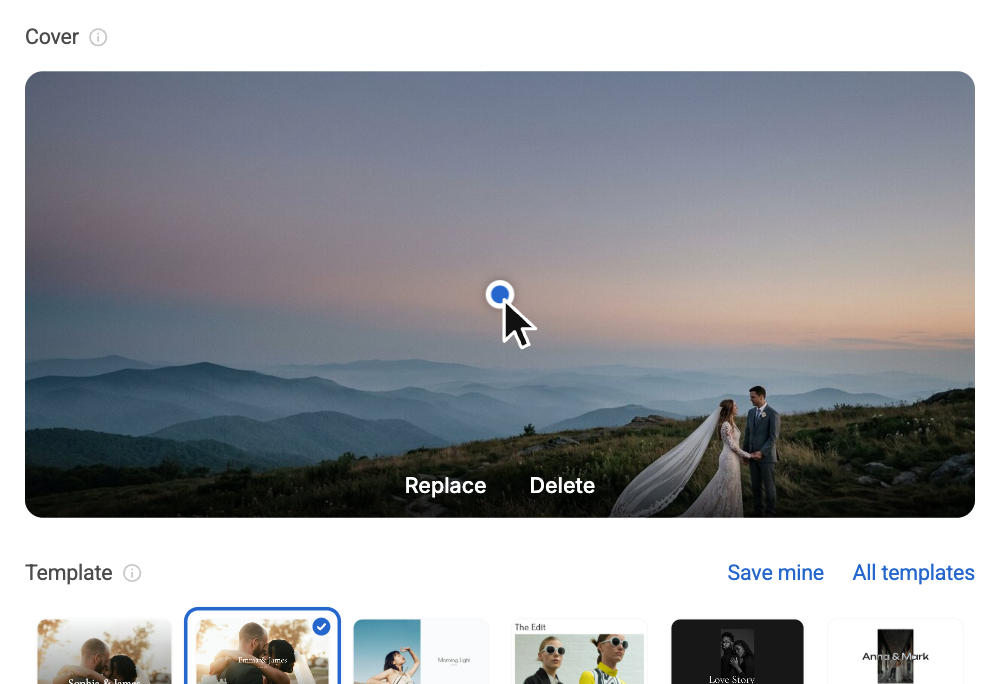
The look of the cover is also set up on the same “Design” tab:
- Template — a ready-made design in one click: cover, fonts, theme, and photo grid. The cover photo, gallery name, and date stay the same. You can save your own design with the “Save mine” button — it will appear among the templates in all your galleries.
- Gallery layout — how the cover and title are arranged on the page. For the layout with a frame over the photo, a “Frame style” option appears, and for layouts with the photo on one side — “Photo position”.
- Entrance animation and Scroll arrow — a smooth appearance of the cover and an arrow that scrolls down to the photos.
- Theme — the color scheme of the gallery page.
Fonts, size, and color of the title and date are in the “Typography” section further down this tab.
Gallery cover on social media
When you send a gallery link to your client on social media, each social network pulls in short information about the gallery, such as its name and cover image. For this cover, only the cover position can be adjusted — the size and text color can't be changed.
This cover shows the shoot date, if it's set in the gallery, as well as the name of the gallery author. If you've already sent the link and the cover and text didn't update after your changes, you need to clear the cache. Learn more here: How to update the cover and link text?
Video cover
You can upload a short video as the gallery cover. The video must be up to 100 MB. We recommend the .mp4 format — videos in other formats (for example, .mov) are converted to MP4. The video cover plays without sound. A frame from the first second of the video is used as the cover when generating the cover for social media, or, for example, when the internet connection is poor. Once the page has loaded, the video starts playing automatically.