Cropping, aspect ratio and focus point
Updated 09.11.2026 5 min read
Blocks show photos in a frame of a certain shape: a square, a rectangle, the whole screen. If the photo and the frame have different proportions, the site crops off the extra. This article explains exactly how it crops and how to control it.
How the site crops photos
The photo fills the frame completely, and whatever doesn't fit is hidden. The center of the shot stays in the center of the frame, so the edges get cropped:
- a portrait photo in a landscape frame loses its top and bottom;
- a landscape photo in a portrait frame loses its sides.
A photo is never stretched or squashed. Cropping happens only on the page: the file itself stays whole, and you can show the same photo in full in another block.
There's no manual cropping in the editor, where you'd select the part you need with a frame. You can control the block's aspect ratio, and in a banner and the “Before / After” block — also the focus point.
Where to choose the aspect ratio
The aspect ratio is set in the block's “Settings” tab.
| Block | Field | Options |
|---|---|---|
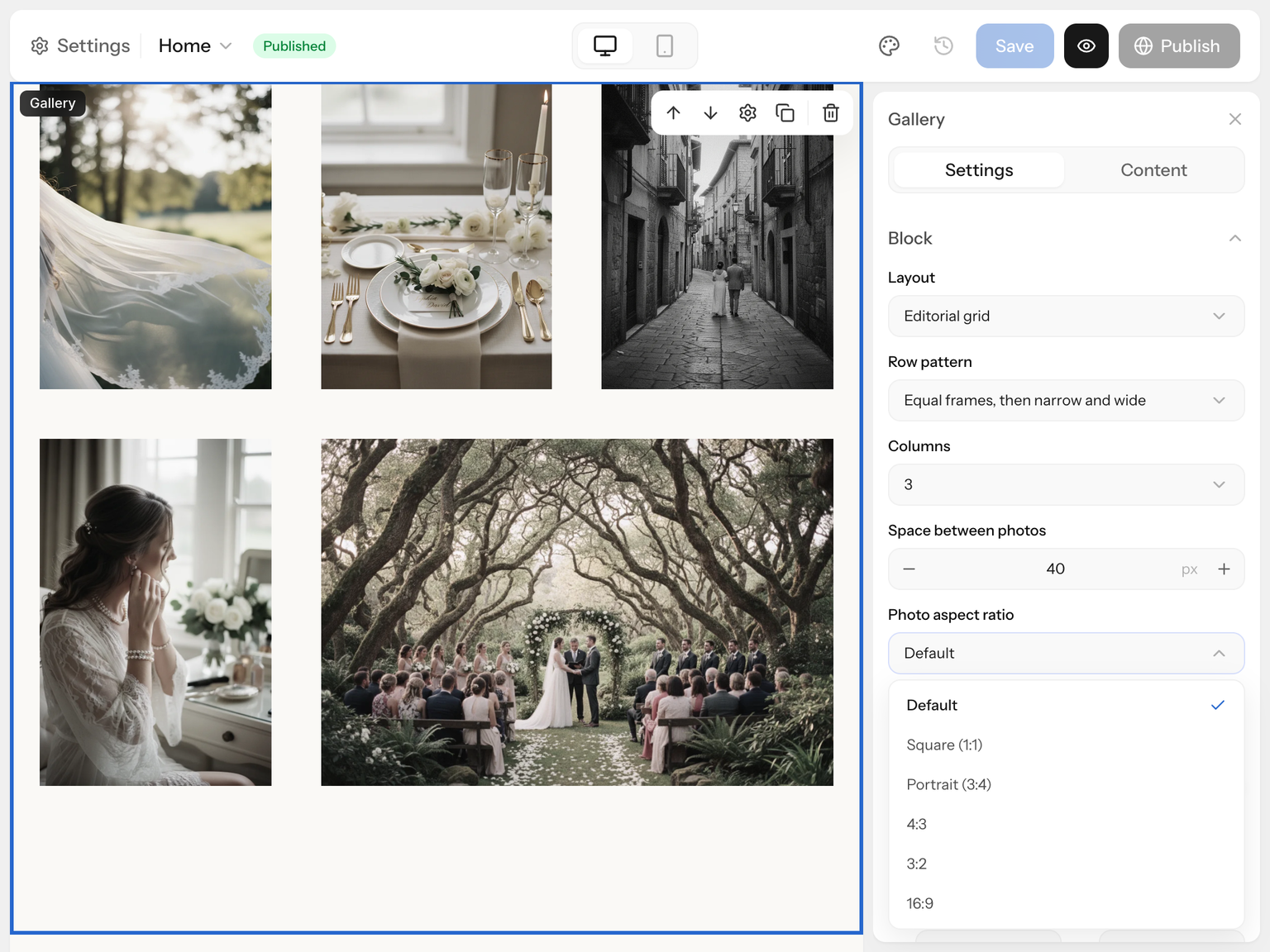
| “Gallery” and “Gallery from Gallera” | “Photo aspect ratio” in the “Block” section | “Square (1:1)”, “Portrait (3:4)”, 4:3, 3:2, 16:9 |
| “Image” and “Image + text” | “Aspect ratio (crop)” in the “Image” section; in the two-photo variant — in the “Large photo” and “Small photo” sections | “Auto” — no cropping, 16:9, 4:3, 3:2, 1:1 |
| “Before / After” | “Photo format” in the “Block” section | landscape 3:2, 4:3, 16:9, square 1:1, portrait 4:5, 2:3 |
| “Banner” | — | the frame is set by the screen and the “Block height” |
Until you choose a ratio in a gallery, “Grid” shows squares, “Slider” — 3:4, and “Collage with a highlight” — 2:3. “Masonry” doesn't crop photos at all, and “Editorial grid” alternates narrow and wide frames by itself.
How much each ratio crops
A camera frame is usually 3:2 (4:3 on a phone). Here's how much of it remains in frames of different ratios:
| Frame | Landscape shot 3:2 | Portrait shot 2:3 |
|---|---|---|
| 16:9 | 84% of the height | 38% of the height |
| 3:2 | the whole shot | 44% of the height |
| 4:3 | 89% of the width | 50% of the height |
| 1:1 | 67% of the width | 67% of the height |
| 3:4 | 50% of the width | 89% of the height |
So a portrait shot in a landscape frame loses half of its height or more — that's where “cut-off heads” come from.
Focus point
The focus point is the key spot of the shot, such as a face. The site shifts the crop so this point always stays in the frame.
The focus point is available in a banner — for both the main and the background photo — and in the “Before / After” block, for each photo separately. To set it:
- Click the block and open the “Content” tab.
- The photo preview has a white dot and the hint “Drag the dot to set the focus”. Drag the dot onto the key part of the shot.
- Check the page in “Phone” mode in the editor's top bar.
To move the point back to the center, click the crosshair button, “Center”, in the bottom right corner of the preview — it appears once the point has been moved.
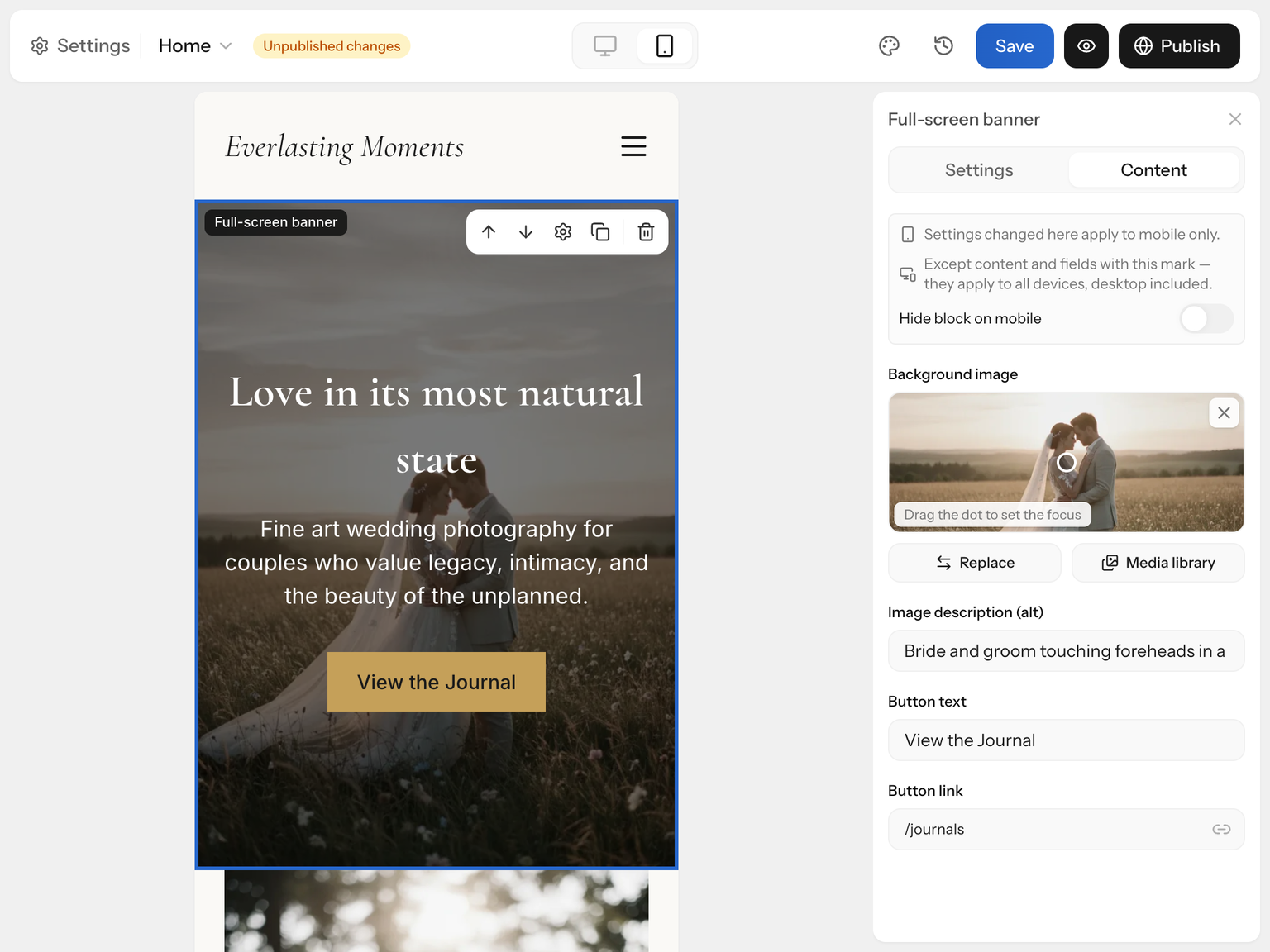
The focus point matters most in a full-screen banner: on a phone, only a third to half of the width of a landscape shot remains, and the point decides which part that is. If the photo fits the frame whole, the point changes nothing.
Portrait photos in landscape frames
If portrait shots get cropped badly:
- in a gallery, choose “Masonry” — photos stay whole — or the “Portrait (3:4)” ratio;
- in the “Image” block, choose the “Auto” ratio;
- in a two-column banner, keep “Block height” at “Auto”: the photo will be shown whole;
- crop the photo to the ratio you need in Lightroom before uploading — then the site has nothing to crop.
Which ratio for which shoot
- Weddings, documentary, love stories — “Masonry” or 3:2: shots stay whole, and you can mix portrait and landscape frames.
- Portraits, fashion, boudoir — “Portrait (3:4)”: portrait shots with almost no loss.
- Landscapes, interiors, architecture — 3:2 or 16:9.
- Product, food, details — “Square (1:1)”: an even grid, like on Instagram.
- Banner — a landscape shot with the subject close to the center and some “air” around it.
How to prepare the photos themselves — see How to prepare photos for your site. How to set up a gallery — see Gallery.
If something's wrong
Heads are cut off in photos. Choose a portrait ratio or “Masonry”, or crop the photo before uploading.
I can't find the focus point. It's available only in a banner and the “Before / After” block — in the “Content” tab, right on the photo preview. In other blocks, photos are cropped from the center.
On a phone, the banner shows the wrong part of the photo. Drag the focus point onto the key part and check in “Phone” mode. See also Banner.
I want to show the photo in full. In a gallery, choose “Masonry”; in the “Image” block — the “Auto” ratio.