Site pages
Updated 09.11.2026 4 min read
Where to manage pages
In your account, open the site settings and go to the “Pages” section. It lists all pages with their addresses. Nested pages, such as /galleries/emma-and-james inside /galleries, are indented.
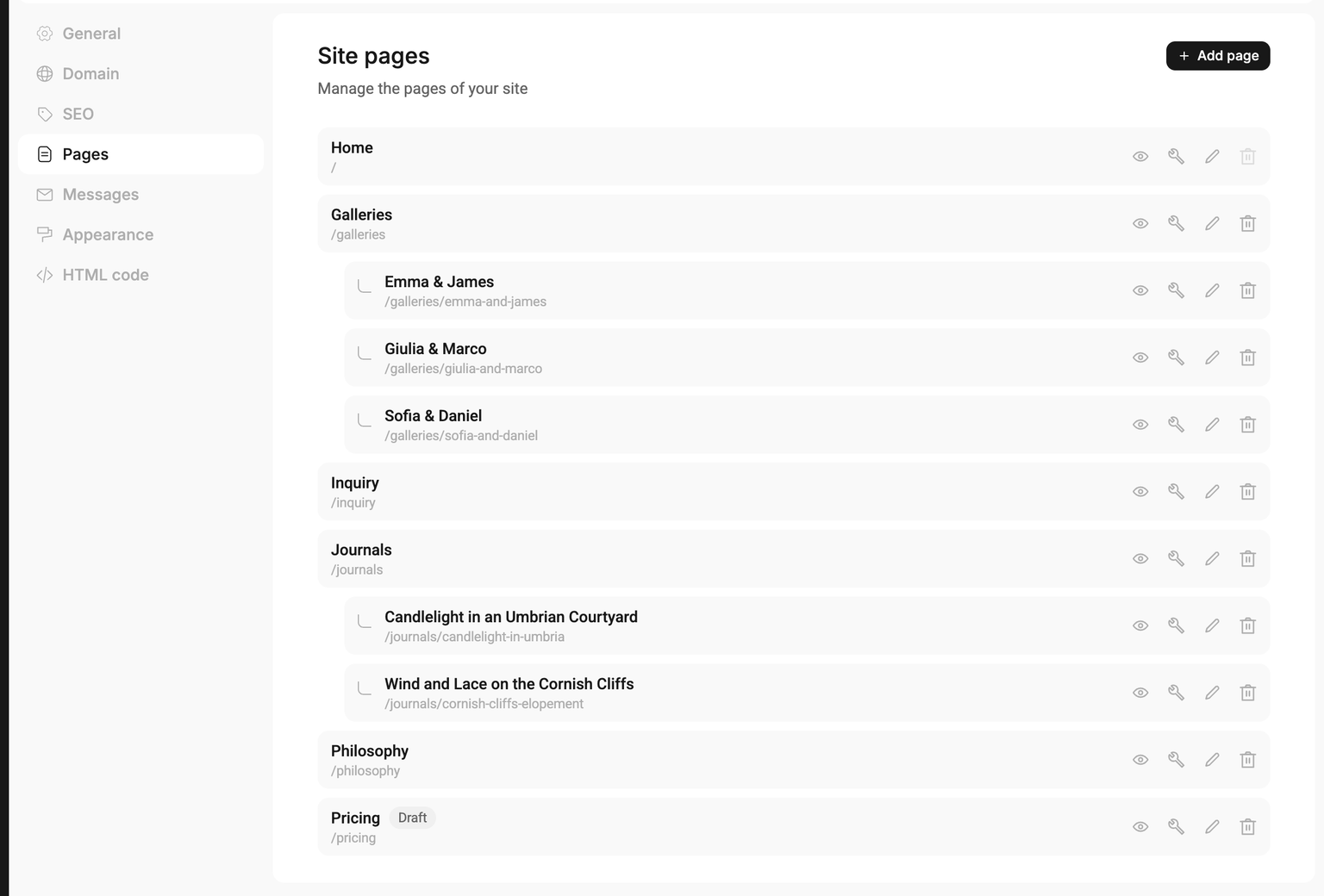
Buttons in a page row:
- eye — view the page on the site;
- wrench — page settings: name, address, SEO;
- pencil — open the page in the editor;
- trash can — delete the page.
Pages that have never been published are marked “Draft”.
How to add a page
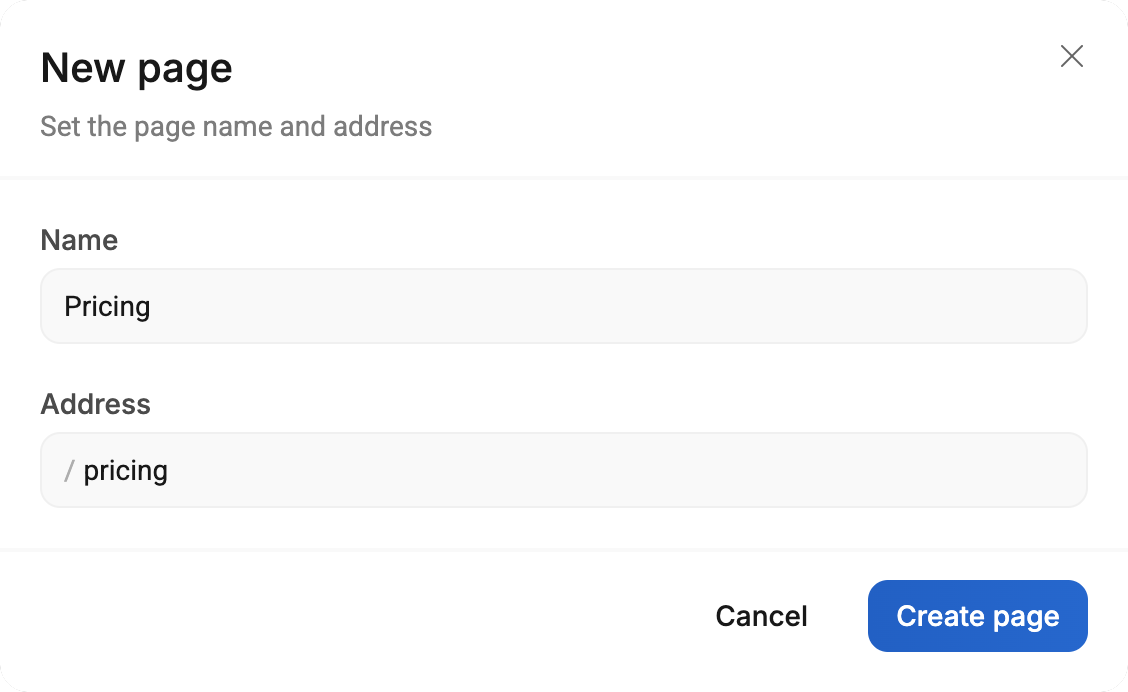
In your account. In the “Pages” section, click “Add page”, enter a name and an address, and click “Create page”.
In the editor. Open the list of pages in the top left corner and click “New page”.
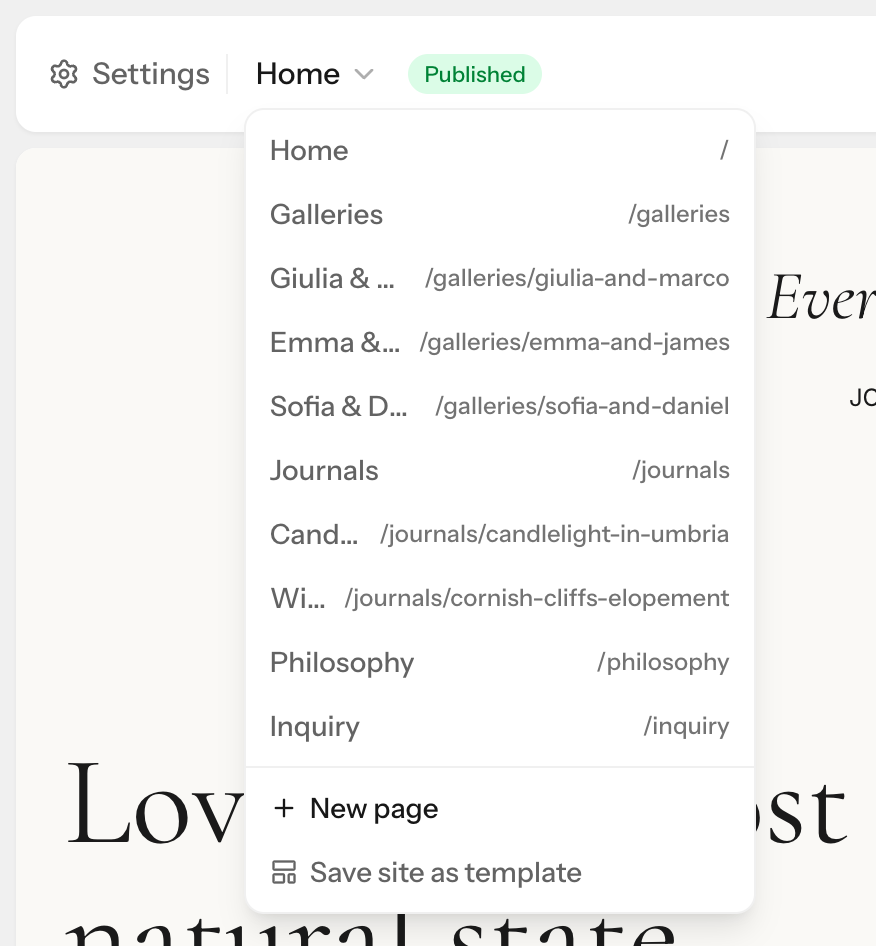
A new page is empty and is created as a draft. Add blocks to it and publish it.
A new page doesn't appear in the site menu by itself. To learn how to add it, see Menu and footer.
Page address
The address is the part of the link after the domain: olenaphoto.gallera.me/weddings.
- Use lowercase Latin letters, digits and hyphens.
- Keep addresses short and readable, such as
/weddingsor/family-photo. Such links are easy to share in messengers. - An address can't match a site language code, such as
/en. - A nested address like
/portfolio/weddingscan be set only in your account. In the editor, a new page gets a single-level address.
You can change the address in the page settings: “Pages” → wrench → the “Address (URL)” field.

If you change the address of a published page, the old link stops opening — there's no automatic redirect yet. Menu items and buttons whose link was picked from the list of pages switch to the new address by themselves. Update links typed by hand, as well as ones you've already shared on social media and in messengers.
Home page
The home page opens at the site address without a path, such as olenaphoto.gallera.me. To make another page the home page, open “General” in the site settings and choose it in the “Home page” field. The former home page takes over the new one's old address.
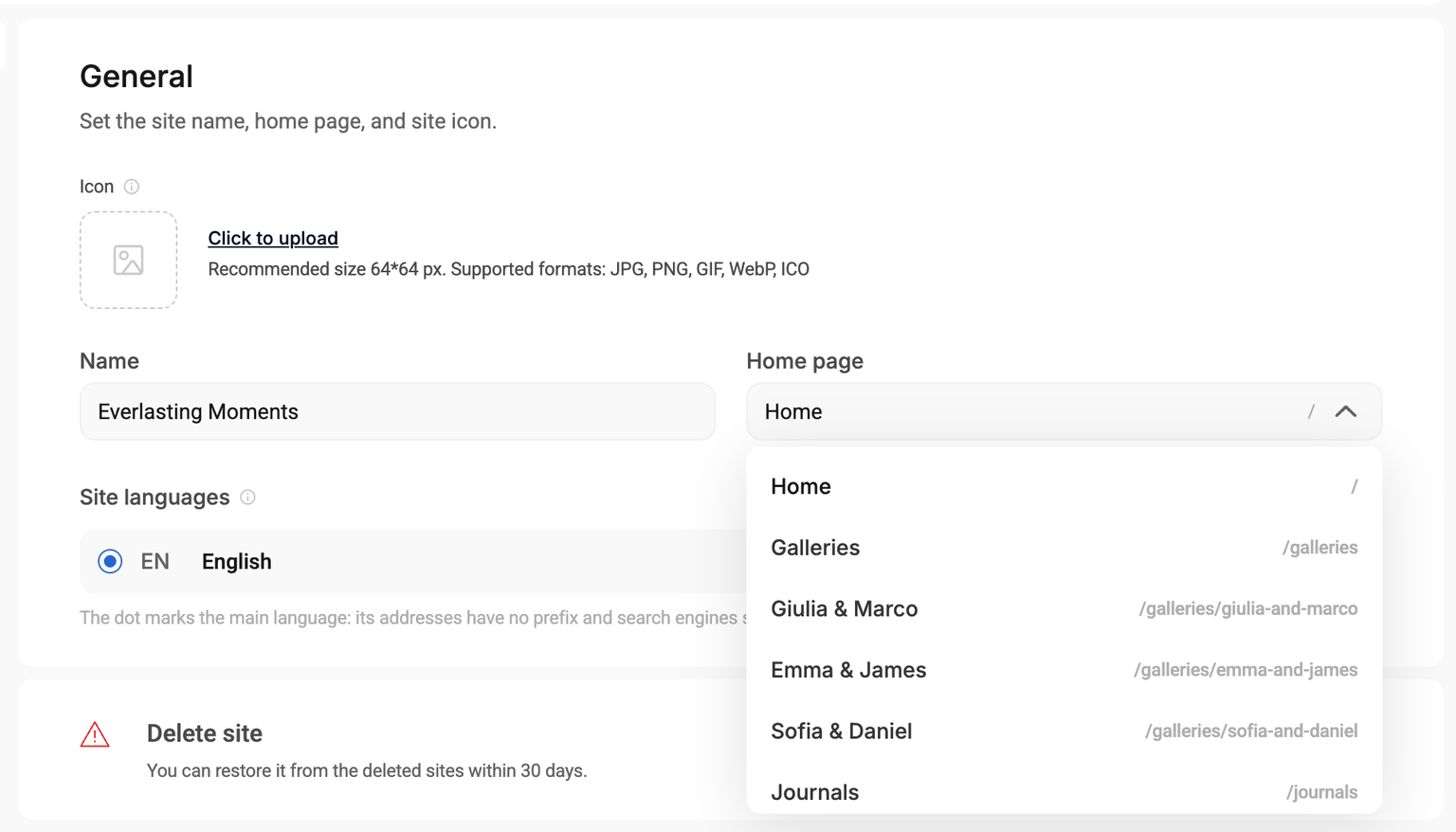
The home page can't be deleted, and its address can't be changed by hand.
Page name
You see the page name in the list of pages and in the editor. Visitors see the page title in the browser tab and in Google:
- if the SEO title is filled in on the “SEO” tab of the page settings — that title;
- if not — “Page name — the site's SEO title”, and if there's no global SEO title either — “Page name — site name”. On the home page without its own SEO title — just the site's SEO title or the site name.
The site's global SEO description is shown only on the home page. For other pages, fill in the description on the “SEO” tab of their settings.
Deleting a page
In the “Pages” section, click the trash can in the page row and confirm. The page stops opening for visitors, and its address becomes free — you can give it to a new page.
Menu items that led to the deleted page and were picked from the list of pages are hidden on the site automatically. Buttons with such a link lead nowhere: in the editor, the link shows “Page deleted” — choose another page or type an address.
There's no button to restore a deleted page. If you deleted a page by mistake, write to us.
Pages can't be duplicated yet. To make a similar page, create a new one and add the blocks you need.